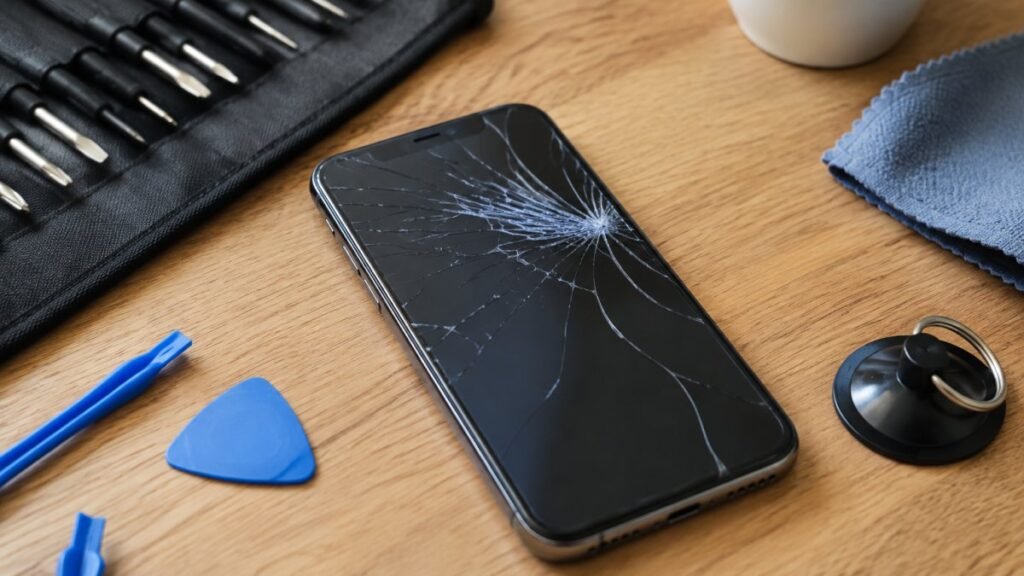
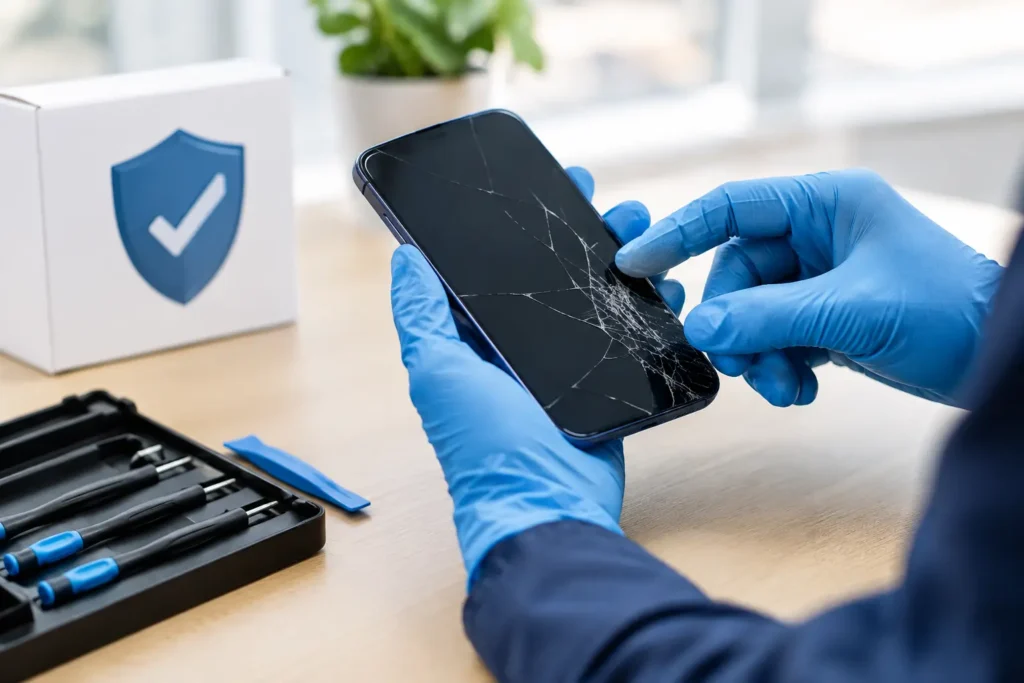
A cracked screen is frustrating. A phone that will not charge, has taken a dip in water, or keeps restarting can feel far more urgent – especially when it holds family photos, work messages, banking access and years of contacts. Knowing how to protect data during phone repair means you can get the fault fixed without adding unnecessary worry.
Most reputable repairs, including screen and battery replacements, do not require your personal files to be viewed or removed. However, any electronic repair carries some level of risk. A device may already be unstable, liquid damage can worsen without warning, and a software issue may require deeper diagnostics. The right preparation gives your data the best possible chance of coming back exactly as you left it.
Back up before your phone leaves your hands
A current backup is your strongest protection. It is not just something to do before a repair – it is good practice whenever your phone contains information you would hate to lose.
For iPhones, use iCloud Backup or create an encrypted backup on a Mac or PC. Encryption matters if you want to preserve saved passwords, Health data and Wi-Fi settings as well as photos and apps. Check the date and time of the latest successful backup rather than assuming it ran overnight.
For Android phones, back up through your Google account and confirm that photos, contacts, messages and device settings have synchronised. Samsung users can also use Samsung Cloud options where available, or make a local backup through Smart Switch. If you use WhatsApp, make sure its own chat backup has completed too – app data does not always follow the same backup rules as the rest of the phone.
Do not overlook files stored outside your camera roll. Downloaded documents, voice notes, authenticator apps, notes and school or work files can be easy to miss. Open your cloud storage app and check that recent files are present. If you have an SD card in an older Android handset, remove it and keep it with you unless it is relevant to the reported fault.
A backup cannot repair the phone itself, but it turns a worst-case data loss into an inconvenience you can recover from.
Check that the backup actually works
Seeing a cloud icon is not the same as knowing your information is safe. Before booking the repair, check a few important items: recent photos, key contacts, notes and the latest backup time. If you use two-factor authentication, confirm you can still sign in to critical accounts from another trusted device or have your recovery codes stored safely.
This is particularly useful if your phone is your only route into online banking, email or work systems. You may not need to move every app to another device, but you should avoid being locked out while your handset is with a technician.
For business-owned phones, speak to your IT contact before handing the device in. Mobile device management, encrypted work profiles and company policies can affect what a repairer can test. A quick conversation prevents delays and ensures that the repair process follows your organisation’s security requirements.
Remove what does not need to go in for repair
Your SIM card contains information that does not need to be present for most repairs. Removing a physical SIM before drop-off prevents anyone from receiving calls or texts on your number and keeps your mobile account under your control. Store it somewhere safe, ideally in a labelled case rather than loose in a pocket.
If your phone uses an eSIM, you usually do not need to delete it for a standard screen, battery or charging-port repair. Deleting an eSIM can create avoidable hassle when reconnecting to your network. If a full device replacement, motherboard repair or reset is likely, ask the technician whether keeping or transferring the eSIM is the best option for your model.
Take off any card holders, wallet cases and accessories too. It sounds obvious, but repair counters regularly see phones with bank cards, driving licences or spare cash tucked into cases.
Use the right level of access
A technician may need to unlock a phone to test touch response, cameras, speakers, charging, wireless connections or fingerprint functions after the repair. That does not mean they need access to your banking app, email inbox or private messages.
Where possible, use the privacy tools built into your handset. Samsung’s Maintenance Mode is designed to create a separate area for repairs, allowing diagnostic testing without exposing your personal photos, accounts and apps. Set it up before drop-off if your phone is working well enough to do so.
On iPhones and other devices without a dedicated repair mode, discuss the testing required before sharing a passcode. In some cases, you can unlock the phone yourself at collection while the repairer demonstrates that the replacement part works. In others, controlled access may be necessary for proper quality checks. It depends on the fault and the model.
Never share banking PINs, account passwords, recovery codes or passwords for password managers. A phone passcode is different from those credentials, but it should still be handled carefully. If you choose to provide a passcode for testing, change it when you collect the device. You can also sign out of sensitive apps beforehand, although doing so may make it harder to confirm that notifications or app-specific functions are working afterwards.
Understand Find My and activation locks
Apple’s Find My feature and Android theft-protection tools are valuable, so do not disable them casually. However, certain repairs and especially device replacements can require activation locks to be removed. A repairer should explain exactly why this is needed and when you should do it.
The safest approach is to keep these protections enabled until you are at the shop and the repair process has been confirmed. Do not send account passwords by text or write them on a repair form. If an activation lock must be removed, do it yourself on the device or through your account while you are present, then re-enable security features as soon as the work is complete.
Be cautious if anyone asks you to erase the handset or remove it permanently from your account for a routine repair without a clear explanation. A screen replacement, for example, generally should not require you to surrender ownership controls.
Choose a repairer that treats privacy as part of the job
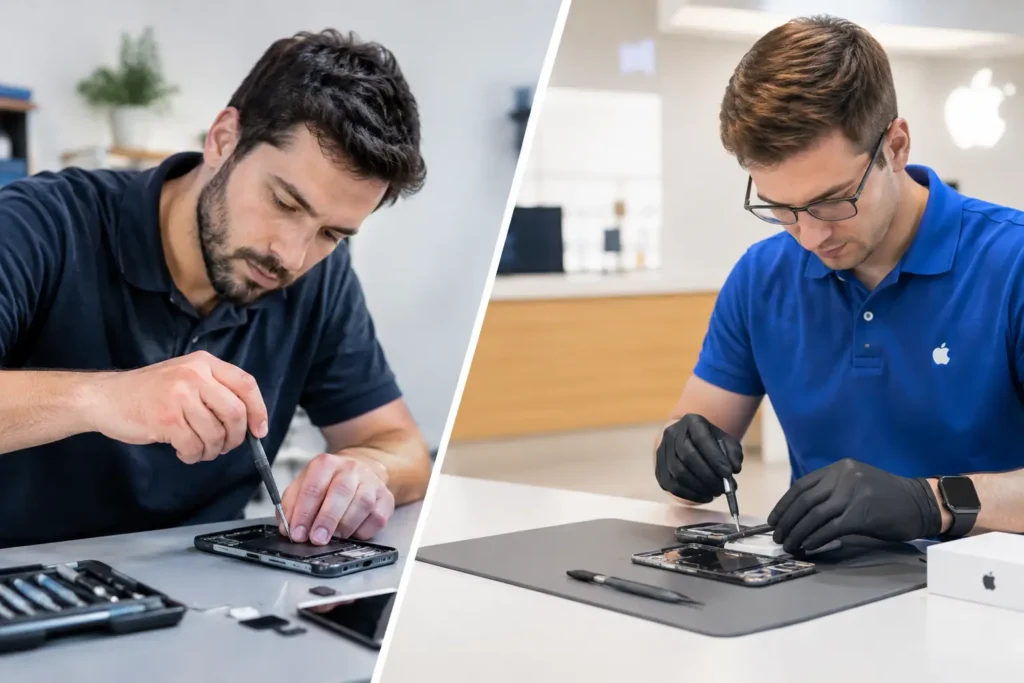
Price and turnaround matter, but data handling should be part of your decision too. Ask what information the repairer needs, whether the phone will be kept securely, and what testing takes place after the repair. Clear, straightforward answers are a good sign.
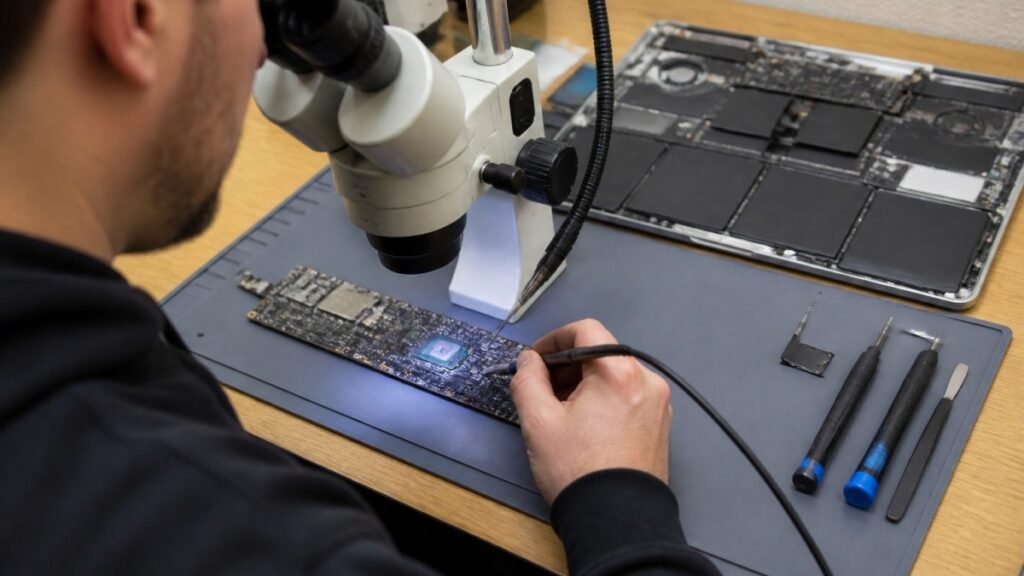
A professional repair service should record the device condition at handover, explain likely repair outcomes and keep your handset secure while it is in the workshop. It should also be honest where a repair carries additional uncertainty. Severe liquid damage, failed storage chips and logic board faults can put data at risk before any technician opens the phone. In those cases, an experienced repairer can advise on the most sensible route, whether that is stabilising the phone, attempting board-level work or prioritising data recovery.
At TechLab Repairs, secure device handling is treated as part of dependable local service, not an optional extra. If you are unsure whether your fault requires a passcode, account change or backup first, ask before you hand the phone over.
Be careful with water-damaged and dead phones
When a phone has liquid damage, your first priority is to stop further harm. Switch it off if possible, do not charge it and do not keep trying to turn it on to check whether it works. Repeated power can cause corrosion or short circuits that turn a recoverable device into a more serious repair.
If the screen is dead but the phone still appears to run, avoid a factory reset. A reset removes the very data you may be trying to save. Tell the repairer that your data is a priority and describe what happened, including whether the phone was charging when it got wet.
The same applies to phones stuck in a restart loop or showing storage errors. Software restoration can sometimes be necessary, but it should be a discussed option, not a surprise. Ask whether a backup or data recovery attempt can be made before any erase is considered.
Check your phone before you leave
Collection is the time to confirm both the repair and your privacy settings. Turn on the phone and test the part that was repaired, then check the camera, speakers, microphone, charging, Wi-Fi, mobile signal and biometric login where relevant. Look through recent photos, messages and key apps to make sure everything is where it should be.
Put your SIM back in if you removed it, confirm calls and mobile data work, and re-enable any security feature that was temporarily switched off. Change the device passcode if it was shared, then check your account security pages for unfamiliar sign-ins if you want extra reassurance.
A broken phone should not force you to choose between a proper repair and your personal information. Take a verified backup, keep control of your accounts and choose a repairer willing to explain the process clearly. That small amount of preparation lets you hand over your phone with confidence – and collect it ready to get on with your day.