A phone that only charges at a certain angle, a laptop that keeps switching between charging and not charging, or a tablet with a loose cable can stop the day in its tracks. The best fixes for broken charging ports depend on what has actually failed – and a careful diagnosis can save you from replacing a perfectly good device or causing further damage with a quick DIY attempt.
A charging problem is not always the port itself. Cables wear out, plugs collect dirt, batteries lose capacity and charging circuits can fail after a drop or liquid exposure. Start with the simple checks, but do not force a cable or poke around inside a port. That is how a minor fault can become a bigger repair.
First, check whether the charging port is really broken
Before assuming the port needs repair, test your device with a known-good cable and suitable power adaptor. Try another wall socket as well. A damaged cable can still look fine on the outside, while broken wires near the connector prevent a reliable charge.
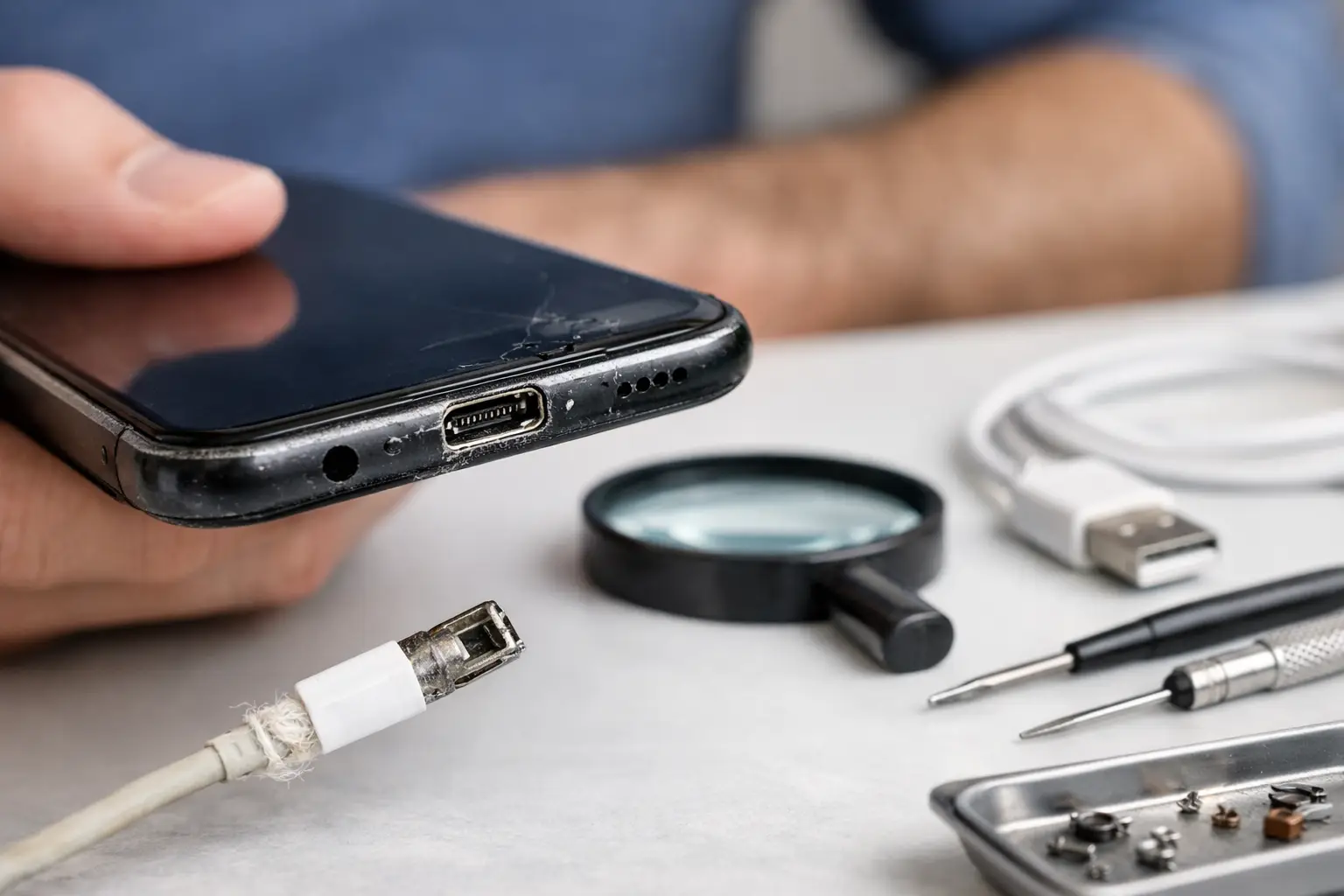
Look closely at how the connector fits. If it slides in fully but feels loose, or falls out easily, packed lint is often the cause. Pockets, bags and dusty work environments gradually push fibres into the bottom of USB-C, Lightning and micro-USB ports. The cable then cannot reach the contacts properly, even though it appears connected.
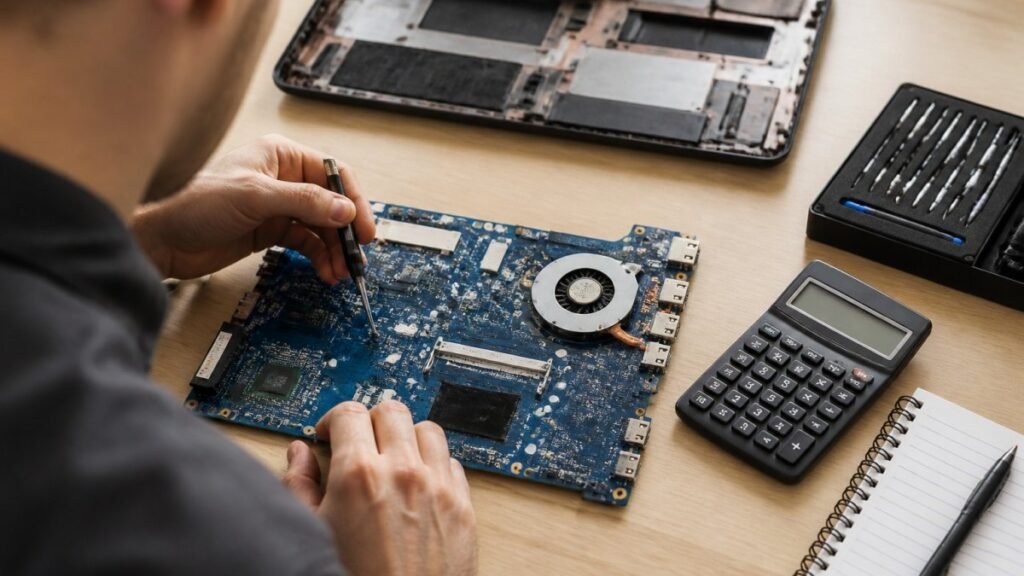
If the cable fits firmly yet charging cuts in and out when it is moved, the port may be worn, bent or detached internally. On laptops and games consoles, the fault may sit behind the socket in the DC-in board, charging circuit or motherboard rather than the visible port itself. This is why the same symptom can have very different repair costs and timescales.
The safest fixes for broken charging ports
Remove loose debris carefully
Switch the device off first. Use a bright torch to inspect the port without inserting anything. If you can clearly see loose fluff, a gentle puff of air from a hand blower may shift it. Keep the device upright or angled down so debris can fall out rather than travel further inside.
Avoid metal pins, paperclips, needles and screwdrivers. Charging ports contain delicate contact points, and one slipped tool can bend or short them. Compressed air can also be risky when used too closely or aggressively, particularly if it drives moisture or debris deeper into the device.
For stubborn compacted lint, professional cleaning is usually the sensible option. A technician can clear the port using the correct tools and check whether the contacts have already been damaged. It is a small job when caught early and can restore a secure connection without replacing parts.
Replace the cable and adaptor where needed
A frayed, kinked or excessively loose cable should be replaced rather than trusted. This matters even more with USB-C laptop chargers and fast-charging phone adaptors, where poor-quality or damaged accessories may charge slowly, overheat or fail to deliver the correct power.
Use a reliable cable and adaptor that meet your device’s requirements. A low-power phone plug might show a charging symbol on a laptop but still be unable to keep up with normal use. Equally, a cable designed only for data or basic charging may not support fast charging correctly.
Check for moisture or liquid damage
If the fault began after rain, a spill or condensation, disconnect the charger immediately. Do not repeatedly plug it in to see whether it has dried out. Power and moisture are a bad combination, and corrosion can continue after the outside of the device looks dry.
Do not use a hairdryer, place the device on a radiator or bury it in rice. Heat can damage batteries, screens and seals, while rice does not remove liquid from internal components. The practical fix is to leave the device switched off and arrange a proper liquid-damage assessment as soon as possible.
Restart and update only after the physical checks
Occasionally, charging behaviour is affected by software, battery health management or a system glitch. Restarting the device and installing the latest available software update may help if the port is clean, the cable is known to work and charging is otherwise physically stable.
Software will not repair a loose socket, bent contact or corroded connector. If the charge only works when the cable is held in a particular position, treat it as a hardware issue rather than spending hours changing settings.
When a charging port needs professional repair
Professional repair is the right next step when the port is visibly damaged, the cable will not sit securely, charging stops with even slight movement, or the device shows no response with tested accessories. A burning smell, unusual heat, a crackling sound or a warning about moisture means stop charging immediately.
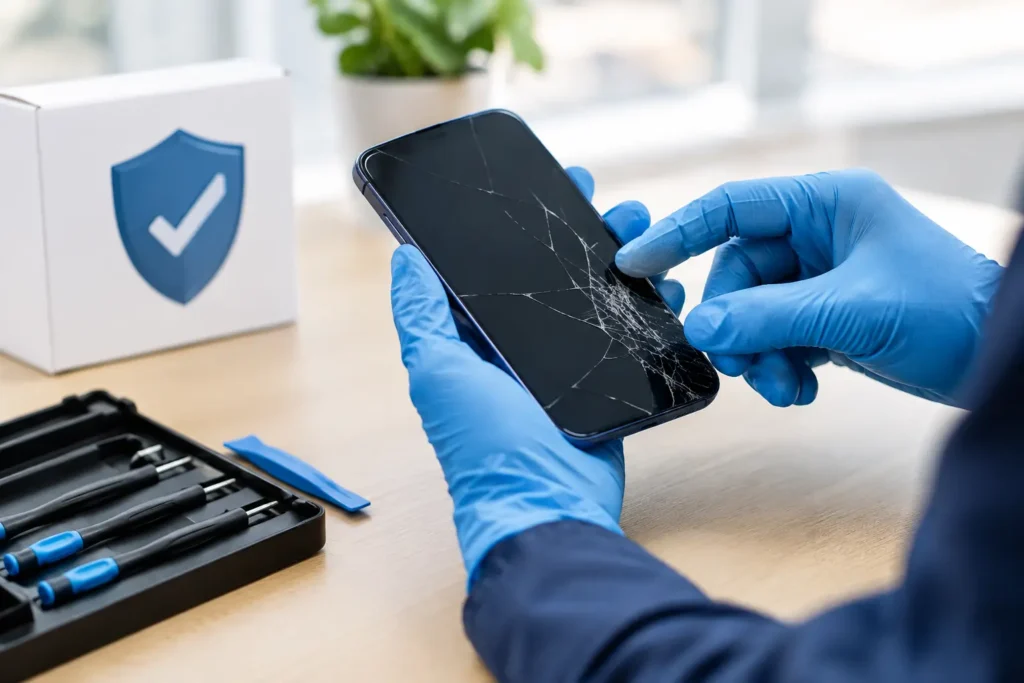
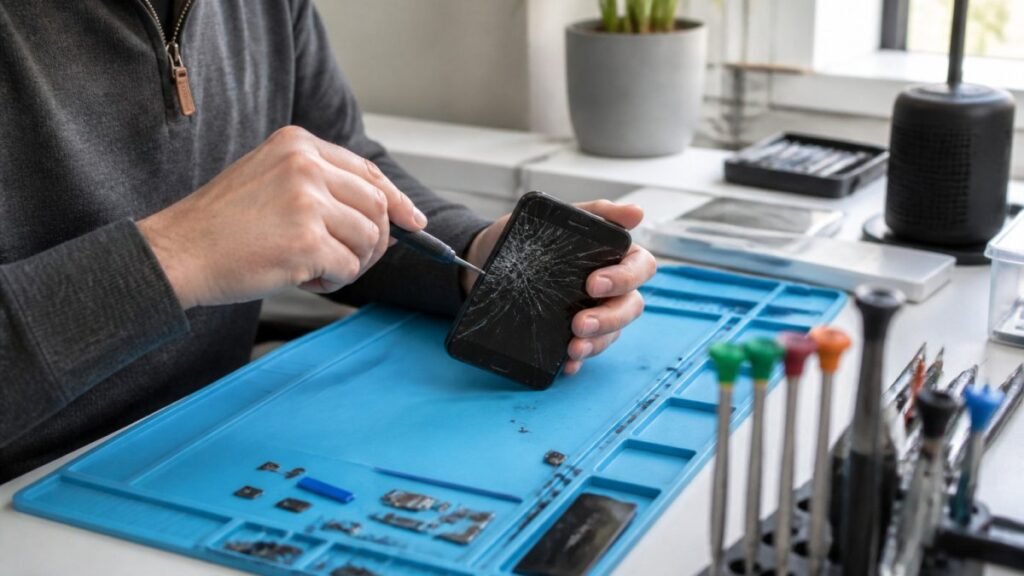
For many iPhones, Samsung handsets and Android phones, the charging connector is part of a replaceable assembly. Replacing it can resolve worn pins, physical damage and some microphone or signal-related faults where those parts share the same flex cable. The exact repair depends on the model – modern devices are tightly built, and opening them without the right equipment can damage the display, rear glass, battery or water-resistance seals.
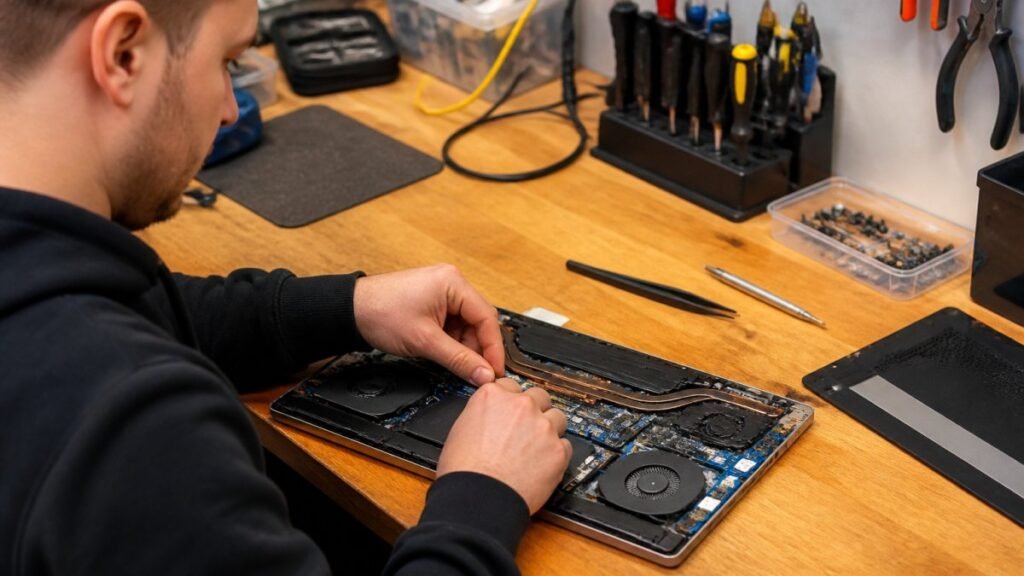
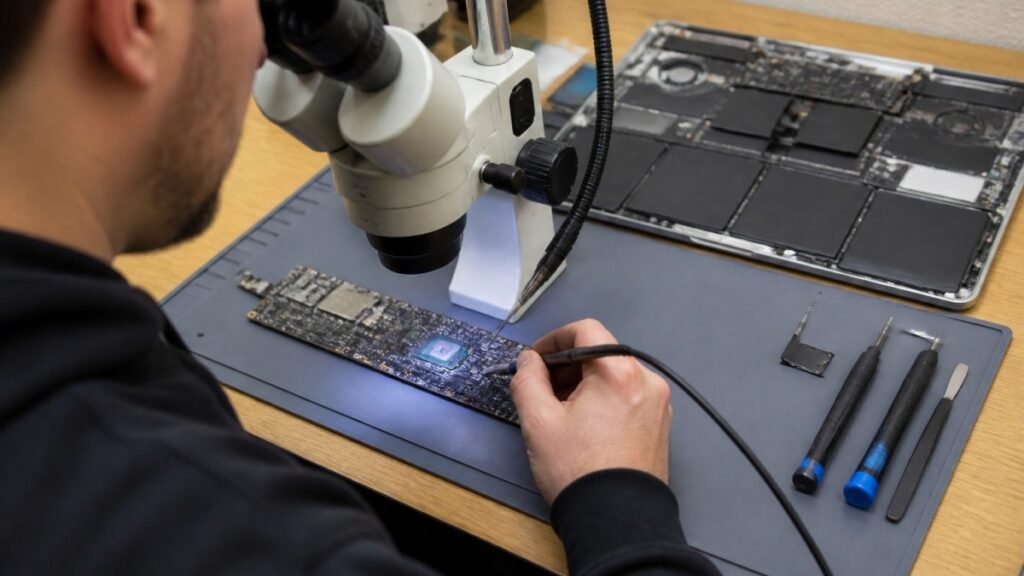
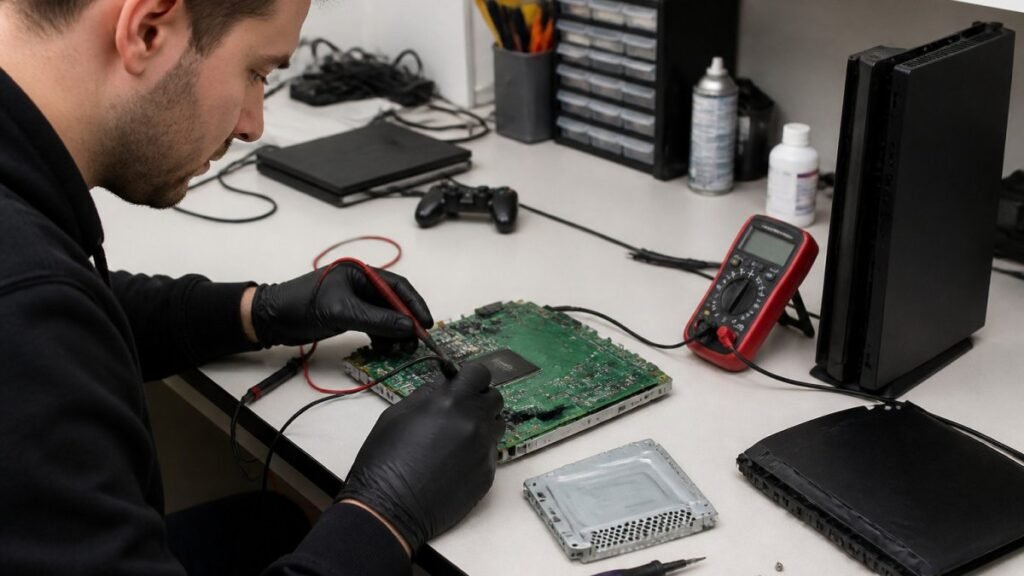
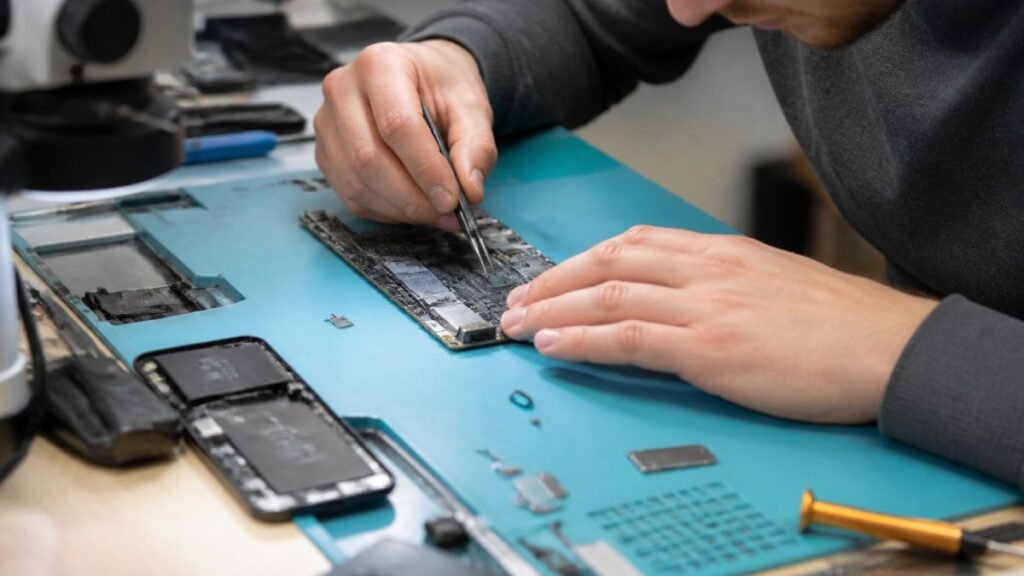
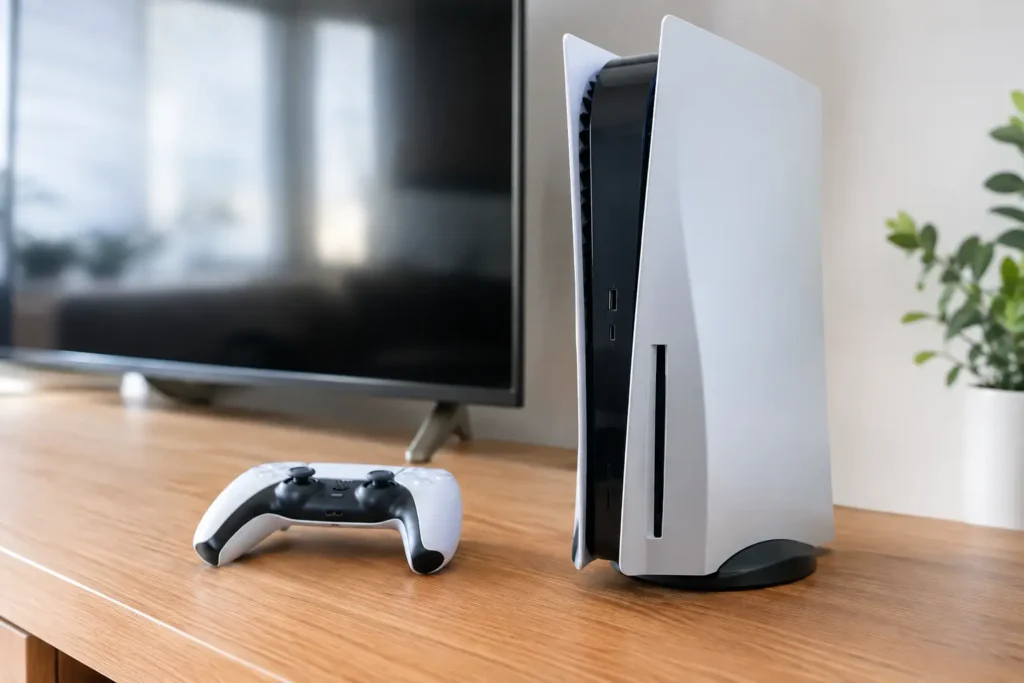
Tablet repairs can be more involved because charging ports are often soldered directly to the board. The same can apply to USB-C laptops, Nintendo Switch consoles and games consoles with damaged HDMI or power connections. In these cases, the best repair may be precise board-level work rather than a simple replacement part.
A proper diagnosis should also test battery condition and charging circuitry. If a new port is fitted without identifying a short circuit, liquid corrosion or battery fault, the original problem may remain. A reliable repair shop will explain what has failed, what work is recommended and whether the repair represents good value for the device.
Do not force a charger into the port
USB-C is reversible, but it still needs to enter smoothly. Lightning connectors and older micro-USB plugs have a correct orientation. If a connector resists, stop and inspect both ends. Forcing it can bend the inner tongue, snap off a connector tip or tear the port away from the board.
This is particularly common when a cable has been dropped, crushed under furniture or used by children. A damaged plug may look only slightly bent but can scrape the port contacts every time it is inserted. Replacing the cable promptly is far cheaper than a port repair.
Wireless charging can be a useful temporary option for compatible phones, but it is not a cure for a broken port. You may still need the port for data transfer, wired accessories, recovery mode or reliable charging when travelling. If the device heats up unusually on a wireless pad, stop using it and have the underlying fault checked.
Protect your device after the repair
Once charging is working properly again, a few habits can make the repair last. Pull the plug out by its connector rather than yanking the cable. Keep charging cables away from the edge of desks, where they are easily knocked or caught. Clean pocket lint before it builds up, especially if your phone lives in jeans, workwear or a handbag every day.
Avoid charging under bedding, on soft furnishings or in direct heat. It puts extra strain on the battery and can make an existing charging issue harder to spot. If you use your laptop at a fixed desk, give the cable enough slack so the connector is not constantly under sideways pressure.
For business and school devices, it is worth acting on intermittent charging faults early. One unreliable USB-C port can disrupt lessons, meetings and field work, while repeated cable damage across a fleet usually points to a storage or handling issue that can be addressed.
Local repair when charging cannot wait
A broken charging port does not automatically mean a replacement phone, tablet or laptop. At TechLab Repairs, devices can be assessed for debris, connector damage, battery issues, liquid damage and internal charging faults, so the repair matches the real cause rather than a guess.
Back up your data if the device still powers on, bring any charger that appears to trigger the fault, and avoid further force or repeated charging attempts. A quick check now can keep a small port problem from becoming the reason your device will not switch on at all.