A cracked screen can go from annoying to urgent in seconds. One moment you can still read messages through the broken glass; the next, the display flickers, touch stops working or the phone will not unlock. If you are searching for how to backup cracked phone data, act before the fault gets worse. A screen replacement may be straightforward, but protecting your photos, contacts, work files and messages should come first.
The right approach depends on what still works. Can you see the display? Does touch respond? Is the phone switched on and able to connect to Wi-Fi? Start with the least risky option, and avoid repeatedly pressing damaged glass or charging a phone that has been exposed to liquid.
First, check what your cracked phone can still do
Before trying cables, apps or recovery tools, assess the device carefully. If it is warm, swollen, smells unusual, has loose glass around the battery area or was dropped in water, switch it off if possible and do not charge it. Physical damage can affect more than the screen.
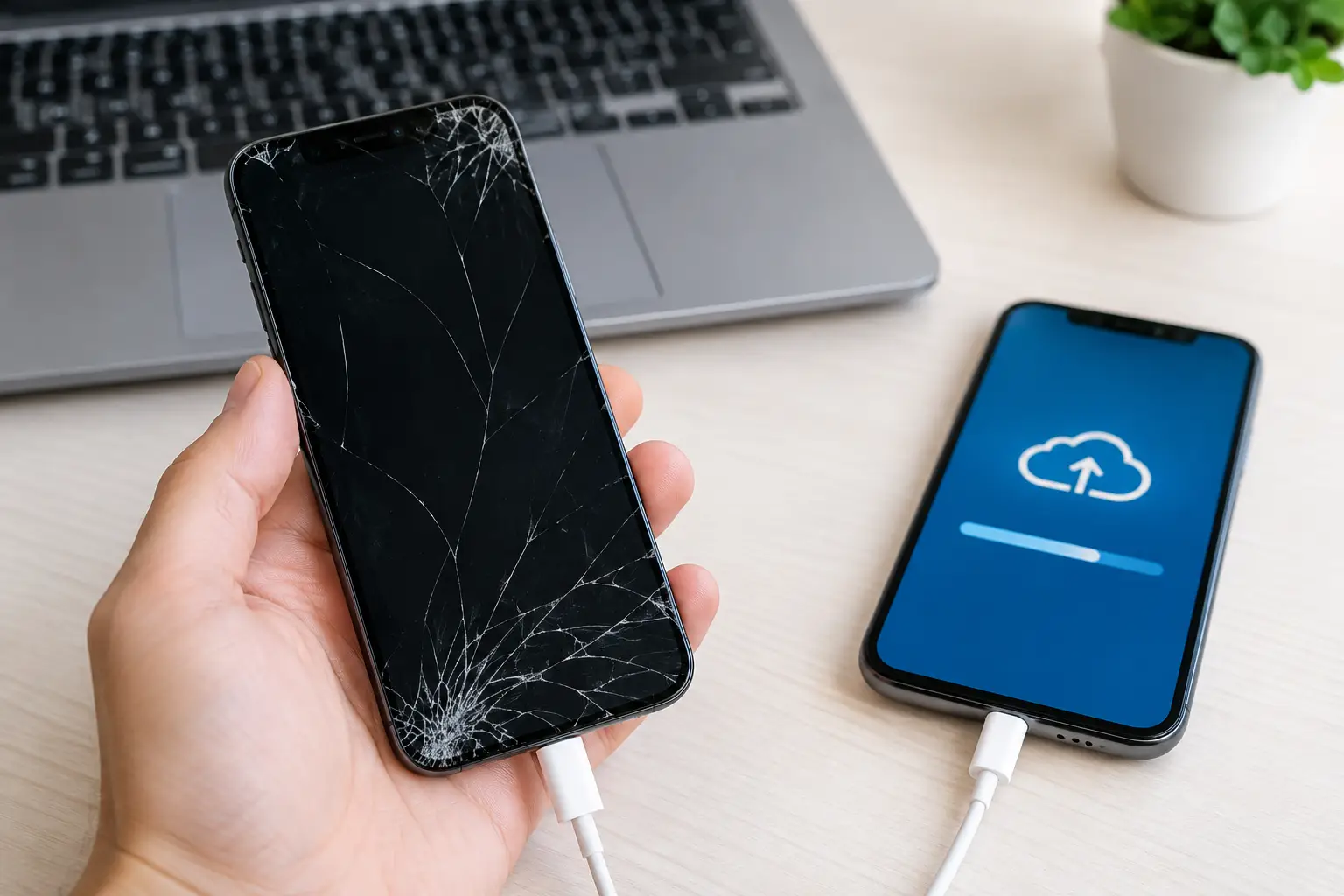
If the phone powers on, keep it connected to a known Wi-Fi network and place it on charge only if the charging port and battery appear undamaged. Wi-Fi gives cloud backups the best chance of finishing without using mobile data, while power prevents a flat battery from stopping the process halfway through.
Do not factory-reset the device, sign out of your main account or accept a prompt to erase it. These actions can remove the very data you are trying to save.
How to backup a cracked phone when the screen still works
If you can unlock the handset and use the touchscreen, make a backup immediately. Even a screen with spiderweb cracks can fail without warning, so do not wait until you have booked a repair.
Back up an iPhone to iCloud or a computer
On an iPhone, connect to Wi-Fi, plug it into power and open Settings. Tap your name, then iCloud, iCloud Backup and Back Up Now. Leave the phone connected until the backup completes. Check the time and date of the latest backup afterwards, rather than assuming it worked.
You can also back up an iPhone to a Mac or Windows PC. Connect it with a reliable cable, unlock the phone and confirm that you trust the computer when prompted. On a Mac, use Finder. On a Windows PC, use Apple Devices or iTunes, depending on the software installed. Choose to encrypt the local backup if you want saved passwords, Health data and Wi-Fi settings included. Store the encryption password safely – without it, that backup cannot be restored.
Photos may already be syncing separately through iCloud Photos, but check that they have finished uploading. A backup is useful, yet it is sensible to confirm that your newest photos and videos are visible in your cloud library.
Back up an Android phone to Google
For most Android phones, open Settings and search for “backup”. The exact menu varies between Samsung, Google Pixel and other brands, but you are looking for the Google backup option. Turn it on, select Back up now and keep the phone on Wi-Fi and power.
This normally saves contacts, call history, SMS messages, app data, settings and some device preferences to your Google account. Check Google Photos separately if your camera roll matters. Open the app, confirm backup is enabled and allow it time to upload recent images and videos.
Samsung owners can also use Smart Switch to create a backup on a computer or transfer content to another Galaxy device. It can be particularly useful for messages, media and device settings. As with any wired backup, the phone must usually be unlocked and you may need to approve the computer on screen.
When touch has failed but the display is visible
A visible screen with no touch response is frustrating, but it does not always mean your data is out of reach. Many Android phones support a USB-C OTG adapter, which lets you connect a wired mouse. With a mouse connected, you may be able to unlock the phone, approve a computer connection and begin a cloud or local backup.
If the phone supports video output, a compatible USB-C hub may also let you connect it to a monitor. This is not guaranteed. Some models do not support display output, and adapters vary in quality, so avoid buying several accessories blindly if important data is at stake.
For iPhones, options are more limited because iOS still requires you to enter the passcode and approve access. If the screen is visible but touch has failed, a temporary screen repair is often the safest and quickest route to a proper backup. Never share your passcode with anyone you do not trust, and ask how your data will be handled before leaving the device for repair.
When the screen is black or completely unresponsive
A black display does not automatically mean the phone is dead. The device may still be running, receiving calls or connecting to Wi-Fi, but you cannot rely on that. Try one gentle forced restart appropriate to your model, then give it a few minutes on a known-good charger if there is no sign of liquid damage.
If it comes back on and has already been set to back up automatically, leave it on its familiar Wi-Fi network and power source. Recent photos or messages may sync in the background. This is helpful, but it is not the same as confirming a complete backup.
Connecting a locked phone to a new computer rarely solves the problem. Modern iPhones and Android handsets are designed to protect your information, so they usually require an unlocked screen and your permission before data can be copied. Software claiming it can bypass that protection should be treated with caution. It may fail, expose private data or make the phone less stable.
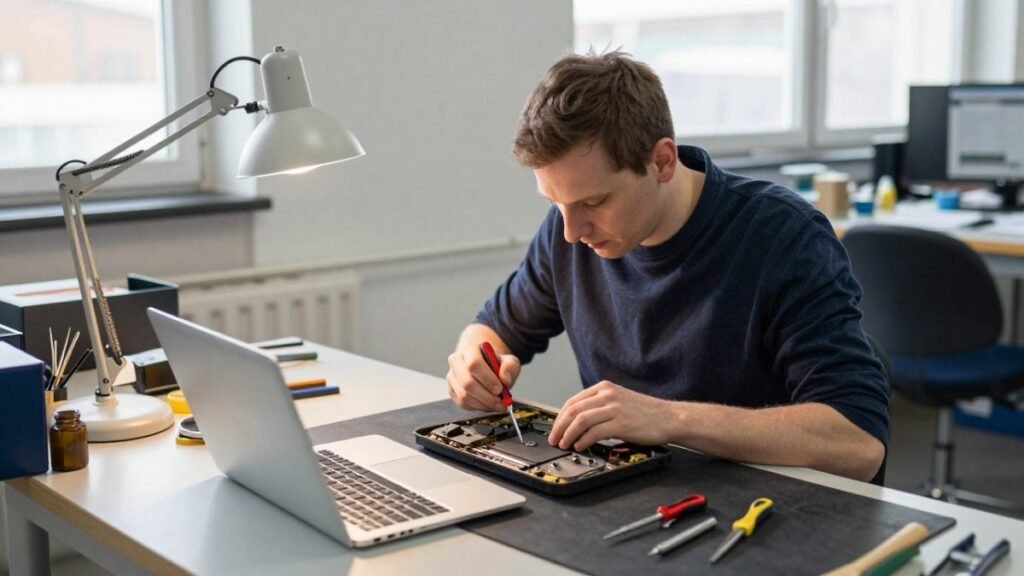
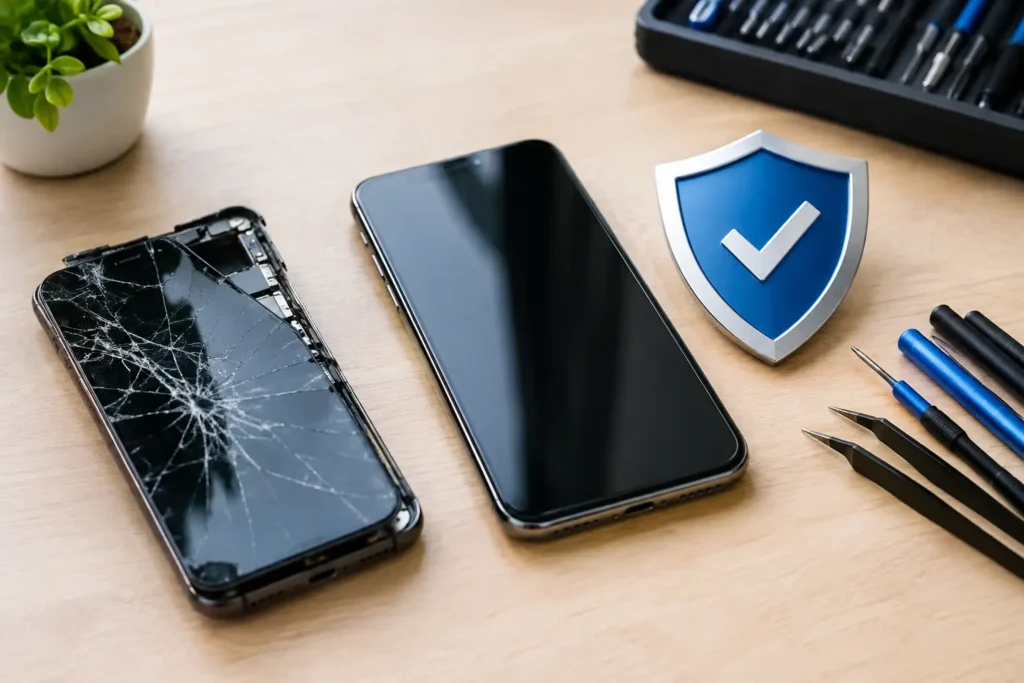
In this situation, a professional screen repair can be a data-recovery step rather than just a cosmetic fix. Fitting a working display may allow you to unlock the handset, make a verified backup and decide what to do next. At TechLab Repairs, secure handling matters because a phone often contains far more than photos – it can hold banking access, business email, schoolwork and two-factor authentication codes.
Do not forget the data outside your main backup
A phone backup is not always a complete copy of every account. Before the device becomes unusable, check the services you rely on most. WhatsApp, for example, has its own backup setting, and some authentication apps need a separate transfer or recovery process. Banking apps commonly require you to sign in again on a replacement phone.
Make sure you can access the email address linked to your Apple Account or Google Account. If possible, save recovery codes for key services somewhere secure away from the damaged handset. If you use an eSIM, contact your network only after checking whether a replacement phone will need a new activation code.
For work phones, speak to your employer or IT team before attempting a transfer. Business devices may use mobile device management, encrypted containers or policies that change how backups work.
Prepare the phone safely for repair or replacement
Once you have confirmed a backup, remove the SIM card if the repair does not require it. You do not normally need to erase a phone before a screen replacement, and erasing it can create more problems if the backup was incomplete. Instead, use a strong passcode and turn off lock-screen previews for sensitive notifications if you can still access the settings.
Take a few photographs of the phone’s condition, including the frame and cameras, before handing it over. Note the model, storage capacity and any faults beyond the cracked glass, such as ghost touches, charging problems or face recognition not working. Clear information helps a technician diagnose the right repair and gives you realistic expectations.
If the device is working but the crack is spreading, back it up tonight rather than waiting for the weekend. Broken screens rarely choose a convenient moment to fail, and a verified copy of your data turns a stressful repair into a much simpler job.