That moment when a phone will not switch on, a laptop shows a blank screen, or a drive suddenly asks to be formatted can feel far bigger than a hardware fault. Photos, coursework, customer records, family messages and work files may all be on the line. The right safe data recovery options depend on what has failed, but one rule applies every time: stop using the device before a small problem turns into permanent data loss.
Safe data recovery options start with the right first move
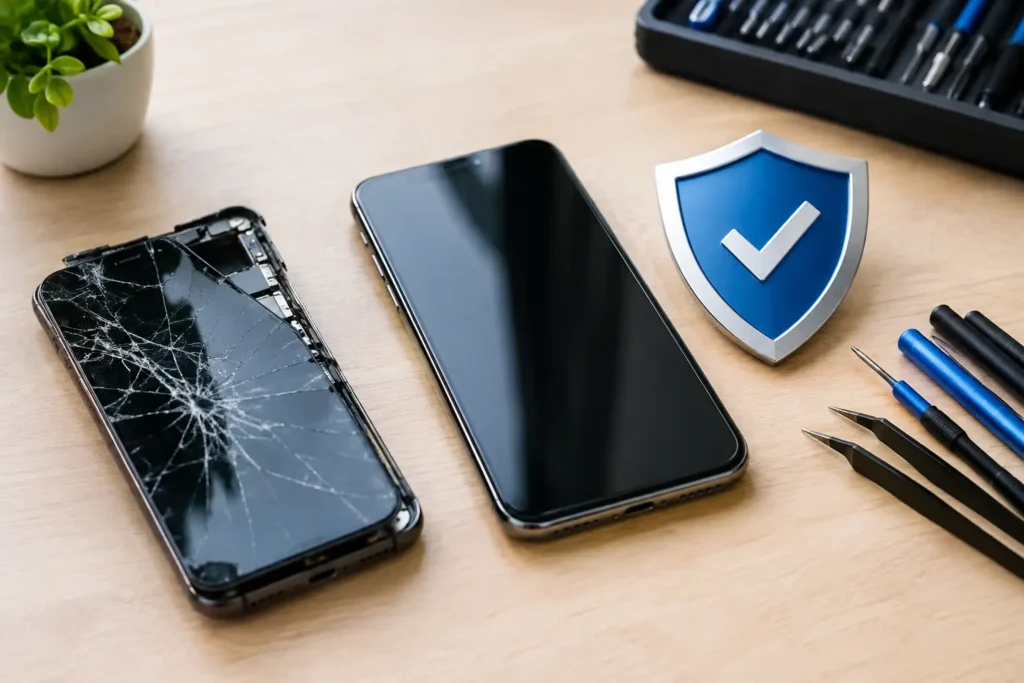
Data loss is not always what it appears to be. A device that will not boot may still have intact storage. A phone with a smashed display may be working perfectly behind the glass. A laptop that says a drive is inaccessible could have a software issue, a failing drive, or a damaged connector rather than erased files.
The temptation is to keep restarting, install recovery software, charge it overnight, or take the device apart. Sometimes that works. Often, particularly with failing storage or liquid damage, repeated attempts make recovery harder. Each restart can force a weak drive to read damaged areas again. Each charge to a wet device can cause further corrosion or a short circuit.
If your files matter, begin with four simple actions:
- Stop saving, downloading or installing anything on the affected device.
- Do not format a drive or accept a prompt to initialise it.
- If liquid has reached the device, switch it off, disconnect power and avoid charging it.
- Write down what happened, including error messages, drops, spills and any noises from a computer or external drive.
That information helps a technician diagnose the fault without unnecessary testing. It also gives you a clearer picture of whether the job is a repair, a data transfer or specialist recovery.
When you can recover data yourself
DIY recovery can be sensible when the device is stable and the problem is clearly accidental deletion or a simple software issue. For example, if you deleted files from a healthy laptop and immediately stopped using it, reputable recovery software may find recoverable data. The same can apply to an SD card that has not been used since files disappeared.
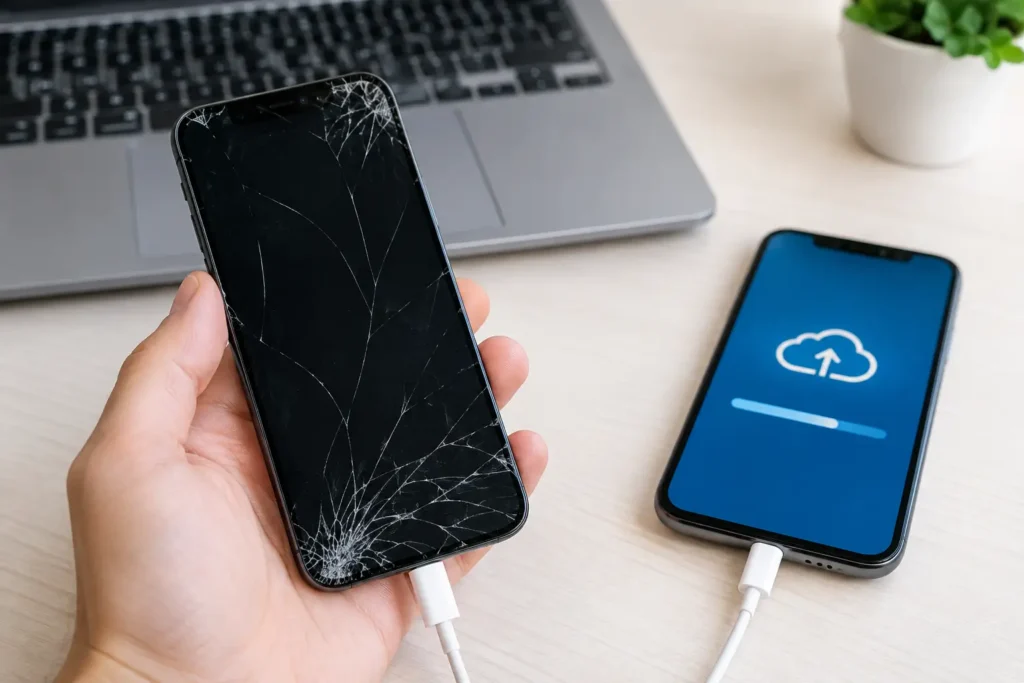
A proper backup is the safest option of all. If photos are already synchronised to a cloud account, or documents are stored in a current backup, recovery may simply mean signing in from another device or restoring selected files. Check carefully before assuming the backup is complete. Sync services can also copy deletions, and older backups may not include your latest work.
A working phone with a broken screen is another case where a straightforward repair may protect your data. Replacing the screen, battery, charging port or other failed component can restore access without touching the phone’s storage. This is often less risky than trying to force a transfer through a damaged display, especially where passcodes, two-factor authentication and device encryption are involved.
DIY is not the right route if the device is clicking, repeatedly disconnecting, overheating, has suffered liquid damage, or contains business-critical information. Those are warning signs to stop experimenting.
Why modern devices need a careful approach
Most newer iPhones, Android phones, MacBooks and Windows laptops encrypt their storage. Encryption is excellent for privacy, but it changes the recovery process. The data may be physically present, yet unreadable without the device’s original logic board, security hardware and passcode.
That means moving a memory chip from one modern phone to another rarely solves the problem. It may even destroy the chance of recovery. The practical aim is usually to repair the original device sufficiently to let it start, unlock it using the owner’s passcode, and copy the data safely.
This is particularly relevant after a liquid spill or a serious drop. A phone may look beyond repair while its storage remains accessible once a damaged power circuit, connector or display fault has been resolved. Conversely, a replacement handset will not automatically bring back data from an encrypted device that will not power on.
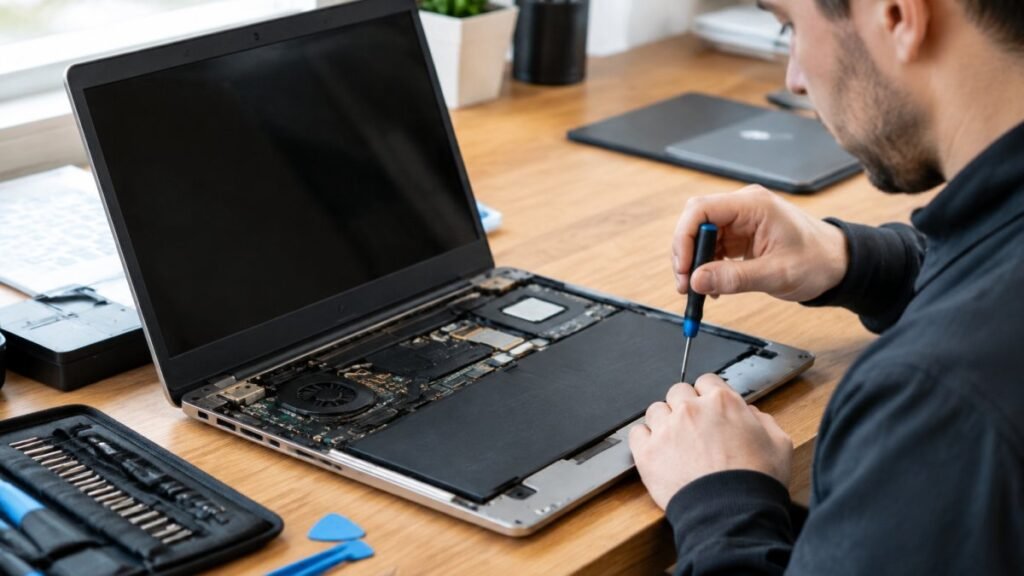
For laptops and desktops, the situation depends on the type of storage. A removable hard drive or SSD can sometimes be assessed separately. With many modern laptops, particularly slim models, storage is integrated into the main board. Board-level diagnosis may be the only realistic route to recovering local files.
Professional recovery versus a standard repair
There is a useful distinction between data recovery and data-preserving repair. Data recovery is needed when storage itself has failed, files are damaged, or data has been deleted. Data-preserving repair is needed when the storage is healthy but another fault prevents access.
A cracked laptop screen, failed charging port, worn battery or faulty HDMI port might be resolved with a normal repair followed by a careful data transfer. This can be quicker and more affordable than specialist recovery work. The trade-off is that no honest technician should promise every file until the device has been assessed.
Storage failure can require more specialised techniques. A mechanical hard drive with clicking or grinding noises should not be opened at home. Dust contamination can damage its internal platters, and repeated power cycles can worsen the fault. A professional assessment can determine whether the drive needs controlled recovery or whether the issue is limited to its enclosure, cable or power supply.
Solid-state drives behave differently. They have no moving parts, but electrical faults, controller failures and worn memory can still cause sudden data loss. Recovery may be possible, although it can be complex and is never guaranteed. The key is not to keep trying random fixes that overwrite data or push a failing SSD further.
What a trustworthy recovery process looks like
Before handing over a device, you should know what will happen to it. A reputable local repair service will start with diagnosis, explain the likely fault in plain language and discuss the options before carrying out work. They should also be clear about costs, likely timescales and whether the proposed repair is intended to preserve data.
Ask whether a repair could require a reset or replacement of the logic board. In some cases, that may restore the device but not the original files. If your data is the priority, say so at the start. This changes the repair strategy.
For personal devices, privacy matters as much as technical skill. A technician may need your passcode to test a repaired phone or verify that files can be copied, but it should be shared only when necessary and handled responsibly. Remove SIM cards if you prefer, and avoid giving out account passwords unless there is a specific, explained reason. You can also change a temporary passcode after collection.
Businesses and schools should take an even more structured approach. Keep a record of which device holds which user data, confirm who is authorised to approve repairs, and make sure recovered information is transferred to an approved encrypted destination. A quick fix is not enough if confidential pupil, staff or customer information is involved.
The options that are usually worth avoiding
Some advice sounds harmless but regularly causes trouble. Rice does not repair water damage. It can leave residue in ports and does nothing about corrosion already forming inside. Heating a wet phone, putting it in a freezer, or using a hairdryer can also cause further damage.
Be cautious with free recovery tools too. They can be useful for a healthy drive after accidental deletion, but they are not a cure for hardware failure. Installing software on the same drive you are trying to recover can overwrite the very files you need. If you do use software, recover files to a different drive, never back to the affected one.
Avoid opening sealed phones, laptops and drives without the right equipment. A loose screw, torn flex cable or static discharge can turn a recoverable fault into a much more expensive repair. Fast answers are appealing when work or family memories are involved, but careful diagnosis is usually the faster route to a good outcome.
Protect the next set of files now
Once your device is accessible again, set up a backup routine that suits how you use it. For most people, a combination of cloud synchronisation and a separate external backup is sensible. Keep important documents in more than one place, check that phone photos are actually backing up, and test that you can restore a file before you need to.
For a business, automatic backups should be paired with clear ownership. Someone needs to check they are completing, protect backup accounts with strong passwords and two-factor authentication, and review how long files are retained. A backup that has not been checked is only a hope.
If a device in Barrow-in-Furness or the wider Cumbria area has stopped working, do not let panic dictate the next step. Keep it powered down where appropriate, keep the charger and any relevant cables with it, and get a proper assessment before trying another quick fix. The best chance of seeing your files again often begins with doing less, not more.