5 Steps to Arrange a Phone Screen Repair Without the Stress
Need a phone screen repair? Follow our 5-step checklist covering data back up, turnaround times and complaints, then book a call with TechLab Repairs.

Quick Summary
Clicking, ticking or grinding noises, slow boots, frequent crashes, corrupted or missing files, read/write errors and restart loops are the main signs of a failing laptop hard drive. Back up your data first, then check the drive’s health.
Last Updated: 13 November 2026
Clicking, slow performance, and mid-task freezes are classic signs of a failing laptop hard drive, and catching them early can save your files.
Watch for clicking, ticking, or grinding noises, slow boots, frequent crashes, corrupted or missing files, read/write errors, and restart loops.

Watch out: Clicking does not always mean the drive is dead, but it means you should back up now. If the odd behaviour seems to be coming from your keyboard area, a guide to MacBook trackpad issues can help you rule out related hardware faults.
Not every symptom points to the drive: slow performance can come from low memory or malware, and crashes from overheating or a bad update. If the slowness and random crashes seem to come and go, you may want to check whether your laptop battery is causing the problems. Check the drive directly.
The main symptoms to watch for are these, along with what each one usually means.
| Symptom | What it may mean | Action |
|---|---|---|
| Clicking, ticking or grinding noises | Possible mechanical failure | Back up now |
| Slow boots | Drive struggling to read data | Check drive health |
| Frequent crashes | May point to the drive or overheating | Check the drive directly |
| Corrupted or missing files | Possible drive damage | Back up before anything else |
| Read/write errors | Drive may be failing | Stop heavy use |
| Restart loops | Possible drive fault | Seek help if files are at risk |
Your laptop has built-in tools that report drive health. Start with these free checks.
On Windows: Run wmic diskdrive get status in Command Prompt as administrator, “OK” is good; “Pred Fail” or “Caution” means act quickly. Then run chkdsk C: /f to scan for file system errors.
On a Mac: Open Disk Utility, select the drive, and choose First Aid, then check SMART status in System Information under Storage.
Note: SMART status is a warning, not a guarantee. A drive can report “OK” and still fail.
If checks show errors, stop heavy use.
Back up first, then diagnose. Copy your most important files to an external drive or cloud storage.
If your files are already missing, or your laptop will not start, professional recovery is the safest route. Our team at TechLab Repairs can check the drive and help protect your data. Repairs carry a 12-month warranty. Contact us to book a call today.
The most common signs are clicking, ticking or grinding noises from inside the laptop, slow file access, frequent freezes or blue screens, read and write errors, corrupted or missing files, and boot failures. Any of these can indicate a mechanical problem, especially if several appear together or get worse over time. Noises and sudden data loss are the most urgent signs, so back up important files as soon as you notice them and get the drive checked before it fails completely.
Yes. A failing hard drive often has bad sectors, which force the system to retry reads and writes, making everything from opening programs to saving files noticeably slower. Slowdowns can also come from a full drive, too many startup programs or malware, so it is worth checking drive health before assuming the hardware is at fault. If slowness comes with clicking noises or errors, treat it as a warning sign of drive failure.
Not exactly. A hard disk drive usually gives mechanical warnings such as clicking or grinding, while an SSD has no moving parts and tends to fail more abruptly or through rising read and write errors. SSD failure symptoms include files that suddenly become unreadable, the drive disappearing from the system, and boot problems. Because an SSD can fail with little warning, regular backups matter even more than with a traditional hard drive.
Need a phone screen repair? Follow our 5-step checklist covering data back up, turnaround times and complaints, then book a call with TechLab Repairs.
MacBook screen flicker can come from software updates, graphics settings or hardware faults. Learn how to diagnose the cause and what to do next.
A phone repair warranty should protect the work done, not create confusion. Learn what to check before booking a repair in Cumbria with confidence now.
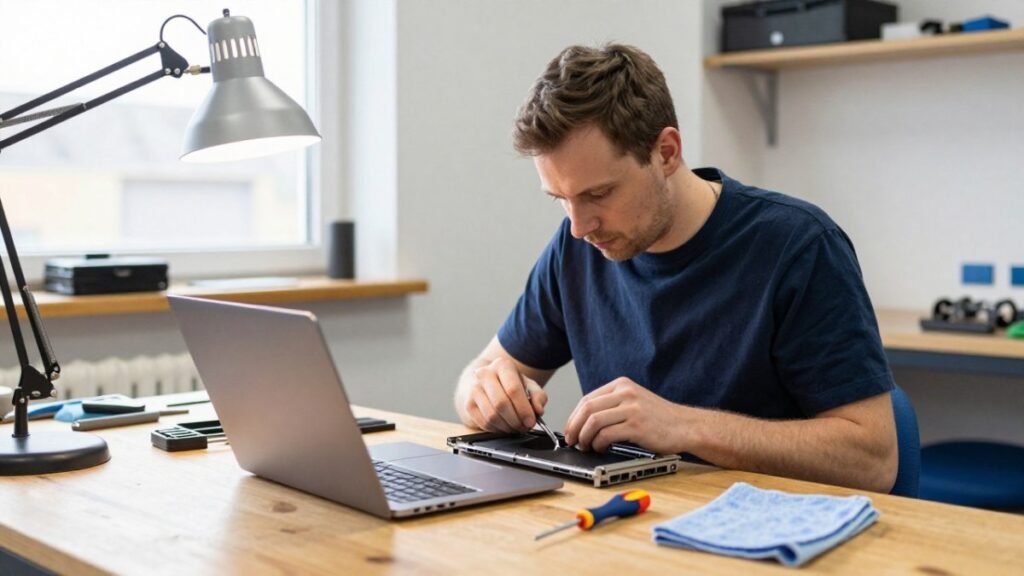
A laptop repair turnaround can range from a same-day fix to a week or more. Learn what causes delays and how to check your repair status.
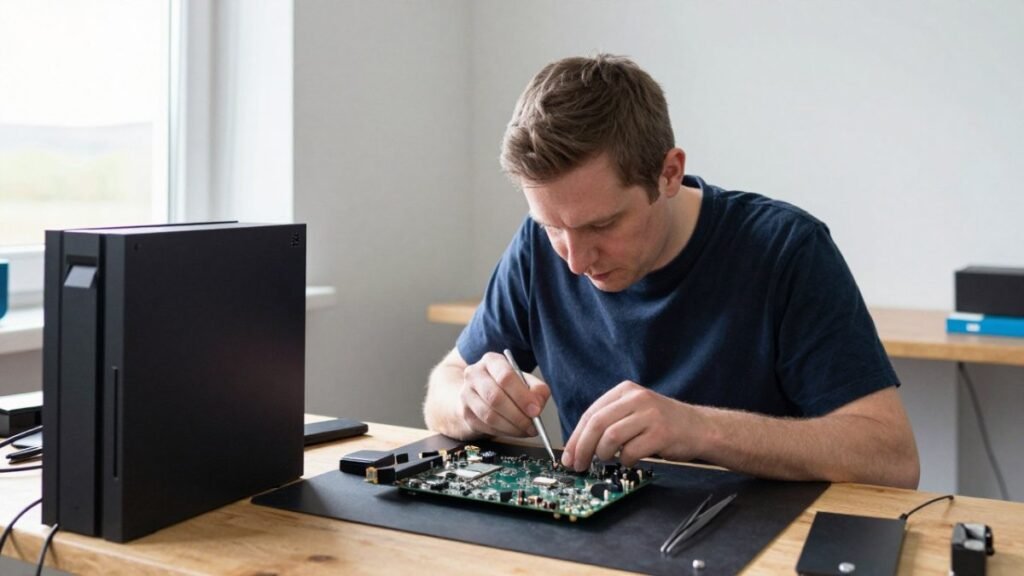
Start with gaming console hardware basics: diagnose overheating, safely open the case and spot faults you can fix at home.
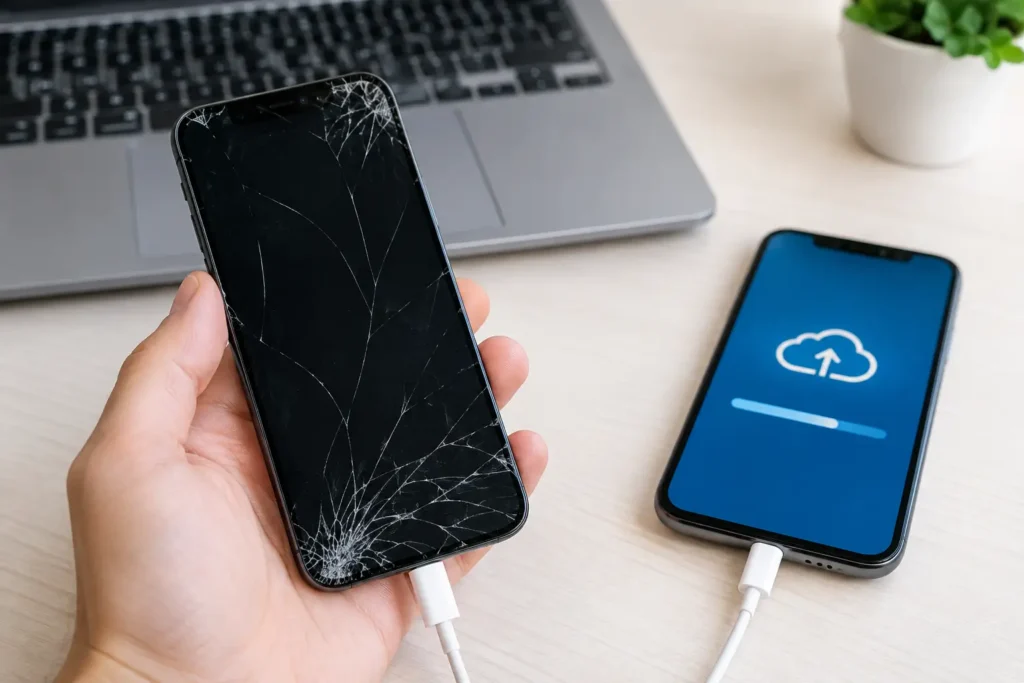
Learn how to backup cracked phone data when the screen will not respond. Safe steps for Android and iPhone before a repair, reset or replacement safely.
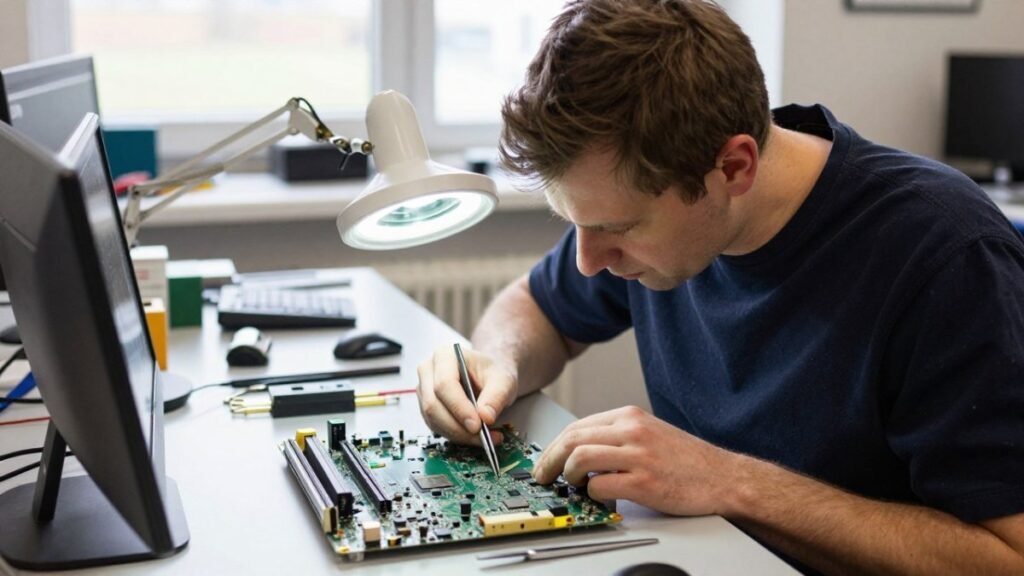
Before you pay for data recovery, find out what it will likely cost, what your files are worth to you, and whether a DIY attempt could make things worse.
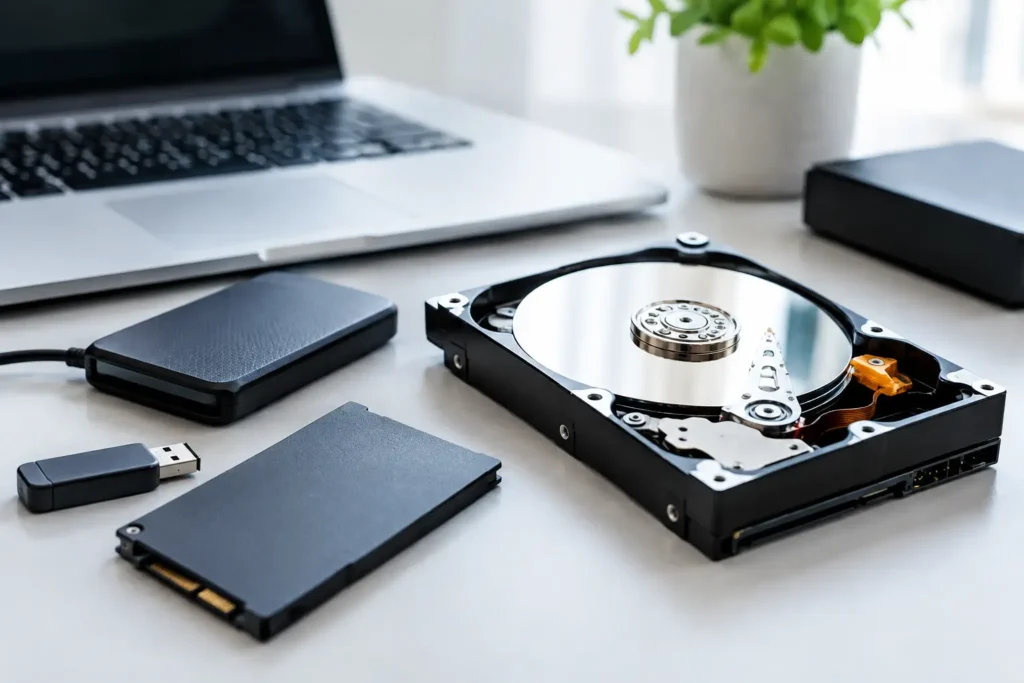
Compare safe data recovery options for phones, laptops and drives. Know what to do first, when to stop and how professional recovery protects files well.
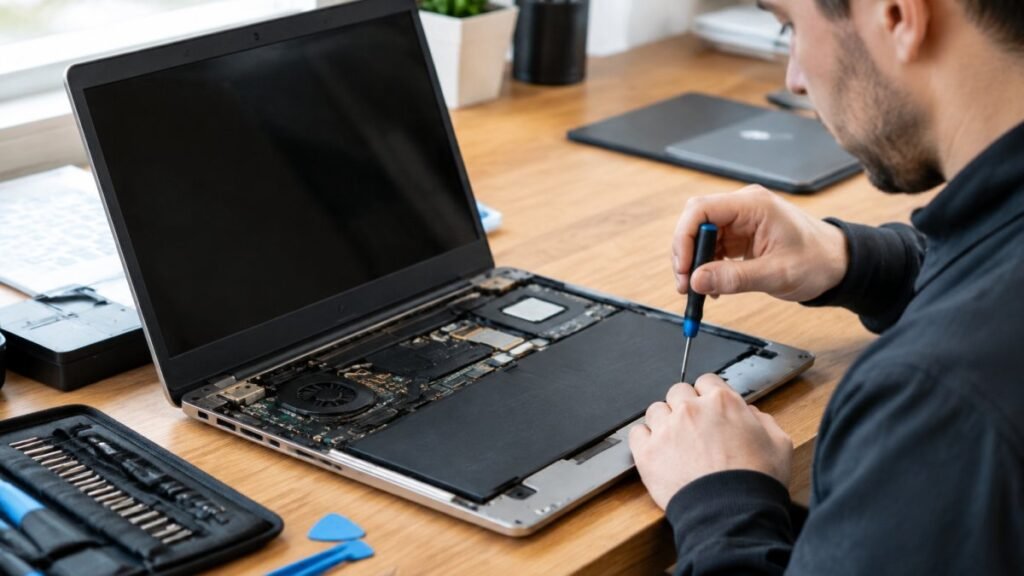
Before you hand over your laptop, learn how to vet a laptop repair shop, from diagnosis-first quotes to warranties that cover labour.