A MacBook trackpad that will not click, moves the cursor erratically, or ignores gestures can bring work, study and everyday admin to a halt. This guide to MacBook trackpad issues helps you separate the simple fixes from faults that need professional attention, so you do not waste time or risk further damage.
Start by identifying the trackpad symptom
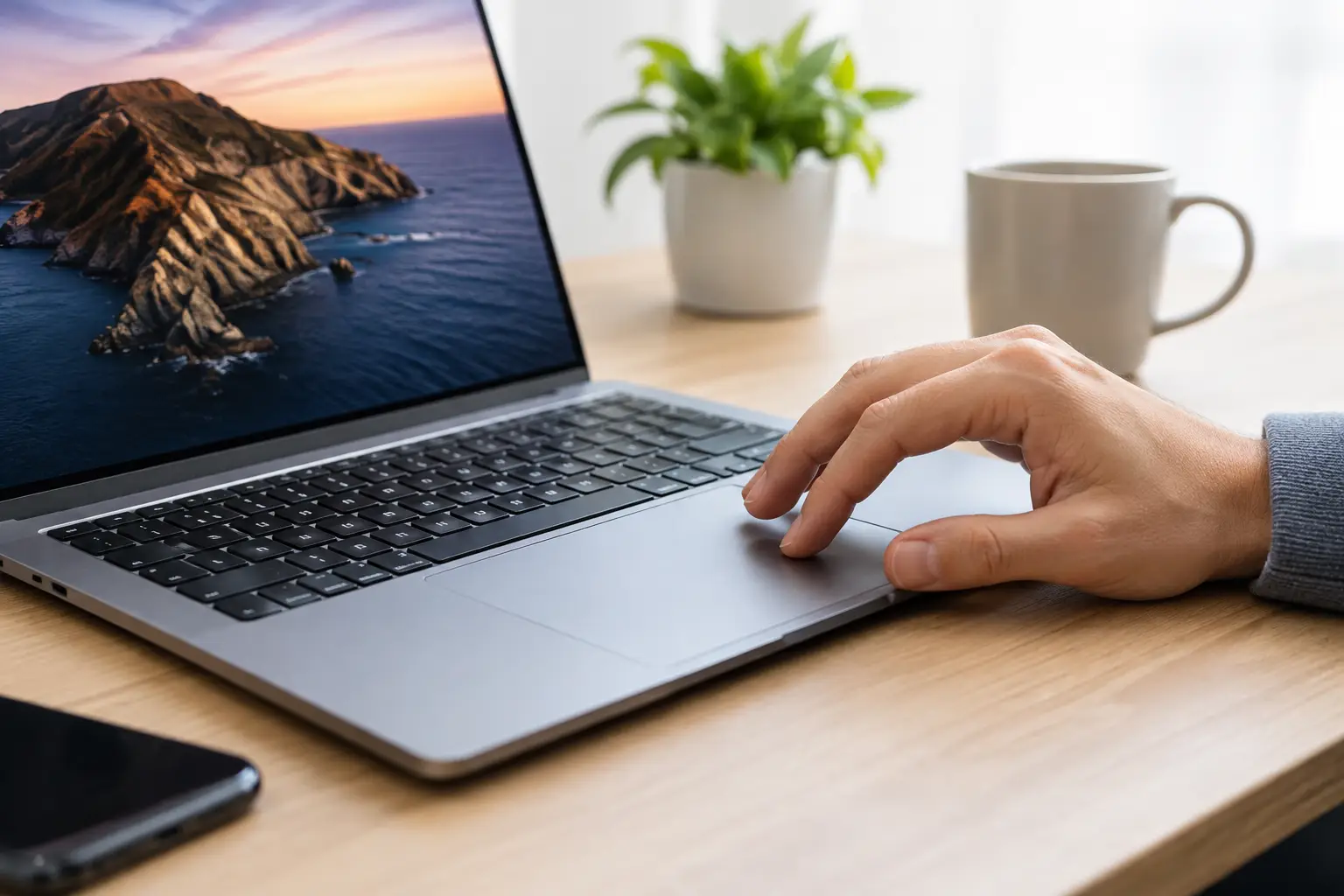
Trackpad problems are not all the same, and the symptom matters. If the pointer moves but clicking has stopped, the cause may be a settings issue, a worn mechanism or a battery pressing upwards from inside the MacBook. If the cursor jumps around or clicks by itself, dirt, moisture, a damaged cable or software interference are more likely possibilities.
A completely unresponsive trackpad can also be caused by a temporary macOS fault. Before assuming an expensive repair is needed, establish whether the issue appeared after an update, a spill, a drop, or gradually over time. That information makes diagnosis much quicker.
A warning sign you should not ignore
If the trackpad feels raised, unusually firm, difficult to press, or the bottom case no longer sits flat, stop using and charging the MacBook. A swollen battery can push against the trackpad from below. This is a safety issue, not just an inconvenience. Do not try to force the trackpad down or open the device yourself. Arrange an assessment as soon as possible.
Quick checks before booking a repair
First, restart the MacBook. It sounds basic, but a restart clears many temporary processes that can affect input devices. If you can use a USB or Bluetooth mouse, connect one so you can test settings and back up important files without relying on the trackpad.
Clean the trackpad with a soft, lint-free cloth that is only lightly dampened with water. Switch the MacBook off first and make sure no liquid can run into the edges. Grease, hand cream and debris can make the surface less responsive, particularly around the border where clicks are registered.
Next, open System Settings and check Trackpad settings. Make sure the trackpad has not been configured in a way that feels like a fault. For example, Tap to Click may be disabled, secondary click may be set differently than expected, or tracking speed may be set very low. On some Macs, the setting that disables the built-in trackpad when a mouse is connected can also catch people out.
If the fault started after installing new software, remove any mouse, window-management or accessibility tools that alter cursor behaviour. These can conflict with gestures and click settings. Restart afterwards and test again.
Check whether macOS is causing the problem
Software faults are possible, especially when the trackpad hardware feels normal but gestures, scrolling or clicks behave inconsistently. Install any available macOS updates after backing up your files. Updates can resolve driver and compatibility problems, although it is sensible not to assume every issue will disappear with an update.
Try the MacBook in Safe Mode as well. Safe Mode starts macOS with fewer background items and can help show whether login items or third-party software are behind the fault. The method differs between Apple silicon and Intel MacBooks, so check which model you own before attempting it.
If the trackpad works normally in Safe Mode but fails during a standard start-up, software is the stronger suspect. If it still does not work, particularly after a spill or impact, hardware becomes more likely.
Test with a separate user account
Creating a temporary new user account is another useful check where the pointer works but gestures or clicking are unreliable. A trackpad that behaves correctly in the new account may point to corrupted preferences in the original profile rather than a failed part.
This is not always worth doing if your MacBook has obvious physical damage or a lifted trackpad. In those cases, a repair assessment is the safer next move.
Common hardware causes of MacBook trackpad faults
Modern MacBook trackpads are precise components, but they sit close to batteries, cables and the logic board. A fault can originate in any of these areas.
Liquid damage is a common cause. Even a small spill can enter through the keyboard or trackpad edges and affect the trackpad cable, connectors or board components. The MacBook may seem fine at first, then develop intermittent clicks or cursor movement days later as corrosion develops. Switch it off, do not charge it, and avoid hairdryers or rice. Quick professional treatment gives the best chance of limiting the damage.
Physical impact can loosen or damage the trackpad flex cable. This can leave the pointer working only occasionally, stop clicking altogether, or cause the trackpad to disconnect at random. The same symptoms can occur as cables wear over time, particularly on older MacBook models.
On many newer MacBooks, the trackpad uses haptic feedback rather than a conventional moving click mechanism. It may feel as if it will not click when the system is off or when power delivery is affected, even though the glass surface itself is intact. That is why a proper diagnosis matters: replacing the trackpad without checking the battery, cable and power-related faults can be unnecessary.
When a repair is the sensible option
Book a professional repair if the trackpad remains unresponsive after the basic checks, if it has been exposed to liquid, or if you see any sign of battery swelling. You should also get it checked if the MacBook only works with an external mouse, the cursor moves unpredictably, or the click feels physically different from before.
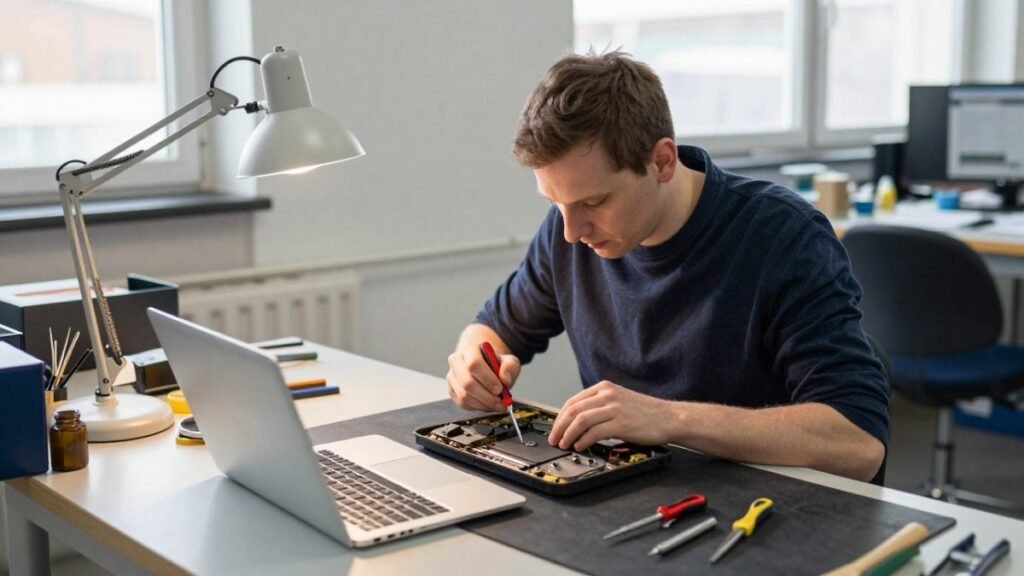
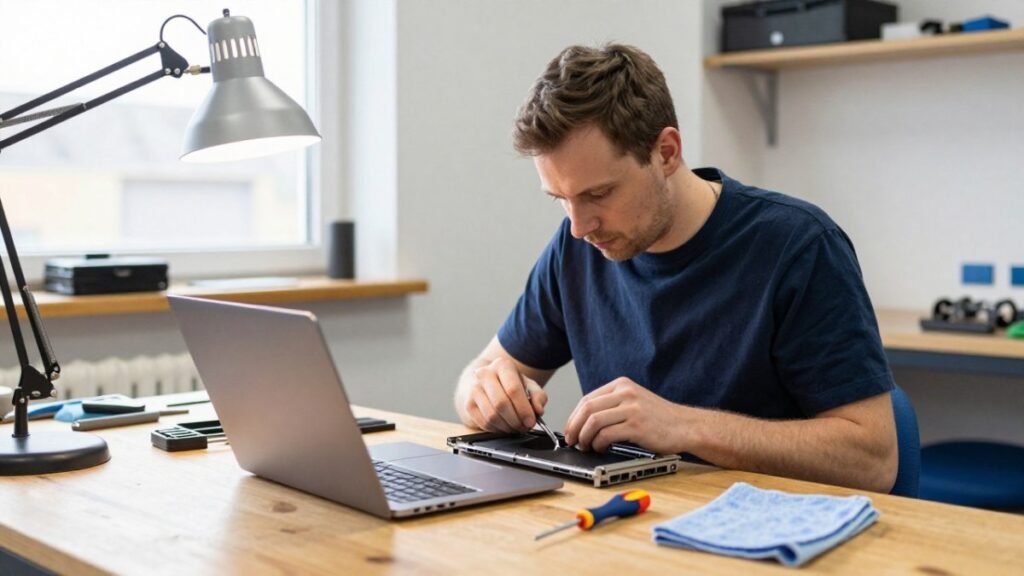
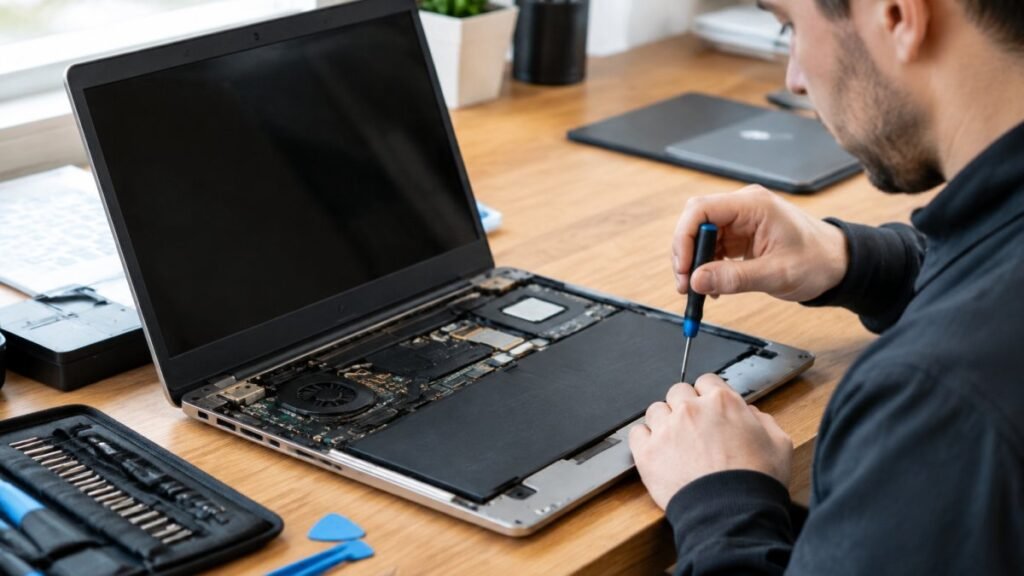
A technician should inspect the trackpad assembly, flex cable, battery condition and relevant connectors before recommending a repair. In some cases, the solution is a trackpad replacement. In others, a battery replacement, cable repair, liquid-damage clean-up or logic board repair is needed instead.
Cost and turnaround depend on the MacBook model and the source of the fault. A straightforward cable or trackpad replacement is usually less involved than corrosion repair or board-level work. The important thing is receiving a clear diagnosis before authorising work, rather than paying for a part that does not address the real problem.
At TechLab Repairs, MacBooks are assessed with the wider fault in mind, not just the component that seems to have failed. That means checking for hidden liquid damage, battery concerns and connection faults while keeping your data handled securely.
Protect your data while the trackpad is unreliable
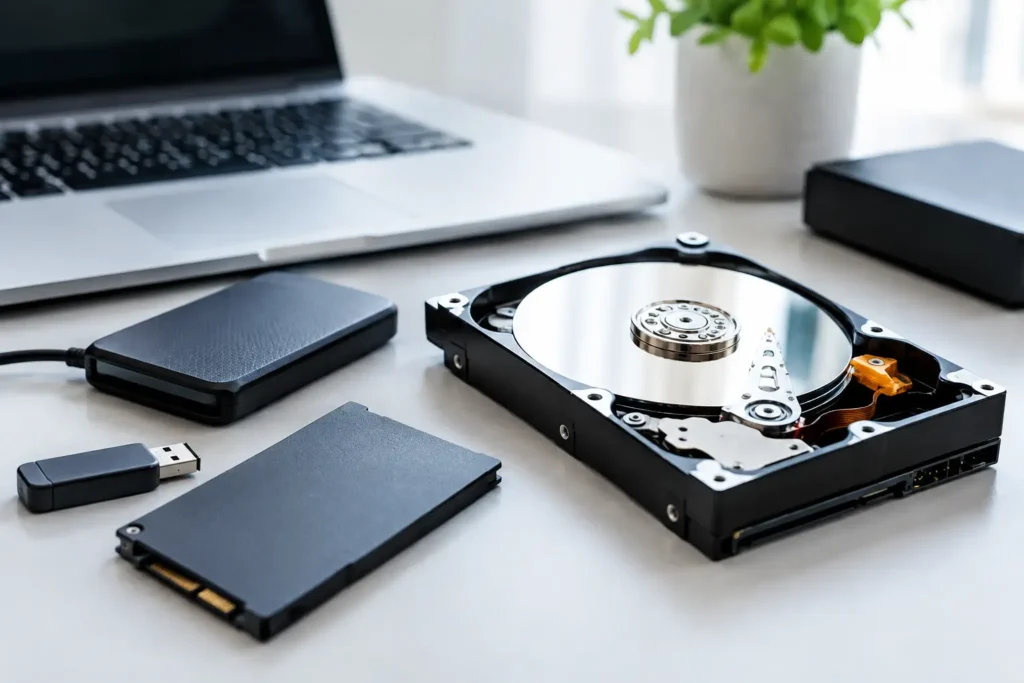
If the MacBook still starts up, back up your important files before the fault worsens. Use an external drive, a cloud backup service, or both if possible. A trackpad issue does not automatically mean data loss, but a liquid-damaged device or failing battery can become less stable without warning.
Avoid repeatedly forcing a stiff trackpad, and do not keep restarting a MacBook that has had a spill. Repeated power attempts can make a liquid-related fault worse. Where you need access to files urgently, an external mouse may provide a temporary workaround, but it should not delay dealing with a swollen battery or moisture inside the machine.
Preventing future trackpad problems
A protective sleeve helps reduce damage while travelling, but it will not prevent every fault. Keep drinks away from the MacBook, avoid placing heavy items on the lid, and use the correct charger or a quality USB-C power supply. Poor-quality charging accessories can contribute to odd input behaviour, although they are not the usual cause of a failed trackpad.
Regular cleaning also helps. A clean trackpad gives more reliable gesture detection and makes changes in feel easier to spot early. If the click suddenly becomes hard, the surface rises, or the case starts separating, treat it as a warning rather than something to put up with.
Your MacBook should feel effortless to use. If the trackpad is getting in the way of that, a prompt check can often turn a frustrating fault into a straightforward repair and get you back to work without replacing the whole device.