

5 Steps to Arrange a Phone Screen Repair Without the Stress
Need a phone screen repair? Follow our 5-step checklist covering data back up, turnaround times and complaints, then book a call with TechLab Repairs.

Last Updated: 11 November 2026
Quick Summary
To troubleshoot PS5 overheating, first check the warning signs: a too hot message, sudden shutdowns or a loud fan. Most PS5 overheating comes from blocked airflow or dust build-up, so shut down, let it cool for 15 minutes, move the console into open air with at least 10 cm clearance, and clean the vents and fan.
If you need to troubleshoot PS5 overheating issues in 2026, start with the warning signs: a “Your PS5 is too hot” message, sudden shutdowns mid-game, or a fan that roars like a hairdryer. These are the console’s way of asking for help before damage sets in. Overheating faults of this kind are commonly linked to blocked airflow or dust build-up.
Most PS5 overheating comes down to four culprits:
A hardware fault, such as a failing fan or dried thermal paste, is less common but does happen on older machines.
The overheating message is a warning, not a death sentence. Spot it early and you can often fix the problem yourself. Watch for:
Sudden shutdowns can also point to power faults rather than heat. If your console cuts out without a warning message first, it’s worth reading about console power faults and what causes them before you assume overheating.
Good PS5 ventilation and placement is the easiest fix you’ll ever make. Manufacturers generally recommend leaving clear space around a games console so that air can circulate freely.
Move it to an open area with clear space on all sides. Keep it away from radiators, direct sun, and other heat sources. If you use a stand, check the console sits level and the vents aren’t blocked.
Here’s our step-by-step guide to the PS5 too hot message fix, from simplest to most involved:
If the message returns after all six steps, the fault is likely internal. While you’re weighing up options, you can check what PS5 HDMI port repair costs as a rough guide to typical repair pricing.
Sometimes the console is fine and the game is the problem. Test whether the overheating is limited to one title. If a single demanding game triggers warnings while others run cool, the fix may be a software update. Check for the latest system software and any game patches. Rebuild the database from safe mode as a next step.
Work through these steps in order, from simplest to most involved.
| Step | What to do | Time or frequency |
|---|---|---|
| 1 | Save your game and shut down properly | Allow 15 minutes to cool |
| 2 | Check placement and move into open air | At least 10 cm clearance |
| 3 | Inspect the vents for visible dust or fluff | After each warning |
| 4 | Clean the vents and fan | Full walkthrough below |
| 5 | Check the room and open a window | Move to a cooler spot |
| 6 | Test with one game and watch for warnings | Play for 30 minutes |
Cleaning dust from your PS5 is the single most effective home fix for overheating, but it is also the step where most people cause accidental damage. The safe approach depends on which model you own and how far you are willing to go. Sony’s official guidance supports cleaning the exterior vents and fan area, but stops short of recommending full disassembly for everyday users.
Start with the console switched off at the wall and the power lead removed. Leave it to cool for at least 15 minutes before touching anything, because the exhaust area and internal heatsink can stay hot long after shutdown.
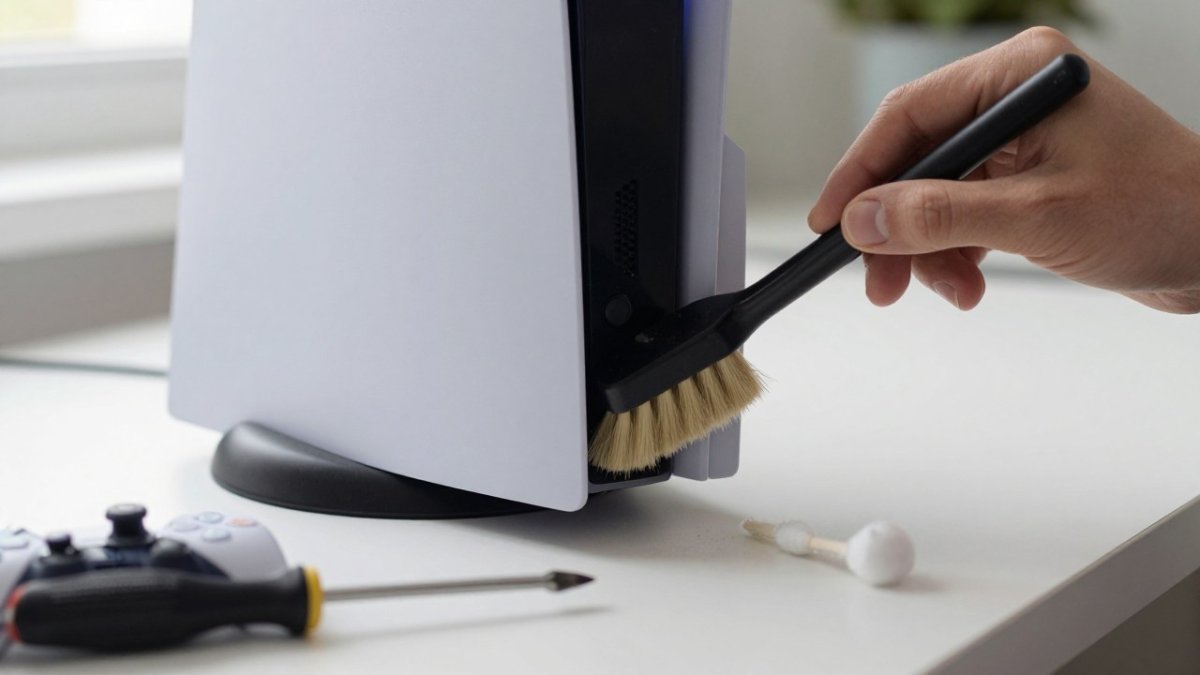
Watch out: never use a household vacuum directly on the fan or vents. The static build-up and suction can damage the fan bearing and, in some cases, draw dust deeper into the heatsink.
Do not remove the heatsink, lift the mainboard, or apply thermal paste unless you have done it before and accept the risk. On both the standard and Pro models, opening the console beyond the side panels can affect warranty coverage if the seal or internal shielding is disturbed.
The standard PS5 has two large side panels that clip off without tools, and the fan is visible once the right-hand panel is removed. The PS5 Pro uses a similar clip system but the internal layout is tighter, so take extra care not to flex the panels. In both cases, a T8 security screwdriver is the correct size for the fan housing screws if you decide to go further, but removing those screws is the point where most guides recommend stopping unless you are confident.
If you would rather not open the console at all, our guide on how to fix laptop overheating without risk covers the same safe cleaning principles for cooling hardware, and the same rule applies: gentle, dry, and no high-pressure air.
Most overheating faults respond to cleaning and repositioning, but some do not. Knowing when to stop is as important as knowing what to try next, because repeated shutdowns can shorten the life of the console and, in rare cases, corrupt saved data. Use the flow below to decide whether you are still in DIY territory or should book a diagnostic.
Work through these questions in order. Each one narrows the fault down and tells you whether to keep going or stop.
Before you send or take the console in, back up your save data to PlayStation Plus cloud storage or a USB drive, and note any digital purchases you may need to re-download. If you are unsure whether repair is worth it, read when console repair beats replacing your console for a sensible decision framework.
A professional diagnostic can check the fan, thermal paste, and internal airflow. At that point, stop troubleshooting and let the diagnostic do the work.
A proper diagnostic takes the guesswork out of a stubborn overheating fault. At TechLab Repairs, Barrow’s local tech repair shop since 2011, we repair your own console, not a swapped refurb, and every repair comes with a 12-month warranty.
We repair a wide range of devices, including gaming consoles, and use advanced diagnostic tools to identify the cause of a fault. Turnaround times are fast.
Don’t let a hot console cut your gaming sessions short. Get started with TechLab Repairs to get your PS5 running cool again.
A hot console is a warning, not a verdict. If cleaning and repositioning haven’t solved it, book a diagnostic with TechLab Repairs and let our team find the cause.
A PS5 shuts down to protect its internal components when it gets too hot. The usual culprits are blocked vents, heavy dust build-up on the fan and heatsink, or the console sitting in an enclosed cabinet with little airflow. Check that the console has at least 10 cm of clear space on all sides, clean the vents, and make sure the room is not excessively warm. If shutdowns continue after these steps, the issue may be a hardware fault that needs professional diagnosis.
Start by unplugging the console and letting it cool. Use a soft brush or a vacuum on its lowest setting to remove dust from the exterior vents. For the fan, remove the side panels and use short bursts of low-pressure air, holding the fan blades still so they do not spin. Avoid tipping the console or using high-pressure air, which can push dust deeper inside. If dust is caked onto the heatsink, a professional clean is safer than dismantling the console yourself.
Yes. A PS5 pulls cool air in through its side vents and pushes hot exhaust air out the back. In a closed cabinet or against a wall, that hot air recirculates and the console cannot cool itself effectively. Keep it in an open area with at least 10 cm of clearance at the back and sides, and avoid stacking it against other warm devices. If you use a TV unit with a door, leave it open during gaming sessions.
Stop using the console if it shuts down repeatedly within minutes of starting a game, if the fan runs at full speed constantly, or if you see the too hot warning even after cleaning and repositioning. These signs point to a hardware fault such as dried thermal paste or a failing fan. Continuing to run it risks further damage. A professional PS5 overheating repair can diagnose the cause and restore safe operation, often with a warranty on the work.
Need a phone screen repair? Follow our 5-step checklist covering data back up, turnaround times and complaints, then book a call with TechLab Repairs.
MacBook screen flicker can come from software updates, graphics settings or hardware faults. Learn how to diagnose the cause and what to do next.
A phone repair warranty should protect the work done, not create confusion. Learn what to check before booking a repair in Cumbria with confidence now.
A laptop repair turnaround can range from a same-day fix to a week or more. Learn what causes delays and how to check your repair status.
Start with gaming console hardware basics: diagnose overheating, safely open the case and spot faults you can fix at home.

Learn how to backup cracked phone data when the screen will not respond. Safe steps for Android and iPhone before a repair, reset or replacement safely.
Before you pay for data recovery, find out what it will likely cost, what your files are worth to you, and whether a DIY attempt could make things worse.
Learn the signs of a failing laptop hard drive, from clicking noises to missing files, and the steps to check drive health and protect your data.
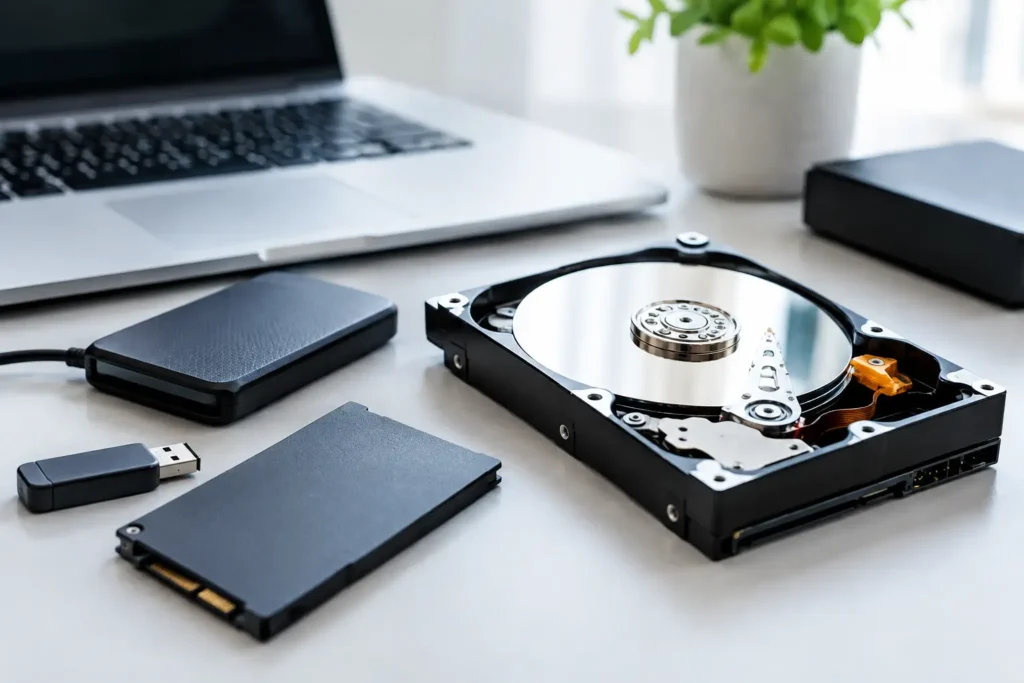
Compare safe data recovery options for phones, laptops and drives. Know what to do first, when to stop and how professional recovery protects files well.
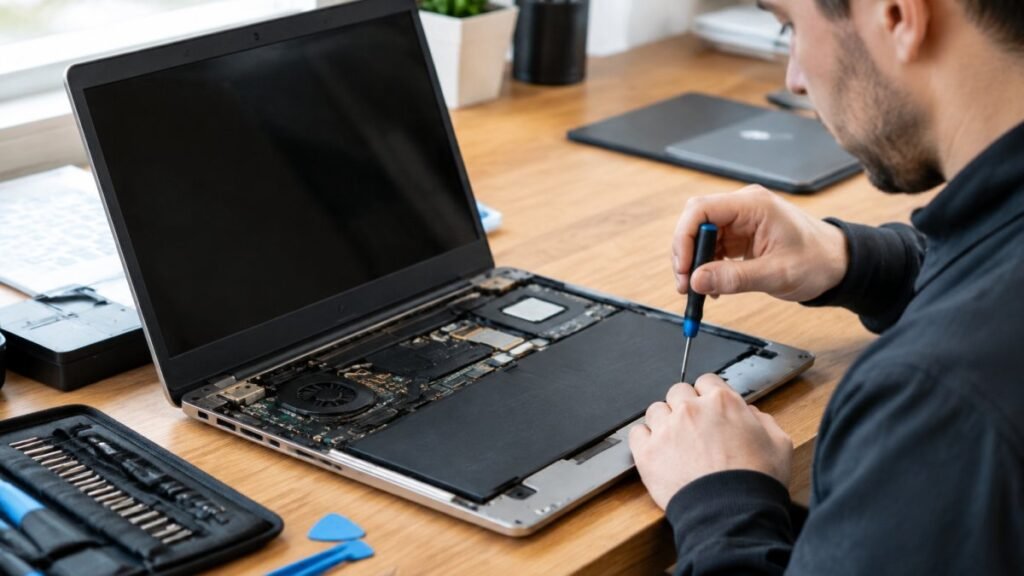
Before you hand over your laptop, learn how to vet a laptop repair shop, from diagnosis-first quotes to warranties that cover labour.
We'd like to use cookies to see how people use our website and whether our Google adverts work. Is that OK? Cookie details

Please pop in your name and telephone number and a member of the team will be in touch ASAP