A device that suddenly refuses to start can feel like a total loss, especially when work files, photos or school projects are trapped inside. Knowing how to spot motherboard failure helps you separate a serious board-level fault from a replaceable battery, charger, screen or component – and avoid spending money on the wrong repair.
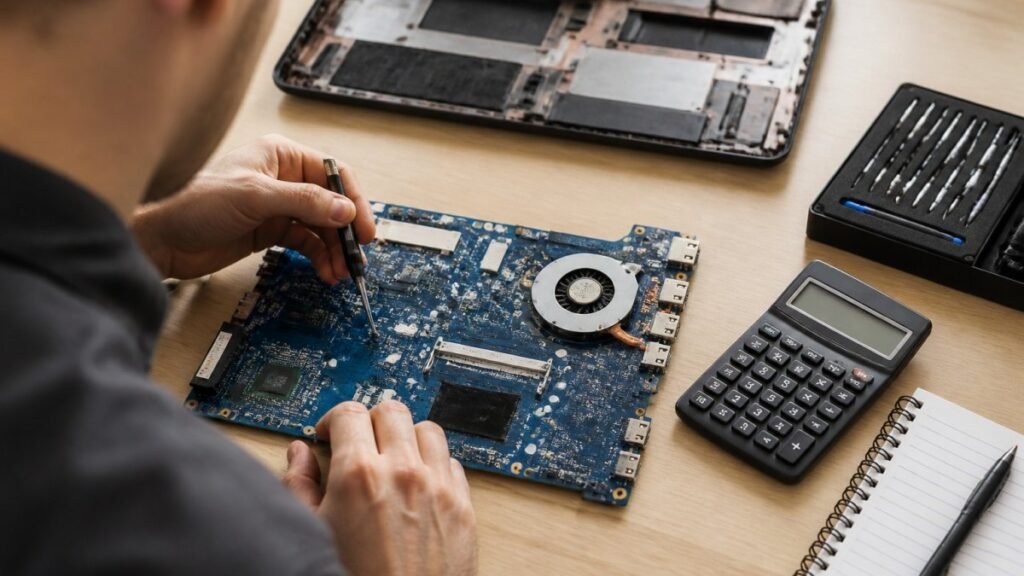
A motherboard is the main circuit board inside a laptop, desktop, phone, tablet or games console. It connects the processor, memory, storage, charging system, display and ports. Because so many parts rely on it, motherboard faults can create symptoms that seem unrelated at first: random shutdowns, no charging, missing USB ports, display problems or a device that appears completely dead.
How to spot motherboard failure: the key signs
The clearest sign is a device that has power but cannot complete its normal start-up process. On a desktop, fans may spin and lights may come on, yet there is no picture on the monitor, no keyboard response and no familiar start-up sound. A laptop may show a charging light but remain on a black screen, or turn itself off a few seconds after pressing the power button.
That said, one symptom rarely proves the motherboard is at fault. A failed screen, worn battery, faulty RAM, damaged charger or failing storage drive can look very similar. The useful clue is a pattern of multiple failures affecting different functions.
For example, a laptop that will not charge, has no working USB ports and only starts intermittently is more likely to have a board-level power issue than a simple battery fault. A desktop that repeatedly loses network access, USB devices and display output can point to motherboard damage, particularly if the problem persists after testing known-good accessories.
Other common signs include:
- Repeated freezing, blue-screen errors or sudden restarts with no obvious software cause.
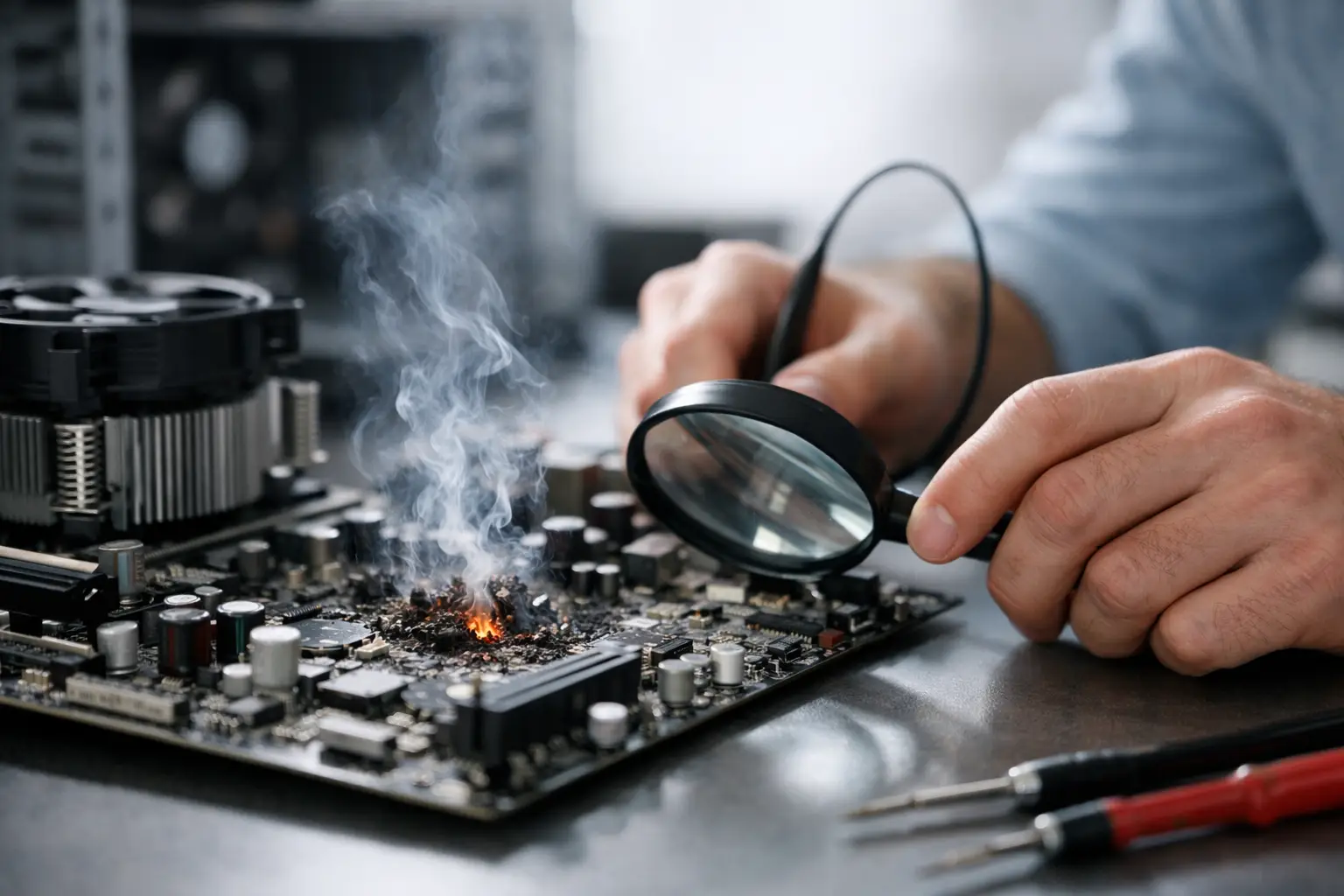
- A burning smell, visible corrosion, darkened components or swollen capacitors inside a desktop PC.
- Ports that stop working one by one, even after the device has been restarted and tested with different cables.
- Failure to recognise RAM, storage, a graphics card or connected peripherals that work correctly elsewhere.
- A device that only powers on after several attempts, after being moved, or when pressure is applied to a particular area.
Intermittent faults deserve attention. A device that works after an hour, then fails again, is not necessarily “sorting itself out”. Heat, a cracked solder joint or liquid corrosion can make a board fault appear and disappear before it becomes permanent.
Start by ruling out the common faults
Before assuming the motherboard has failed, check the basics safely. This can save time, reduce repair costs and prevent a perfectly repairable device from being replaced unnecessarily.
First, test the power source. Try a known-good charger and cable that match the device’s correct specification. For desktops and consoles, test another wall socket and check the power lead is firmly seated. Avoid cheap, unregulated replacement chargers, as an incorrect charger can cause charging problems and, in the worst cases, damage the power circuitry.
Next, disconnect everything non-essential. Remove USB accessories, external drives, docks, memory cards and printers. A shorted peripheral or damaged USB device can prevent a laptop or desktop from starting properly. For a desktop PC, try starting with only the monitor, keyboard and power connected.
If it is safe and appropriate for your model, a forced restart can help. Hold the power button for around 10 to 15 seconds with the charger disconnected, then reconnect the charger and try again. Some laptops retain a small electrical charge that can cause an apparent no-power fault. This step will not repair motherboard damage, but it can clear a temporary power-state issue.
On a desktop, RAM is another common culprit. Poorly seated or failed memory can cause a black screen, boot loops and warning beeps that are easily mistaken for motherboard failure. If you are confident opening the case, switch off at the mains, unplug it and carefully reseat the RAM. Testing one memory stick at a time can identify a failed module. If you are not comfortable doing this, leave it to a repair technician rather than risking damage to the board or connectors.
Check what happens during start-up
The way a device fails to start offers valuable clues. Look and listen closely, but do not repeatedly force it on if you notice overheating, smoke, a burning smell or signs of liquid damage.
On a desktop, motherboard diagnostic LEDs or beep codes can narrow down the fault. Many boards have small lights labelled CPU, DRAM, VGA or BOOT. If one remains lit, it indicates where the system has stopped during its self-test. This is not always a failed motherboard – a DRAM light, for instance, may mean faulty RAM – but it gives a technician a better starting point.
A laptop may flash its power light in a repeating pattern. Certain manufacturers use these flashes to report battery, display, memory or board faults. Note the number and colour of flashes, as well as whether the fan starts or the keyboard lights up. Those details can make diagnosis much quicker.
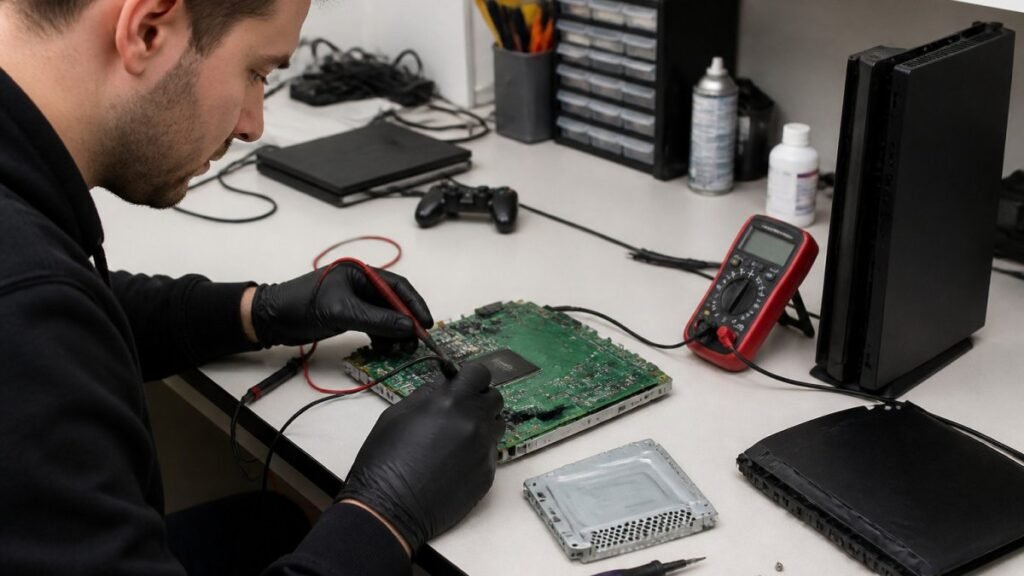
For phones and tablets, a board fault may show up as no charge response with several tested cables, unexpected heat near the charging port or camera area, loss of mobile signal, repeated restarting, or a device detected by a computer but unable to display an image. On consoles, no HDMI output can be caused by the port itself, the cable, the television or the HDMI circuitry on the board. It should be diagnosed before anyone labels it a motherboard failure.
Liquid damage changes the picture
Spills, rain, condensation and damp bags are frequent causes of motherboard problems in Cumbria, particularly when devices are moved between cold cars, homes and workplaces. Even a small amount of moisture can corrode connectors and components over time. The device may seem fine for days or weeks before charging, sound, display or power issues begin.
If liquid has reached the device, switch it off as soon as possible and disconnect the charger. Do not keep testing it, do not use a hairdryer and do not put it in rice. Heat can push moisture further into sensitive areas, while rice does not remove corrosion from a circuit board.
The right approach is prompt professional assessment and internal cleaning where appropriate. The longer corrosion remains on the board, the greater the chance that a repairable issue becomes a more extensive one. If your device still works after a spill, back up essential data straight away if you can do so safely.
When the fault is probably board-level
Motherboard failure becomes more likely when a device has several unrelated hardware symptoms, has a history of liquid damage or impact, and still fails after the charger, cable, display and basic components have been checked.
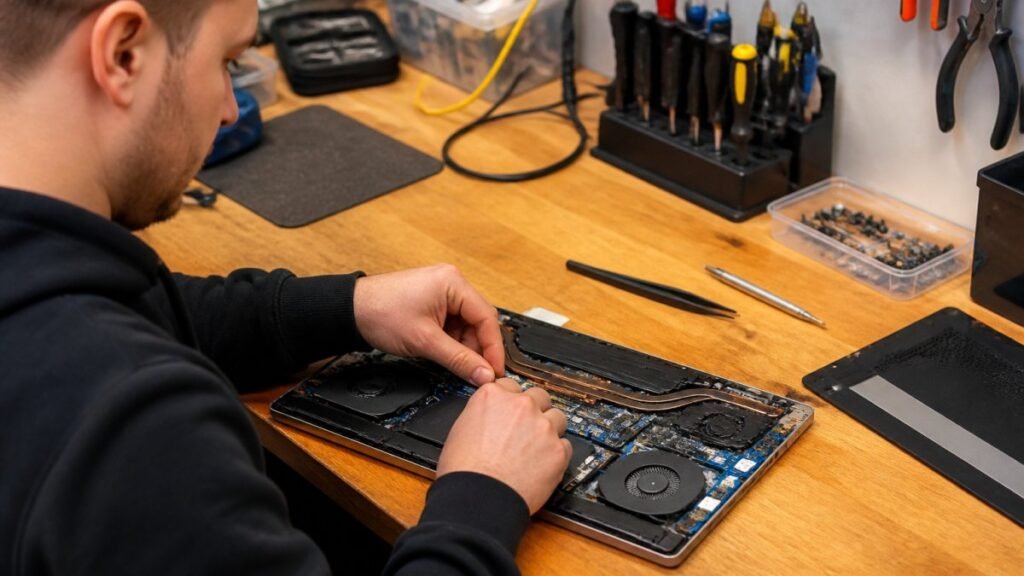
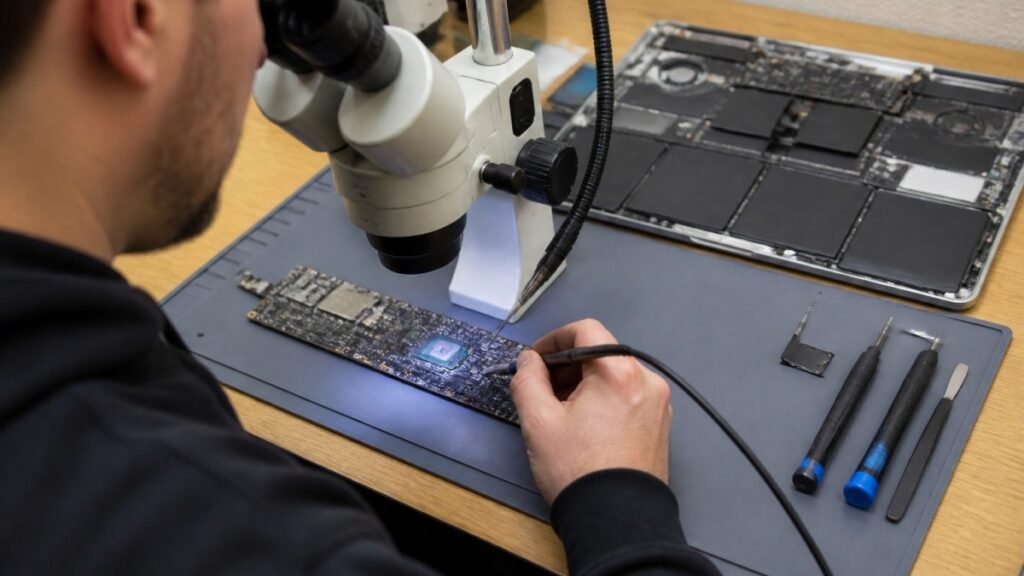
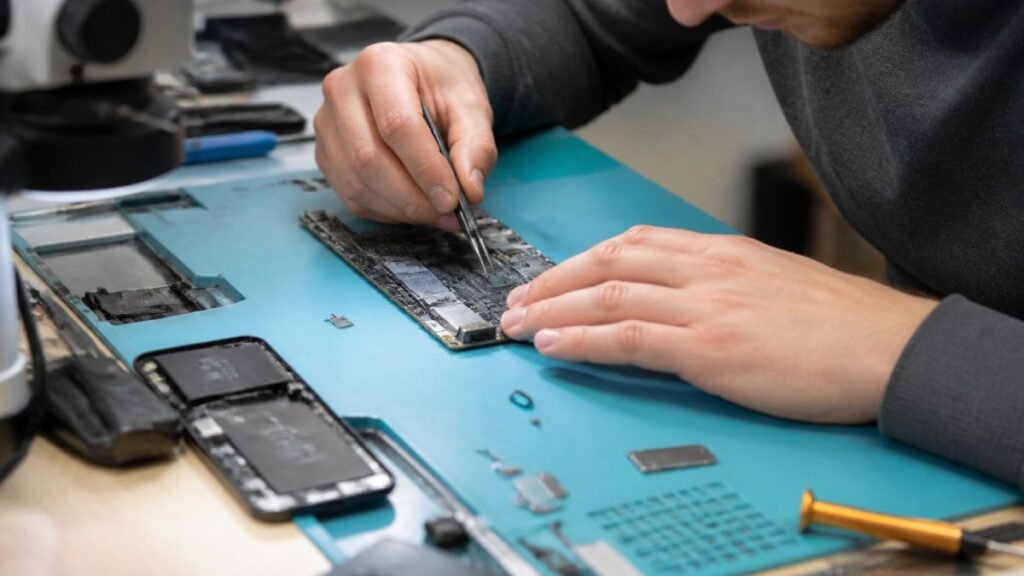
A board-level issue may involve the charging circuit, power-management chip, graphics circuitry, USB controller or tiny damaged tracks on the board. These faults need proper testing equipment and component-level repair skills. Replacing the entire motherboard is not always the best answer. On some devices, a targeted repair is more affordable and can preserve the original storage and data.
There are trade-offs. An older entry-level laptop may not justify an extensive board repair if the cost is close to a reliable replacement. A newer MacBook, gaming laptop, business desktop or console may be well worth repairing, particularly where the device has valuable data, specialist software or upgraded components. A clear diagnosis should come before that decision.
Protect your data while the device is still responsive
A motherboard fault does not automatically mean data is lost. In many desktops and older laptops, the storage drive can be removed and accessed separately if it has not failed. Modern devices can be more complicated because storage may be encrypted, soldered to the board or tied to the original hardware.
If the device still starts, copy important files to secure storage as soon as possible. Prioritise documents, photos, business records and schoolwork. Avoid installing updates, running heavy games or continuing to use a device that is restarting, overheating or showing power faults. Extra use can turn an intermittent issue into a complete failure.
For businesses and schools, record the device owner, symptoms, serial number and any recent incident such as a spill or power surge. This creates a clearer repair trail and helps protect sensitive information during the process.
Get a diagnosis before replacing the device
A black screen or no-power fault is stressful, but it does not always mean the motherboard is beyond repair. The quickest route is a proper diagnosis that tests the power input, battery, display, memory, storage, ports and board circuitry rather than guessing from one symptom.
TechLab Repairs can assess laptops, desktops, phones, tablets and consoles with secure handling of your device and a clear explanation of the available options. Don’t let a possible motherboard fault slow you down: stop using a device that is overheating or has suffered liquid damage, protect your data where possible, and get the cause checked before deciding whether to repair or replace it.