A computer that will not start five minutes before work, coursework or a video call is more than an inconvenience. It can leave you cut off from files, emails and the everyday tasks you rely on. Professional computer repair can often restore a laptop or desktop for far less than the cost of replacing it – but the right choice depends on the fault, the machine’s age and what is stored on it.
For households, students and local businesses across Barrow-in-Furness, Furness and Cumbria, the sensible first step is diagnosis. A slow computer does not always need a new motherboard, and a machine that appears dead may have a straightforward charging, power or storage issue. Don’t let a broken device slow you down when a clear assessment can show what is genuinely worth doing.
Start with the symptom, not the assumed fault
It is easy to blame the most expensive part. A laptop that will not power on might be described as having a “fried motherboard”, while a desktop that takes ten minutes to load may be written off as too old. In reality, several faults can create the same symptom.
A failed charger, damaged charging port, worn battery, faulty power button, failing hard drive or corrupted operating system can all stop a computer from behaving normally. Likewise, overheating may come from dust blocking the cooling system, a tired fan or dried thermal paste rather than a major internal failure.
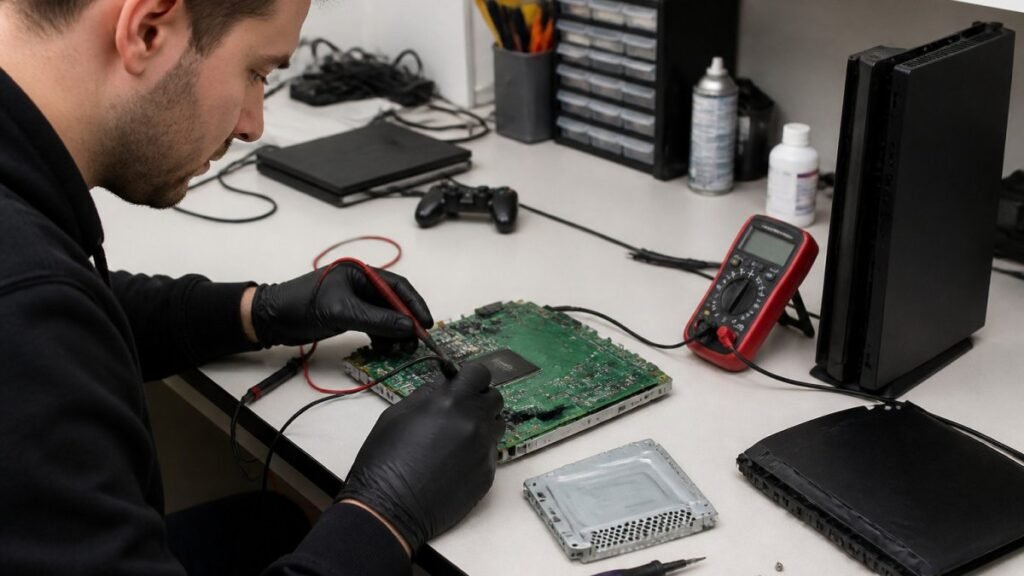
A proper diagnosis separates the visible problem from its cause. That matters because replacing parts without testing can waste money and still leave the original issue unresolved. It also gives you a realistic repair price before you commit.
Signs you should arrange a check-up
Some faults need attention quickly, particularly if your data is at risk. Repeated blue-screen errors, clicking from a mechanical hard drive, unexpected shutdowns and files that will not open can all point to failing storage. A laptop that gets unusually hot, smells burnt or has a swollen battery should be powered down and inspected rather than kept in use.
Physical damage deserves prompt attention too. A cracked casing can expose internal components, while a loose charging port can become more damaged each time a cable is moved. Spilt drinks are another case where speed matters. Switch the computer off, disconnect power and avoid trying to charge or restart it. Liquid damage can worsen when electricity continues to pass through affected components.
The computer repairs that are usually worth it
The best value repairs tend to be those that restore a reliable machine without changing its core capability. Storage upgrades are a strong example. Replacing a slow mechanical hard drive with a solid-state drive can make an older laptop feel dramatically more responsive, improving start-up times, application loading and everyday use.
Memory upgrades can also help, especially on machines that struggle with several browser tabs, video calls or office applications at once. More memory will not solve every performance problem, but it can be a cost-effective improvement where the computer supports it and the rest of the hardware remains sound.
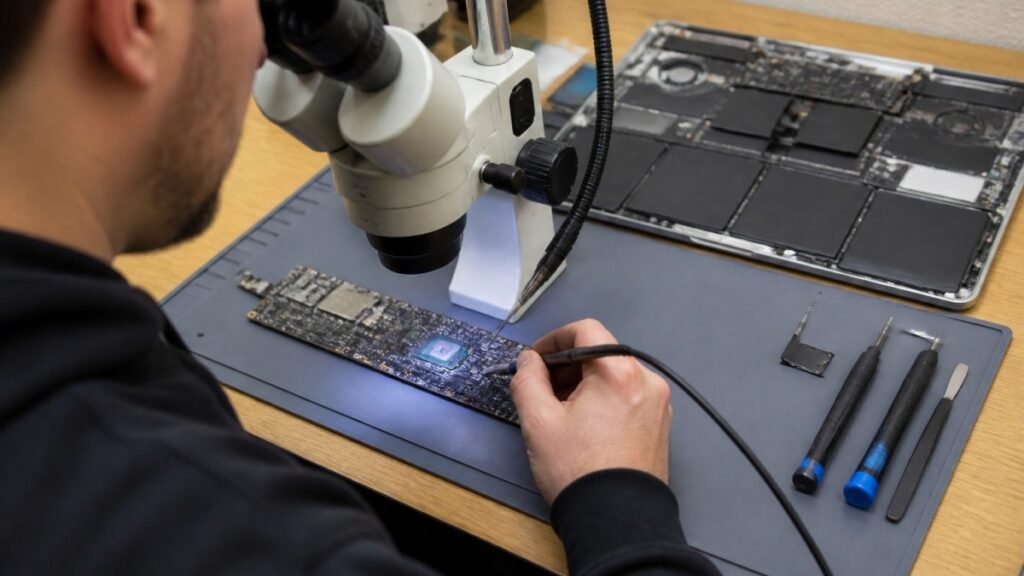
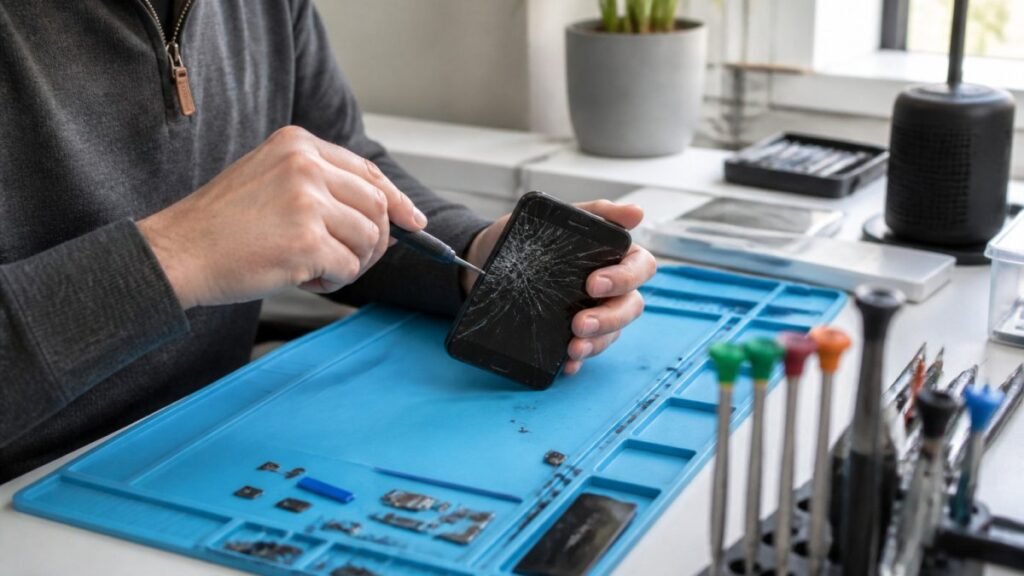
Screen replacements, keyboard repairs, battery replacements, charging-port work and fan repairs are often worthwhile on laptops that otherwise meet your needs. The same applies to desktop power supply faults, damaged HDMI ports and many graphics or connectivity issues. For a gaming PC, replacing one failed component is usually far more sensible than discarding an entire custom-built system.
Software faults can be among the most affordable problems to resolve. Malware removal, operating system repair, start-up issues and troublesome updates may make a computer feel unusable, yet require no replacement hardware at all. The trade-off is that software repair sometimes reveals an underlying hardware weakness, particularly on older storage drives, so a reputable repairer should explain that possibility upfront.
When replacement may be the better option
Repair is not automatically the cheapest long-term answer. If a computer needs several expensive parts at once, has very limited performance for your current needs or cannot run supported software safely, putting money towards a replacement may make more sense.
Age alone is not the deciding factor. A well-built eight-year-old desktop may be ideal for email, documents and home banking after an SSD upgrade, while a newer entry-level laptop with soldered components may be harder or less economical to repair. What matters is whether the repaired device will be reliable and suitable for how you use it.
Consider replacement more seriously if the motherboard has suffered extensive liquid damage, the processor is no longer adequate for essential programmes, or the repair cost approaches the price of a comparable replacement. Business users should also factor in downtime. A lower repair bill is less attractive if an unreliable machine repeatedly interrupts staff work.
There is a middle ground too. A repair can be worthwhile specifically to recover data, give you time to transfer accounts and files, or keep a secondary household computer running. The answer does not have to be repair forever or replace immediately.
Data protection should be part of every repair decision
For most people, the computer itself is replaceable. Photos, coursework, business records, saved passwords and documents may not be. Before any repair, make a backup if the machine is stable enough to do so. Copy essential files to an external drive or secure cloud storage, and make sure you can access the backup from another device.
If the computer will not start or the drive is failing, avoid repeatedly forcing it to boot. Each attempt can put additional strain on damaged storage. A technician may be able to assess recovery options, but data recovery is different from a standard repair and success depends on the condition of the drive.
Privacy matters just as much. Remove or sign out of sensitive accounts where possible, and choose a repair provider that treats devices and customer information with care. For schools and businesses, ask about handling procedures, device tracking and the process for returning equipment. A repair partner should understand that a staff laptop may contain confidential information, not just faulty hardware.
What to expect from a local computer repair service
A good repair experience should feel straightforward. You explain the symptoms, the repairer assesses the device, and you receive a clear explanation of the likely fault, recommended work and cost. If there are options – for example, a standard replacement part versus an upgrade – you should be able to understand the benefits and limitations of each.
Turnaround time depends on the diagnosis and parts availability. Simple jobs such as storage upgrades, software fixes or battery replacements may be completed quickly, while liquid damage and logic board work need more careful testing. Be wary of anyone who promises an exact fix before inspecting the device. Fast service is valuable, but accurate diagnosis protects you from unnecessary work.
At TechLab Repairs, the aim is to give local customers a practical route back to a working device, whether that means a straightforward laptop repair, desktop fault diagnosis or advice that replacement is the better value choice. That same clarity is useful for organisations managing several machines, where consistent support and predictable costs matter.
Small habits that prevent costly faults
Not every breakdown can be avoided, but a few routines make a difference. Keep liquids away from keyboards, carry laptops in a padded case and never pull a charging cable out by the wire. Leave vents clear when using a laptop, especially on bedding or soft furnishings, and arrange regular backups rather than waiting for the first warning sign.
Software housekeeping helps as well. Install legitimate updates, use strong account security and be cautious with unexpected attachments, pop-ups and remote-access requests. If a caller claims to be from technical support and asks to take control of your computer, stop and verify independently. Genuine repair shops do not need to pressure you into urgent remote access.
A computer does not need to be brand new to be dependable. With an honest diagnosis, secure handling and a repair that matches how you actually use the machine, a fault can become a manageable interruption rather than an expensive emergency.