A laptop that becomes painfully hot during a video call, game or work session is not just annoying. Heat can slow it down, drain the battery faster, cause sudden shut-downs and, over time, damage components. Knowing how to fix laptop overheating starts with identifying whether the problem is simple airflow, heavy software use or a hardware fault that needs proper attention.
The good news is that many overheating problems can be reduced safely at home. The key is not to force a quick fix that creates a bigger repair bill later.
Start by checking where and when it gets hot
A certain amount of warmth is normal. Laptops have compact cases, powerful processors and little space for heat to escape. If the fan speeds up while exporting a video, running a game or installing updates, that does not automatically mean something is wrong.
Pay attention to the pattern instead. Is the laptop hot even when only a browser is open? Does it switch off without warning? Is the fan constantly loud, or has it gone completely quiet? Does one area near the hinge, underside or charging port feel unusually hot? These details help narrow down the cause.
Also consider the age of the machine. A newer laptop struggling during demanding work may need better settings or improved ventilation. An older device that has slowly become hotter over months is more likely to have dust inside, a tired fan or ageing thermal paste.
Give the laptop room to breathe
The fastest safe step is to move the laptop onto a hard, flat surface. Sofas, beds, cushions and even your lap can block the vents underneath or along the sides. Once airflow is restricted, hot air stays inside the case and the cooling system has to work much harder.
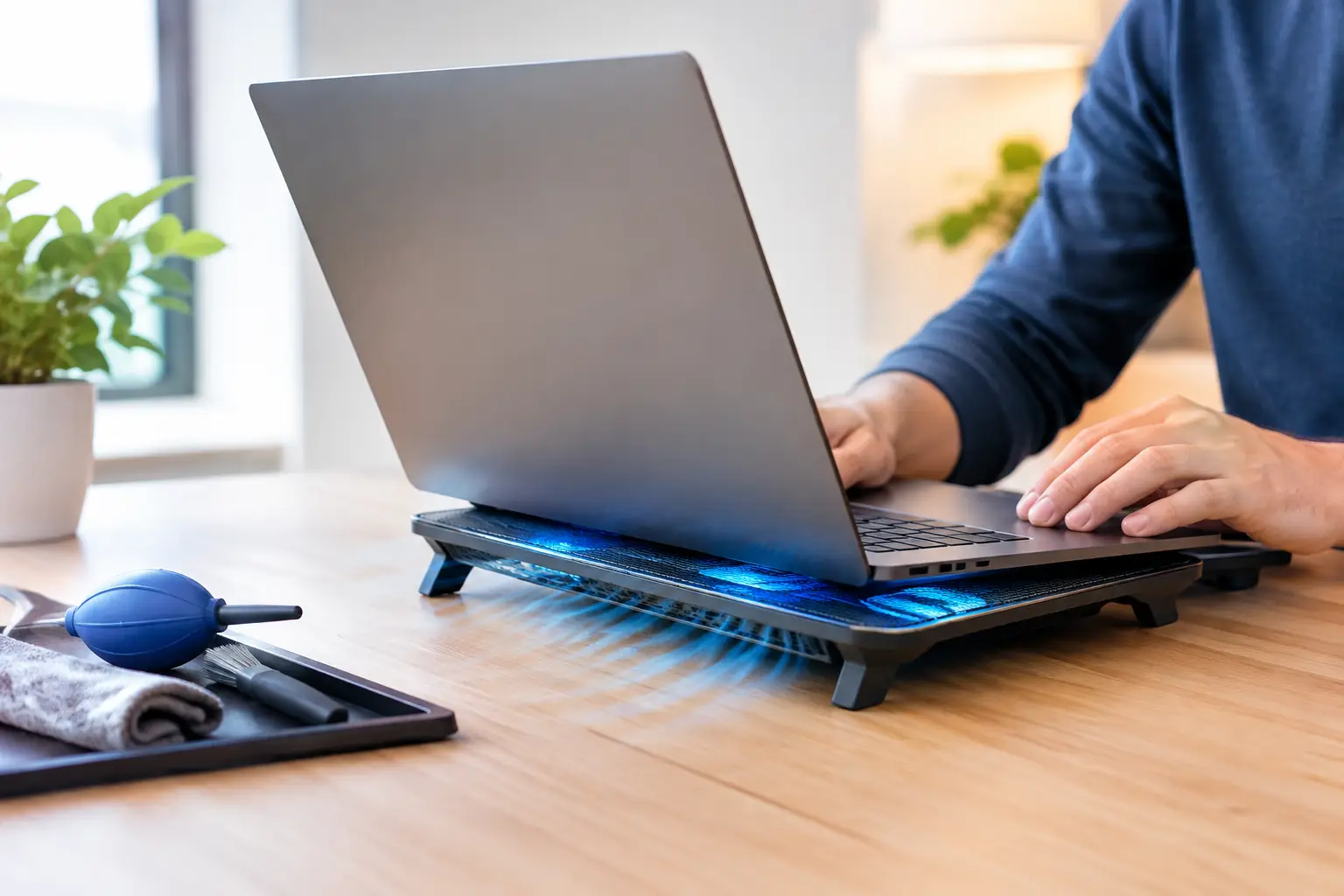
Use a desk or table, and leave clear space around the vents. If you regularly work from the sofa, a solid laptop stand or tray is a worthwhile low-cost fix. A stand that raises the rear edge can improve airflow, although it will not solve a blocked fan or an internal fault.
Check the room too. Direct sunlight, a radiator nearby or a hot car can push a laptop beyond what its cooling system can manage. Let it cool naturally in a shaded, ventilated spot. Do not put it in a fridge, freezer or outside in damp weather. Sudden temperature changes can create condensation inside the device.
Reduce the workload causing the heat
Overheating is often linked to a programme using far more processor power than expected. On Windows, open Task Manager and sort processes by CPU usage. On a MacBook, use Activity Monitor and check the CPU tab. A browser with dozens of tabs, a frozen application, cloud-sync software or an unwanted background process can keep the processor working at full speed.
Close anything you do not need, then restart the laptop. A restart clears many temporary processes and gives you a useful baseline. If temperatures and fan noise settle afterwards, the issue may have been software-related rather than physical damage.
Keep your operating system, browser and security software updated, but avoid installing several “PC cleaner” or fan-control apps at once. Some make bold claims while adding their own background load. For most people, the built-in power settings are enough. Choosing a balanced or power-saving mode can reduce heat during everyday browsing, documents and streaming, with the trade-off of slightly lower performance.
Gamers and creative users may need more power, so it depends on the job. If a game only overheats at maximum graphics settings, lowering resolution, frame rate or visual effects is often a sensible first move. A laptop does not need to run at its limit just because the option is available.
Clean vents carefully, not aggressively
Dust is one of the most common causes of an overheating laptop, particularly in homes with pets, carpets or busy family spaces. Dust gathers at vents and around fans, reducing the amount of air that can pass through the machine.
First, switch the laptop off completely, unplug the charger and allow it to cool. Look at the external vents with a torch. If you can see loose dust at the openings, use a soft brush to lift it away. A small amount of compressed air can help, but use short bursts from a sensible distance and keep the can upright.
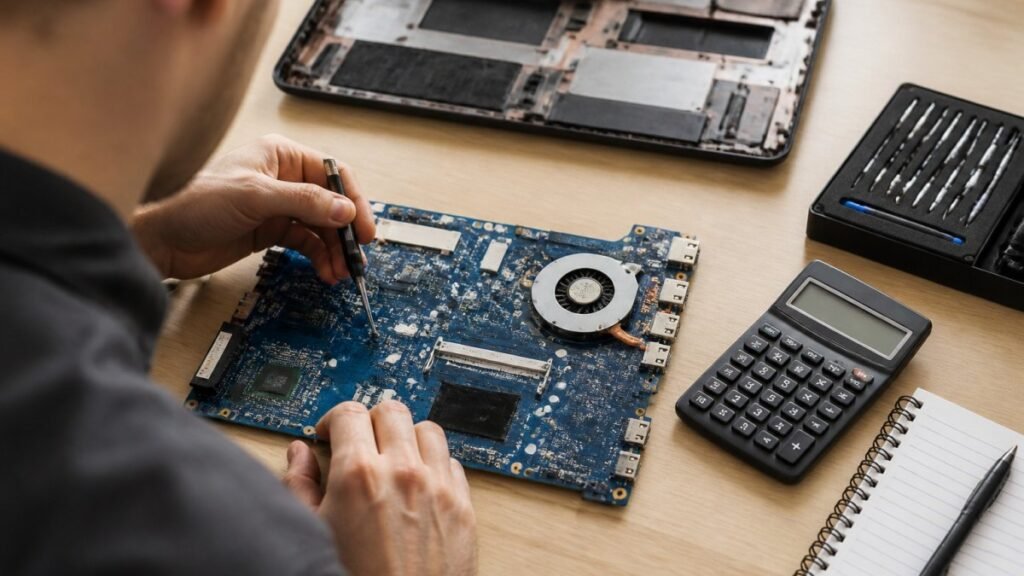
Do not push objects into the vents. Avoid household vacuum cleaners, as static electricity and excessive suction can create problems. Do not spray cleaning liquid into openings. If the laptop is heavily clogged, cleaning it properly usually means removing the base cover and accessing the fan. That is best left to a repair technician unless you are confident with the model and have the correct tools.
Check the charger and battery for warning signs
Not every heat issue starts with the cooling system. A faulty charger, damaged charging port or failing battery can generate heat around the power area. If the charger becomes extremely hot, has a frayed cable, smells odd or only works at a certain angle, stop using it until it can be checked.
A swollen battery needs urgent attention. Signs include a trackpad that feels raised, a keyboard lifting, a case that no longer sits flat or a gap appearing between panels. Do not press the case back into shape, puncture the battery or continue charging it. Switch the laptop off, unplug it and arrange a professional assessment.
Battery faults are not a job for improvised home repair. Lithium batteries store significant energy, and safety comes before saving a few pounds.
When an overheating laptop needs repair
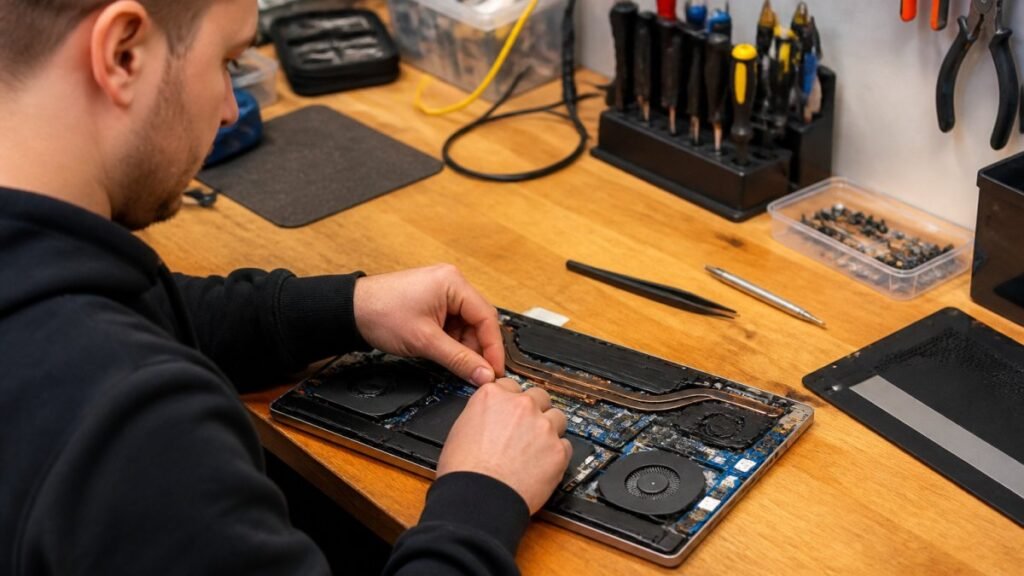
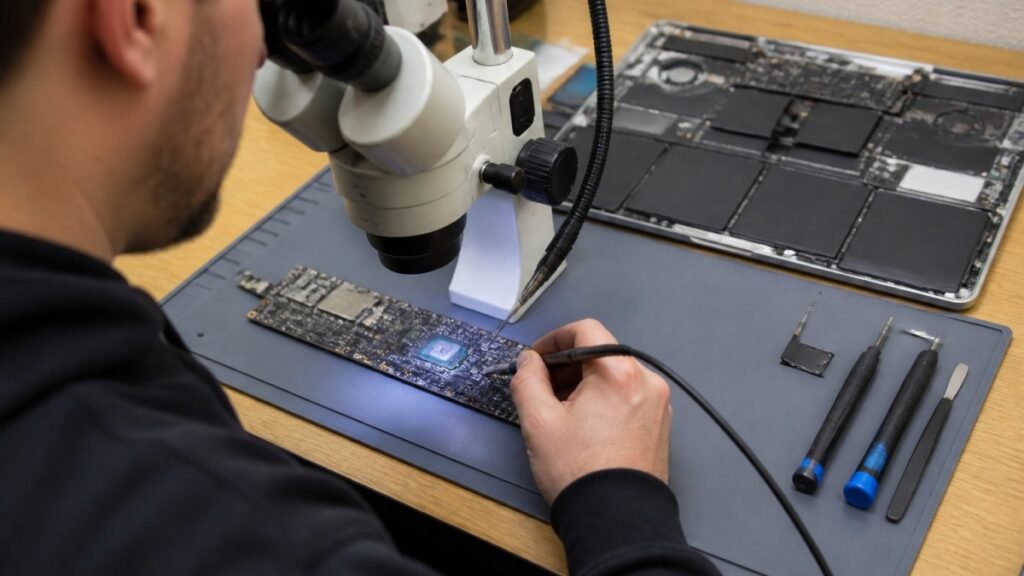
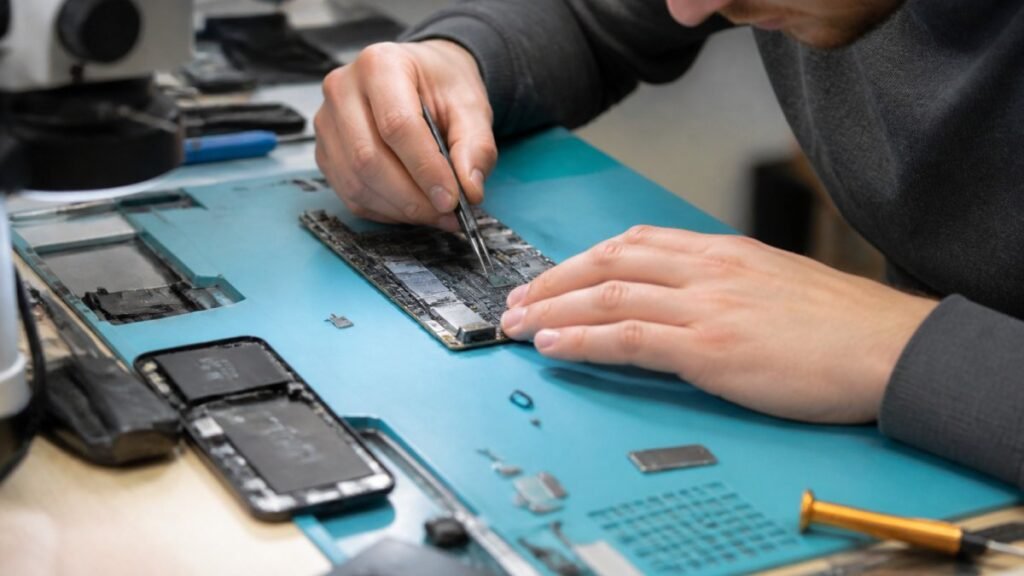
Some symptoms point to an internal fault rather than a simple cleaning or settings issue. A fan may be clogged, worn out or disconnected. Thermal paste, which transfers heat from the processor to its heat sink, can dry out over time. On some devices, a loose heat sink, damaged temperature sensor or motherboard fault may be involved.
Arrange a diagnosis if the laptop shuts down repeatedly, shows temperature warnings, becomes hot while idle, has no fan sound at all, or still overheats after you have improved airflow and reduced the workload. The same applies if there is a burning smell, crackling, smoke or visible battery swelling. Turn it off immediately and do not keep testing it.
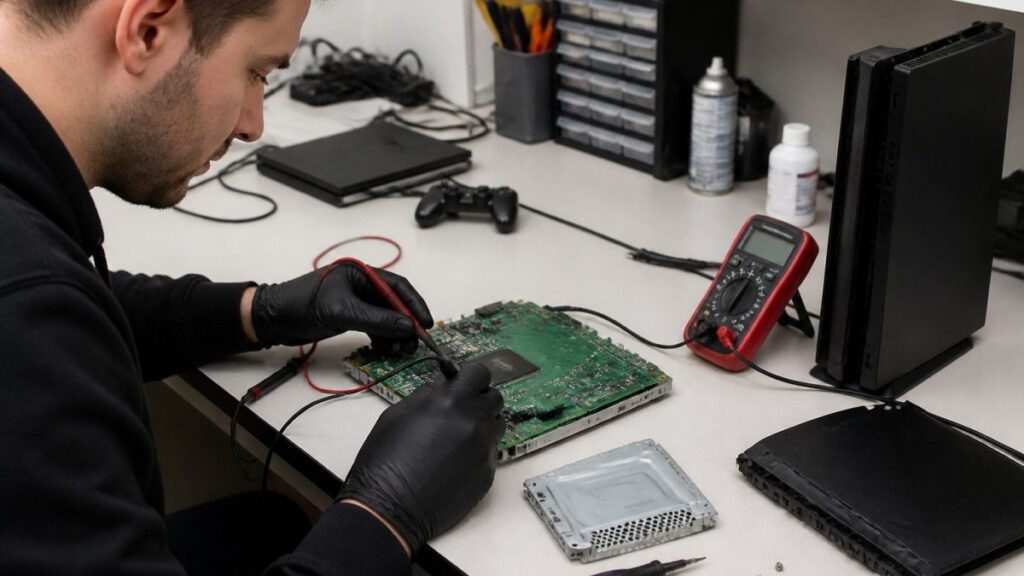
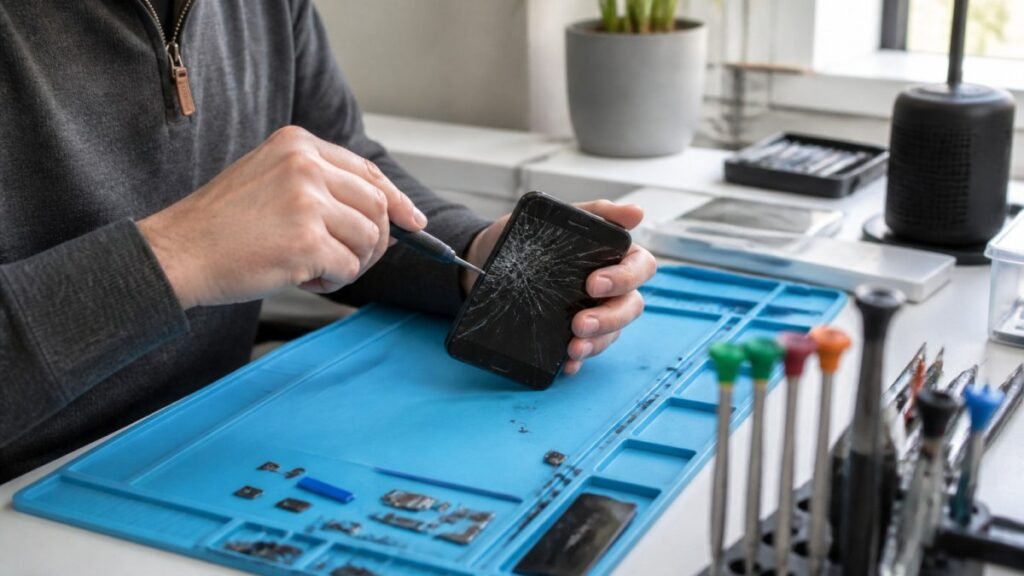
A proper repair should identify the underlying cause, not simply clean the outside and send the laptop back. Depending on the device, the solution may involve internal fan cleaning, fan replacement, fresh thermal paste, a battery replacement, charging-port repair or deeper board-level work. The right option depends on the laptop’s age, value and the cost of parts. For an older budget machine, it may be more sensible to discuss repair costs before committing. For a newer work, study or gaming laptop, restoring its cooling system can protect a much more valuable device.
Prevent the problem from returning
Once the laptop is running cooler, a few habits make a real difference. Keep vents uncovered, close demanding apps when you are finished, and avoid leaving the machine working inside a bag. If you use it every day, check for dust around the vents every few months rather than waiting for the fan to sound like it is taking off.
Back up important files too. Overheating does not always mean data loss, but sudden shut-downs and failing hardware can put unsaved work at risk. A backup gives you options if the device needs to stay in for repair.
If your laptop is still running hot, do not let it disrupt work, revision or downtime. TechLab Repairs can assess the fault, handle your device carefully and give you clear advice on the most practical next step.