A MacBook that stops at the Apple logo can feel far more serious than a cracked screen. You may see a progress bar that never moves, a logo that appears and disappears, or a restart loop that prevents you reaching your files. If you are searching for MacBook stuck on Apple logo repair in Barrow, the priority is to avoid turning a recoverable software fault into a data-loss problem.
The good news is that this symptom does not automatically mean the MacBook is beyond repair. It can be caused by an interrupted macOS update, a damaged startup disk, a failing SSD, battery or charging issues, liquid damage, or a deeper logic board fault. The right next step depends on what happened immediately before the problem started.
Why a MacBook gets stuck at the Apple logo
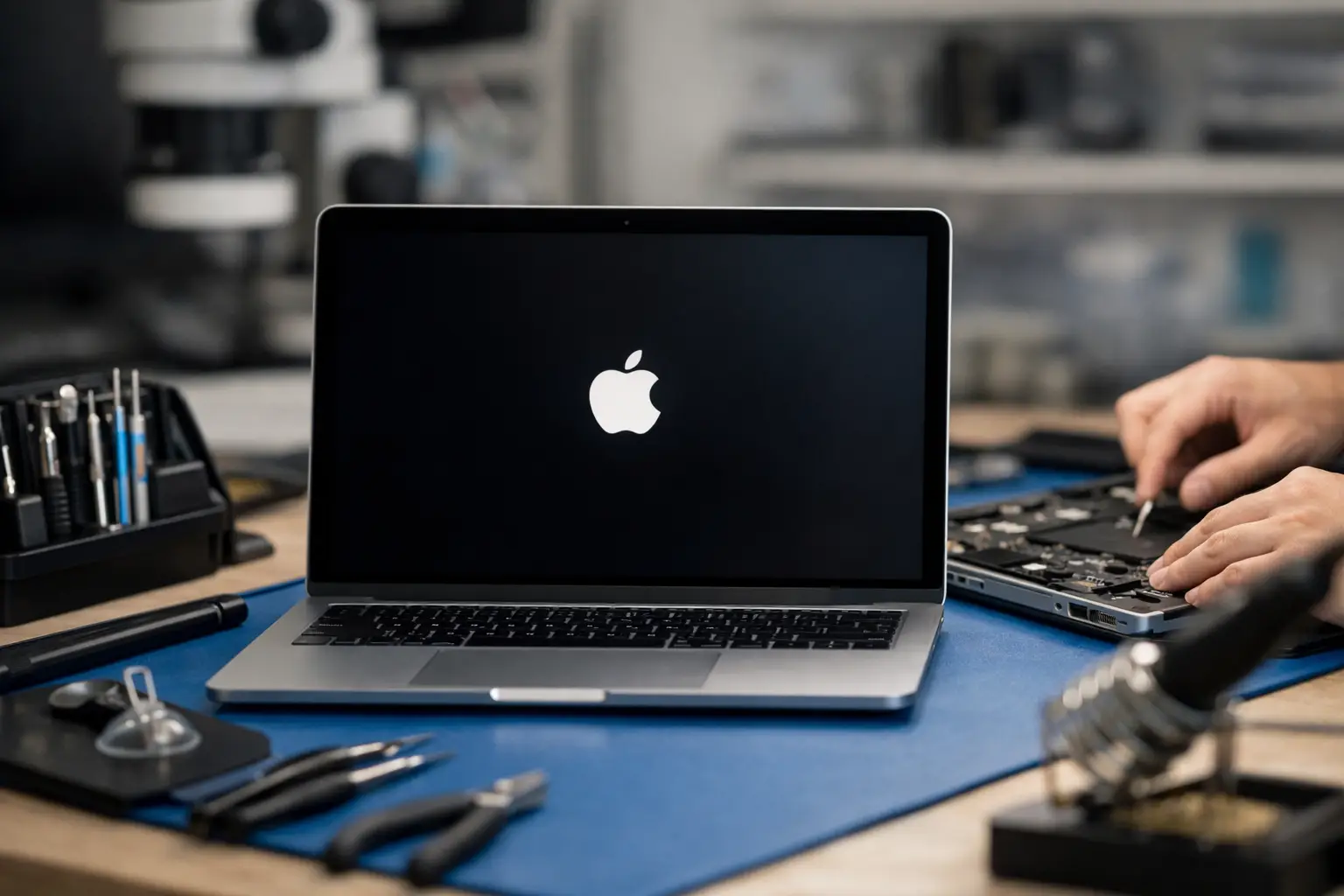
The Apple logo appears when your MacBook has found its startup system and is attempting to load macOS. The progress bar indicates that it is checking and loading key files. When it stops, either macOS cannot complete that process or a hardware component is preventing it from doing so.
A recent update is one of the more common explanations. Large macOS updates can take longer than expected, particularly on older Macs with limited free storage. If the battery ran flat, the charger was disconnected, or the machine was forced off during an update, essential system files may be incomplete.
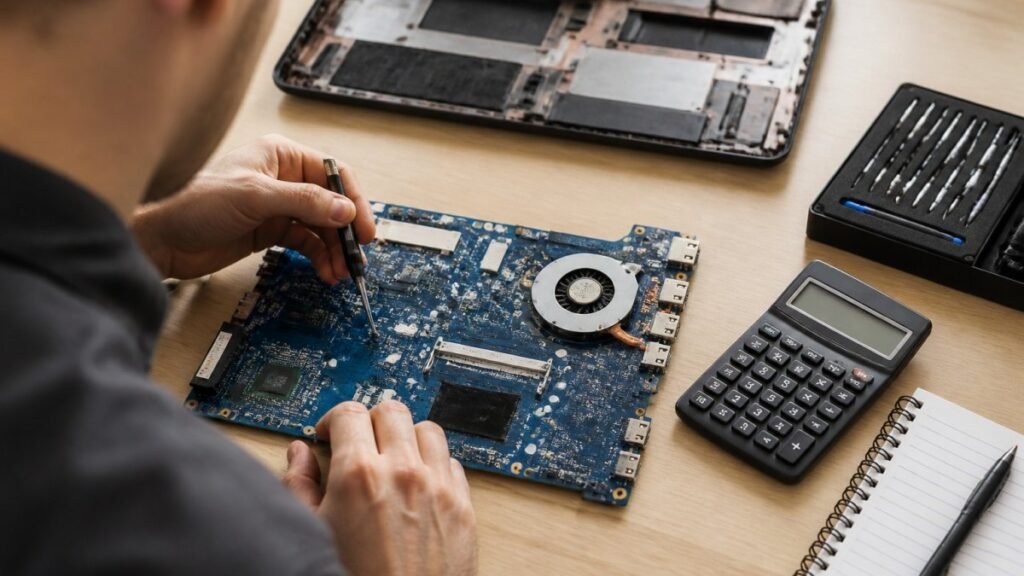
Storage faults are another possibility. On an older MacBook with a removable drive, the SSD or hard drive may be failing. On many newer models, storage is integrated with the logic board, so proper diagnosis matters before anyone suggests replacing parts. Repeated restarts, a progress bar that stops at the same point, and very slow behaviour before the fault appeared can all point towards a storage-related issue.
It may also be a peripheral or power problem. A faulty USB hub, external drive, printer, dock or charger can interfere with startup. If there has been a spill, a drop, overheating, or an unreliable charging connection, the underlying cause may be hardware rather than macOS.
Safe checks to try before booking a repair
Start by connecting the MacBook directly to a known-good charger and wall socket. Leave it connected for at least 30 minutes. Avoid extension leads, docking stations and third-party adaptors while you test it. Then disconnect every accessory, including USB devices, SD cards, external displays and hubs.
If the progress bar has not moved at all for an hour, hold the power button down until the MacBook switches off. Wait ten seconds, then start it again. Do not repeatedly force it off after only a few minutes, especially if it may be installing an update. A single controlled restart is reasonable; several interrupted starts can make file-system corruption worse.
If it still stops at the logo, try Safe Mode. This starts macOS with only essential software and can help identify whether login items, extensions or cached files are involved.
On an Apple silicon MacBook, switch it off, then press and hold the power button until startup options appear. Select your startup disk, hold Shift and choose the option to continue in Safe Mode. On an Intel-based MacBook, switch it on and immediately hold Shift until you reach the login screen. If Safe Mode starts successfully, back up important files straight away before attempting updates or removing recently installed software.
Use macOS Recovery carefully
Recovery Mode includes tools that can repair the startup disk or reinstall macOS. It is often the sensible next stage, but it is important to choose the right option. Reinstalling macOS usually keeps personal files intact. Erasing the MacBook removes them.
For Apple silicon models, hold the power button from shut-down until you see startup options, then select Options. For Intel models, switch on and immediately hold Command and R. In Recovery Mode, open Disk Utility, select the internal startup volume and run First Aid. If it reports errors that it cannot repair, do not keep running fixes at random. That can be a sign of a failing drive or a more significant file-system problem.
If First Aid completes and the disk appears healthy, reinstalling macOS may resolve a damaged operating system without wiping your data. Keep the MacBook on charge and connected to reliable Wi‑Fi throughout the process. If you are unsure which volume to select, or you see terms such as FileVault, container, data volume or recovery partition, stop and get advice rather than guessing.
When DIY steps can make the fault worse
A factory reset is often suggested online, but it should not be the first response if your files matter. University work, family photographs, business documents and locally stored passwords may not be backed up elsewhere. Even where cloud services are in use, not every folder or application is necessarily synchronised.
Avoid opening the MacBook, attempting an SSD swap without confirming compatibility, or using unverified repair tools downloaded from forums. Newer MacBooks are tightly integrated, and poor-quality repairs can create extra faults. There are also security and privacy considerations when a device contains personal or business information.
Be particularly cautious if the MacBook was exposed to liquid. It may initially show only an Apple logo issue, then develop charging, keyboard, display or logic board faults as corrosion progresses. Switch it off, disconnect power and do not attempt to dry it with a hairdryer or place it in rice. A prompt inspection gives the best chance of limiting damage.
MacBook stuck on Apple logo repair in Barrow: what a diagnosis should cover
A proper repair process should begin with the history of the fault. Did it happen after an update, after the battery went flat, following a drop, or with no warning at all? That information helps separate likely software corruption from a power, storage or logic board issue.
A technician can then check whether the MacBook is detecting its internal storage correctly, assess the battery and charging behaviour, test for signs of liquid damage, and run appropriate diagnostics. Where the storage is accessible and failing, the best route may be data recovery followed by replacement. Where the fault is software-based, a controlled repair or macOS reinstallation may be all that is needed.
For business users, the order of work matters. If the MacBook holds client records, accounts data or school files, state clearly that data preservation is the priority before any reset is considered. A good repair shop should explain what is known, what remains uncertain and the likely options before proceeding.
At TechLab Repairs in Barrow-in-Furness, MacBook faults are assessed with that practical approach in mind. The aim is not to sell an unnecessary replacement, but to identify the fault, protect your data where possible and recommend a repair that makes financial sense for the age and condition of the machine.
Is repair worth it?
It depends on the model, the cause and the condition of the MacBook overall. A recent MacBook that needs a macOS repair, battery service or charging fault diagnosis is usually well worth fixing. An older model with a failing drive may still be a good candidate if the rest of the machine is sound, especially where an upgrade can improve day-to-day performance.
Logic board and integrated storage faults need a more careful cost comparison. The device may contain valuable files or still be ideal for work and study, making repair worthwhile. On the other hand, if there are several existing faults and the cost approaches that of a suitable replacement, an honest recommendation may be to recover the data and move on.
Before you hand over any MacBook, make a note of your Apple ID details if you know them and bring the charger if the charging behaviour is part of the problem. Do not share passwords unless they are genuinely needed for testing, and ask how your data will be handled. Clear communication protects you as much as it helps the repair.
A MacBook frozen on the Apple logo is disruptive, but it is not a reason to panic or erase everything straight away. Give an update enough time, try the safe checks once, then seek a local diagnosis if it will not start. The sooner the underlying fault is identified, the better the chance of getting back to your work, study and files without a bigger interruption.