A laptop that drops from 40% to 5%, shuts down when unplugged or only works beside the charger is not just inconvenient. It can interrupt coursework, work calls and everyday tasks when you need the device most. Knowing how to test a failing laptop battery helps you separate a worn-out battery from a charging fault, software issue or a more serious internal problem.
Most laptop batteries gradually lose capacity. That is normal. What matters is whether the battery is still delivering reliable runtime and whether there are any safety warning signs that mean you should stop using it straight away.
Start with the warning signs
Battery faults do not always look the same. A laptop may report a low battery even after charging for hours, become unusually hot around the base, or lose power the moment the charging cable is removed. Some devices slow down noticeably because the system is trying to protect itself from an unstable power supply.
Pay attention to patterns rather than one-off incidents. A single unexpected shutdown could be caused by an update, overheating or a loose charger. Repeated shutdowns at a similar percentage are much more likely to point towards battery wear or inaccurate battery reporting.
The most common signs include:
- Battery life that has fallen sharply compared with normal use
- Charge percentage jumping up or down without explanation
- The laptop turning off with charge still showing on screen
- A battery that will not charge beyond a certain percentage
- Excessive heat, a lifted trackpad or a bulging laptop casing
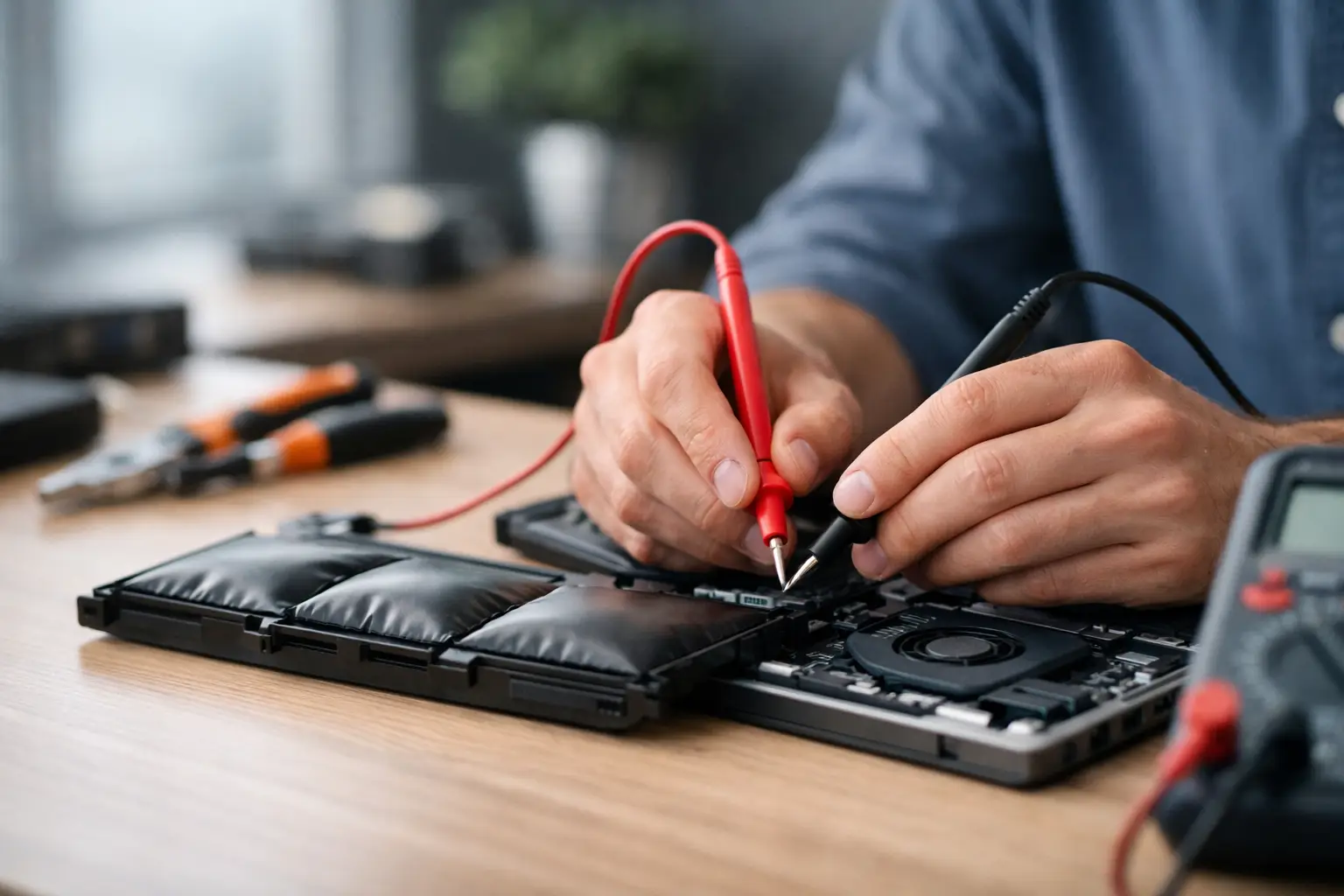
A swollen battery is different from ordinary battery ageing. If the case is separating, the keyboard or trackpad is lifting, or the underside no longer sits flat, switch the laptop off, unplug it and avoid pressing on the affected area. Do not continue charging it, puncture it or attempt to force the casing shut. A swollen lithium-ion battery needs professional handling.
Check the simple causes first
Before assuming the battery has failed, check the charger and charging port. Use the correct manufacturer-rated charger where possible. A low-powered USB-C charger may keep a laptop running but fail to recharge it properly under load, particularly on performance laptops.
Inspect the cable for fraying, bent connectors or intermittent charging. Then gently check whether the charging symbol appears and disappears when the plug is moved. If it does, the problem could be the cable, adapter, port or internal charging circuit rather than the battery itself.
It is also worth restarting the laptop and installing pending operating system updates. Battery readings can occasionally become inaccurate after an update or a system error. However, do not rely on software updates to cure a battery that is physically swollen, overheating or shutting down repeatedly.
How to test a failing laptop battery in Windows
Windows includes a useful battery report that shows how much capacity your battery has lost over time. This is one of the clearest checks you can make at home because it compares the battery’s original design capacity with its current full charge capacity.
Open Command Prompt as an administrator. Type `powercfg /batteryreport` and press Enter. Windows will save a report, usually in your user folder, and display its location on screen. Open the saved HTML file in your browser.
Look for two figures: Design Capacity and Full Charge Capacity. Design capacity is what the battery could hold when new. Full charge capacity is what it can hold now. For example, a battery designed for 50,000 mWh that now reaches 30,000 mWh has roughly 60% of its original capacity remaining.
There is no single percentage at which every battery must be replaced. A laptop with 80% capacity may still suit light home use, while a laptop needed for full working days may already be frustrating at that level. Once capacity is around 60% or lower, or the battery report shows a steep recent decline, replacement is often better value than constantly hunting for a socket.
Also check the report’s recent usage and battery usage sections. If it records sudden drops, very short sessions or a device that spends most of its time connected to mains power, that supports the case for further diagnosis.
Run the manufacturer’s diagnostics where available
Many laptop brands include built-in hardware tests. These may run from a support app in Windows or from a diagnostics menu accessed when the laptop starts. They can identify a battery that has reached its service limit, failed a health check or cannot communicate correctly with the system.
A passed test does not guarantee perfect battery life, as it may only confirm that the battery is safe and recognised. A failed test, however, is useful evidence that the battery needs replacing or that the charging system needs inspection.
Testing battery health on a MacBook
On a MacBook, choose the Apple menu, then System Settings, General and About. Open System Report and select Power to view battery condition, cycle count and capacity information. On older macOS versions, hold the Option key while selecting the battery icon in the menu bar to see a condition message.
Messages such as “Service Recommended” mean the battery may still work, but its capacity or performance is no longer as expected. Check the cycle count too. A cycle is accumulated whenever you use the equivalent of 100% of the battery’s capacity, even if that happens across several partial charges.
Cycle count alone is not a verdict. Some batteries age faster through heat, heavy use, long periods stored flat or charging habits. Condition status, real-world runtime and any physical symptoms give a more useful picture together.
Carry out a realistic runtime test
Battery reports are helpful, but real use matters. Charge the laptop fully, disconnect the charger and use it as you normally would for an hour. Keep the test consistent: use similar screen brightness, close unnecessary programs and avoid demanding games or video editing unless that is your typical workload.
Make a note of the charge level at the start and after 30 and 60 minutes. Watch for rapid percentage drops, sudden shutdowns or a machine that becomes very hot while doing light tasks. If the laptop loses half its charge in a short period during basic browsing and document work, the battery is likely heavily worn.
Do not deliberately run a suspect battery to zero again and again. Modern lithium-ion batteries do not benefit from regular deep discharges, and repeated shutdowns can risk unsaved work. One controlled test is enough to reveal whether the runtime is realistic.
Battery problem or something else?
A weak battery and a charging fault can produce similar symptoms. If the laptop performs perfectly on mains power but fails as soon as it is unplugged, the battery is the leading suspect. If it loses charge even while connected, refuses to recognise any charger, or only charges when the cable sits at a certain angle, the port, charger or motherboard charging circuit may be involved.
Heat is another factor. A clogged fan, failing cooling system or demanding background process can shorten battery life dramatically. Check whether the fans are constantly loud and whether the laptop is hot even when idle. In that case, a battery replacement alone may not solve the underlying issue.
For older laptops with removable batteries, testing can be more straightforward because a known-good compatible battery can confirm the fault. For modern sealed devices, opening the case without the right tools can damage clips, cables or the battery itself. This is especially true if there is any sign of swelling.
When to arrange a professional diagnosis
Book a professional assessment if the battery is swollen, the laptop has suffered liquid damage, it will not power on, or the fault remains unclear after checking the report and charger. A proper diagnosis can test the battery, adapter, DC-in port and charging circuit, so you do not pay for a battery replacement when the real fault is elsewhere.
For customers across Barrow-in-Furness, Furness, Cumbria and the Lake District, TechLab Repairs can assess laptop power faults and fit a suitable replacement battery where needed. Your files are not the fault, but they are still valuable, so back up important work whenever the laptop can stay powered long enough to do so.
A failing battery does not have to mean replacing an otherwise dependable laptop. Test it safely, act quickly on any swelling or heat, and get the right diagnosis before a small power issue becomes a bigger interruption.