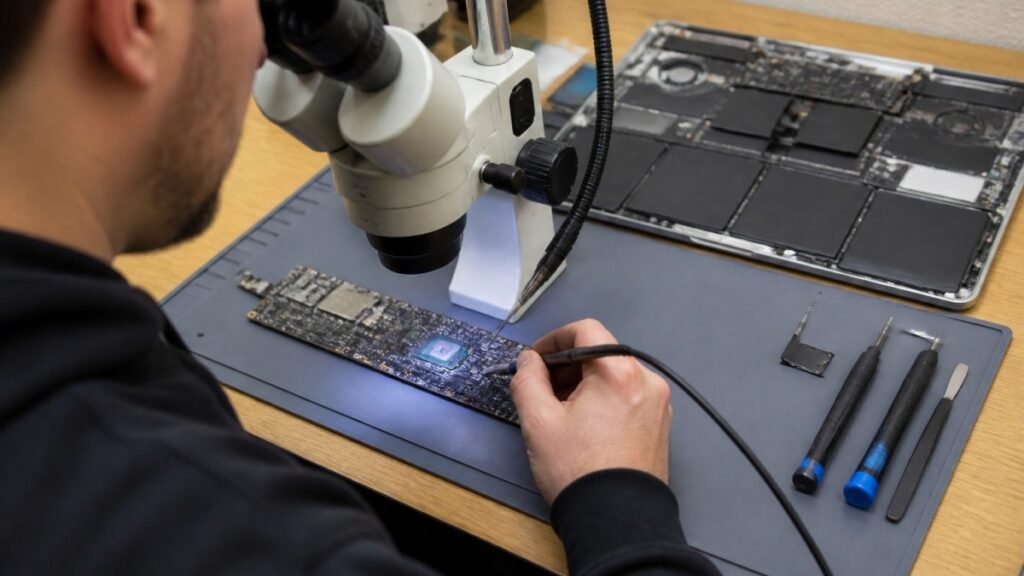
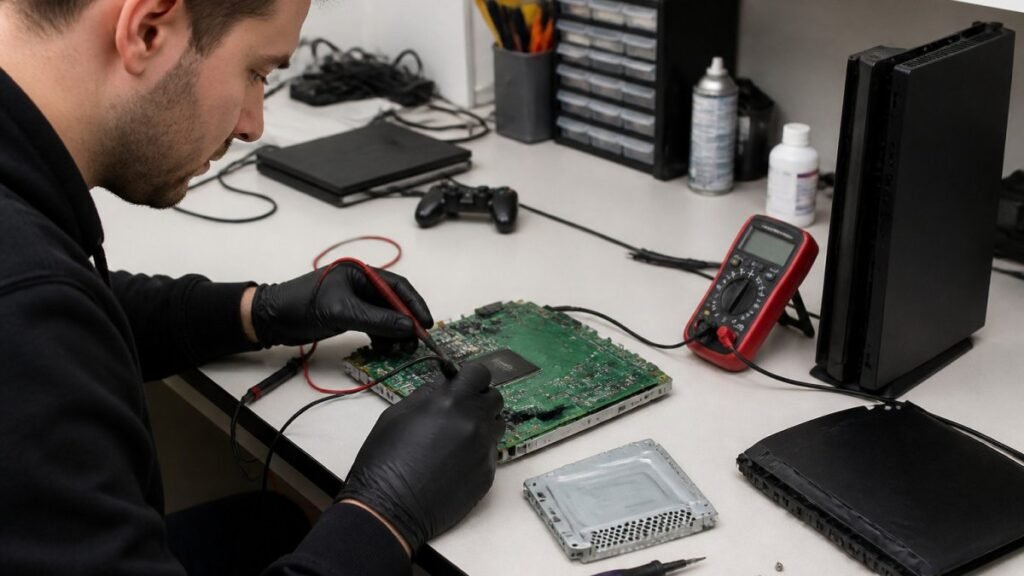
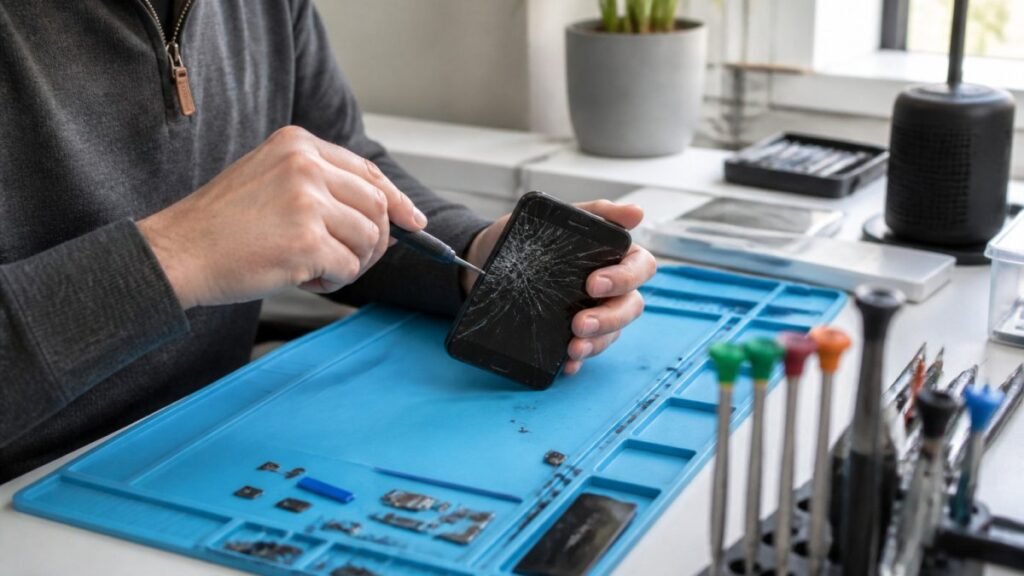
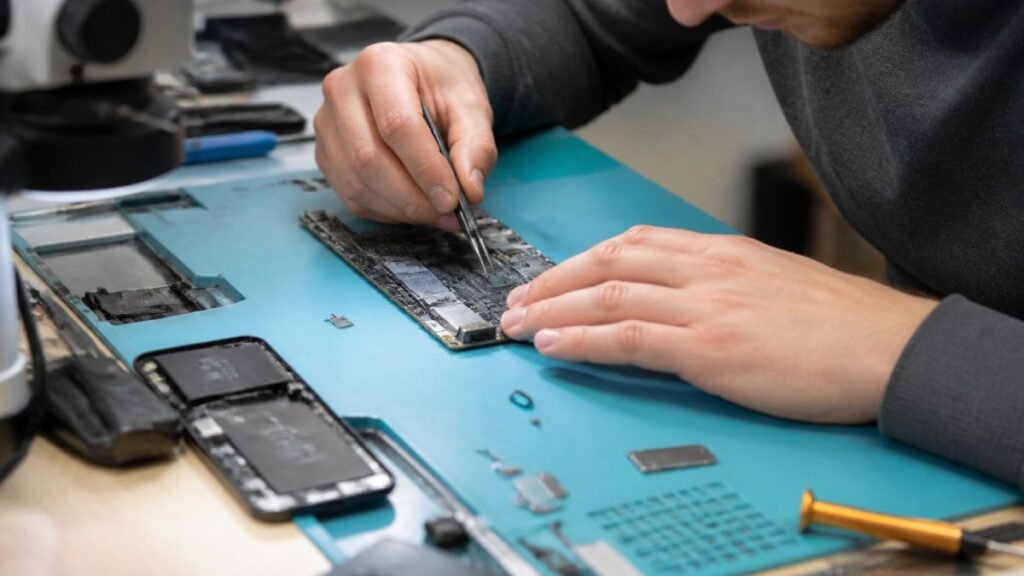
A cracked work phone, a laptop that will not charge or a tablet with liquid damage can halt a normal working day surprisingly quickly. A proper guide to secure business device repairs is not just about getting hardware fixed fast. It is about keeping customer information, staff accounts and business files protected while returning the device to service with as little disruption as possible.
For businesses, schools and organisations across Barrow-in-Furness, Cumbria and the Lake District, sending a device away with no clear process can feel like a gamble. The right repair partner gives you a clear diagnosis, sensible timescales and a secure handover process from the moment the device leaves your hands.
Why business device repair needs a security plan
A personal handset might hold photos, messages and banking apps. A business device can hold all of that type of information plus email access, cloud storage, client contact details, invoices, pupil records or internal systems. Even a device that will not switch on may still contain accessible data on its storage drive.
That does not mean every repair requires a data wipe. In many cases, replacing a screen, battery, charging port, keyboard or HDMI port has no reason to touch the data at all. However, board-level faults, liquid damage and storage problems can be less predictable. Your repair process should account for that risk before the technician starts work.
Speed matters too, but it should not override good judgement. A same-day screen replacement for a company iPhone may be the best option. A laptop with signs of liquid damage may need careful assessment first, because powering it repeatedly can turn a repairable fault into a more serious logic board issue.
Guide to secure business device repairs: start before the handover
The safest repair begins in your office, classroom or workplace. Prepare the device where possible, then record exactly what has been handed over. This gives your team control and helps the repair technician diagnose the fault without unnecessary access to sensitive material.
First, back up the device if it still works. Use your approved company backup method rather than relying on a last-minute manual copy to an unprotected USB stick. Check that essential files, contacts and authenticator recovery options are available elsewhere before the device goes in for repair.
Next, record the device make, model, serial number or asset tag, its condition and the reported fault. A few clear photographs are useful for devices with cosmetic damage. For an organisation with several handsets, tablets or laptops, this simple record also prevents confusion when equipment is collected or returned.
Where your IT policy allows it, sign out of non-essential apps and remove locally stored confidential documents. Do not remove device management, encryption or security software simply to make a repair easier. Those controls are there for a reason. A reputable technician can explain what access is genuinely required for testing.
Manage passwords and access properly
One of the most common mistakes is writing a device passcode on a note and placing it in the box. It is understandable when you need a quick repair, but it creates an avoidable security weakness.
A repair technician may need to unlock a device to test a replacement screen, camera, speaker, charging function or Wi-Fi connection. That does not automatically mean they need the password to every business system on the device. Ask what testing is needed, whether it can be done while you are present, and whether a temporary test account is suitable.
For company laptops, create a temporary local repair account only if your IT administrator approves it. Give it the minimum permissions needed for functional checks, then remove it when the device returns. Keep administrator credentials, cloud passwords and multi-factor authentication codes within your own team.
Some repairs have platform-specific requirements. Apple devices may need Find My or Activation Lock managed before certain work can be completed. Android devices can be protected by Factory Reset Protection. These safeguards are valuable, but they can affect repair workflows, so clarify the requirements before dropping the device off. Never share a personal Apple Account or Microsoft password just to speed up a repair.
Choose a repair partner that can explain its process
Secure handling is not a vague promise. A professional repair provider should be able to explain how devices are logged, stored, tested and returned. If the answer is unclear, that is a reason to pause.
For business and school repairs, ask how the provider identifies devices on arrival, who can access the repair area and whether completed devices are kept securely until collection. It is also reasonable to ask whether they need login access, what they will test after the repair and how they handle devices that cannot be repaired.
Local support has practical advantages. You can speak directly to the people repairing the device, explain the fault in person and arrange collection without days of post or courier handling. For an urgent issue, a nearby repair specialist can often assess whether a quick component replacement is realistic or whether the device needs a deeper diagnostic check.
At TechLab Repairs, business customers can bring in a wide range of devices, from iPhones and Samsung handsets to Windows laptops, MacBooks, iMacs, tablets, desktops and consoles used in staff areas. The key is matching the repair to the device and the business need, not forcing every fault into the same turnaround promise.
Keep encryption and device management in place
Encryption is one of the strongest protections available when a device is lost, stolen or handled by somebody outside your organisation. On laptops, this may mean BitLocker or FileVault. On mobile devices, it means maintaining a strong passcode and using the platform’s built-in encryption features.
Do not disable encryption before a repair unless your IT lead has a specific, documented reason. A technician can often carry out physical repairs and basic functional testing without it. If a repair requires more access, decide whether the value of the data, the urgency of the repair and the availability of a backup justify that step.
Mobile device management also deserves attention. Managed devices should remain visible in your system while they are away for repair. If a phone is lost in transit, your organisation should be able to locate it where appropriate, lock it or remotely wipe it according to your policy. Be cautious with remote wipe commands, though. Issuing one before confirming the device is genuinely missing can erase information needed for recovery.
Set a clear chain of custody
A chain of custody sounds formal, but it can be as straightforward as knowing who passed a device over, when it was received and who collected it afterwards. This is especially useful for schools, offices with shared equipment and businesses sending multiple devices for work.
Your record should include the named contact, device identifier, fault description, any accessories handed over and the agreed approval limit for repairs. Keep chargers, cases, SIM cards and removable storage with the device only when they are needed for diagnosis. Fewer items in the handover means fewer things to lose.
If the repair cost may change after diagnosis, agree who can authorise additional work. That protects your budget and prevents delays while a technician waits for permission to replace a part. For higher-value laptops or devices holding sensitive records, nominate a single person to collect and check the equipment on return.
What to check when the device comes back
Collection is not the end of the repair process. Before the device goes back into normal use, inspect the repair and complete a short security check. Confirm that the serial number or asset tag matches your record, the reported fault has been resolved and there is no unexpected cosmetic damage.
Then sign in using the usual business account and check the essentials: Wi-Fi, charging, camera, microphone, keyboard, biometric login where fitted and the apps your team relies on. Make sure encryption and device management are still active. Remove any temporary repair account and change its password if one was created.
For a laptop that had liquid damage or a board-level issue, watch its performance over the following days. Intermittent charging, random shutdowns or keyboard faults should be reported promptly. Good repair support means dealing with the actual fault, not leaving you to guess whether a new symptom is connected to the original problem.
Repair, replace or retire?
Not every device should be repaired. A newer laptop with a failed charging port is often worth fixing, particularly when its replacement would require staff downtime, new software setup and data migration. An older machine with recurring board faults, poor battery health and limited security update support may be better replaced.
The decision depends on repair cost, device age, availability of security updates, the value of the stored data and how critical that device is to daily work. A straightforward diagnosis can help you make that call without wasting money on a short-term fix.
A broken business device does not have to become a security incident. Prepare it carefully, use a repair provider that communicates clearly and check it properly on return. That approach keeps your people productive while giving your company data the care it deserves.