A console that suddenly powers off halfway through a match is frustrating. A console that is too hot to touch, flashes an overheating warning, or sounds like it is about to take off needs attention before the fault becomes more expensive. Knowing how to recover from console overheating can protect your PlayStation, Xbox or Nintendo console from repeated shutdowns, lost game data and avoidable internal damage.
The good news is that overheating does not automatically mean your console has failed. Often, it is a ventilation or dust problem that can be corrected. The key is to stop playing, let the system cool properly and deal with the cause rather than repeatedly switching it back on.
What to do when your console overheats
If an overheating warning appears, the fan becomes unusually loud, the picture starts stuttering, or the console shuts down without warning, turn it off fully. Do not restart it straight away to see whether it will last another game. That puts extra strain on already hot components.
Unplug the power cable once the console has shut down. Leave it in a cool, dry room for at least 30 minutes, and longer if the casing still feels hot. Avoid putting it by an open window in damp weather, outside, or in a fridge or freezer. Sudden temperature changes can create condensation inside the console, which introduces a far more serious risk to the board and power supply.
While it cools, remove any discs and look around the vents. If the console is sitting in a closed TV cabinet, pressed against a wall, balanced on carpet, or covered by other equipment, it may simply be unable to move hot air away. Move it to a hard, flat surface with clear space around every vent. As a practical rule, aim for at least 10 cm of free space at the sides and rear.
Once it has cooled, reconnect it and test it with a short session. Keep an eye on fan noise, error messages and whether the console feels unusually warm. If it overheats again quickly, stop using it and investigate further.
Why consoles overheat in the first place
Gaming consoles pull a lot of power during demanding games, updates and long play sessions. Their cooling systems are designed to manage that heat, but only if air can enter, pass through the heatsink and leave the case efficiently.
Dust is one of the most common causes. Over time, it builds up in intake vents, on fan blades and across internal heatsinks. This is especially common in homes with pets, carpets, smokers or busy family spaces. The fan may still be spinning, but a layer of dust can stop it from doing its job properly.
Poor placement causes similar trouble. A console inside a tight media unit recirculates its own hot air, while placing one directly on a thick rug can block lower vents. A warm room, direct sunlight and a radiator nearby all reduce the cooling system’s headroom.
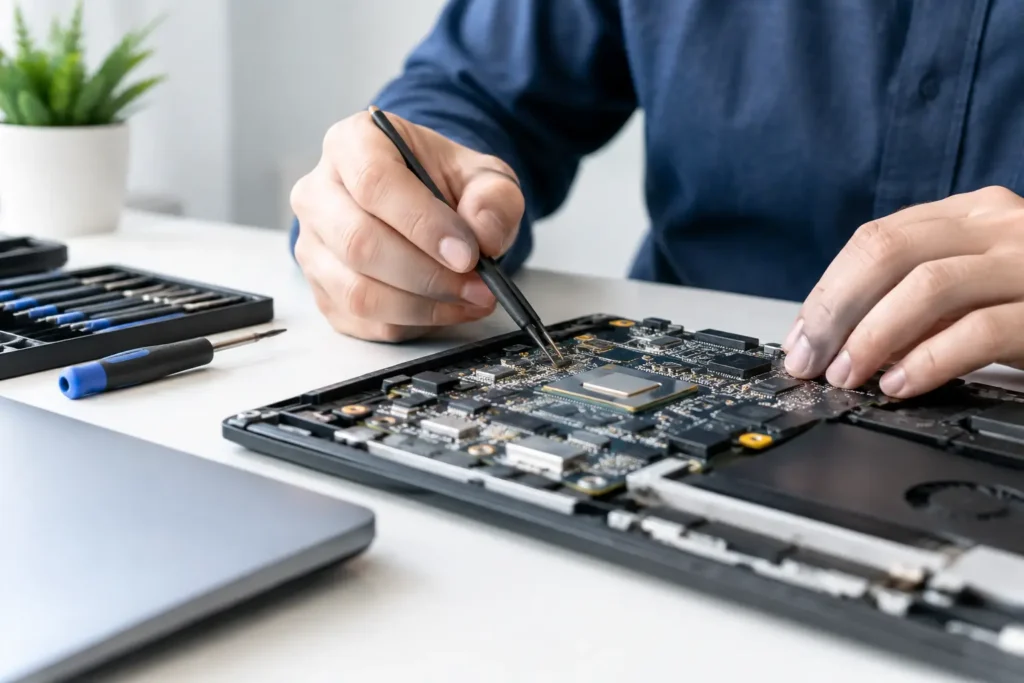
There can also be an internal fault. A weak or failed fan, dried thermal paste, damaged heatsink fitting, blocked internal ducting or power issue can make a console overheat even when it is clean and well positioned. Older consoles are more likely to need internal servicing, but age alone is not the deciding factor. A newer machine can suffer if it has been used in a confined space or exposed to dust and accidental liquid spills.
Safe cleaning before you play again
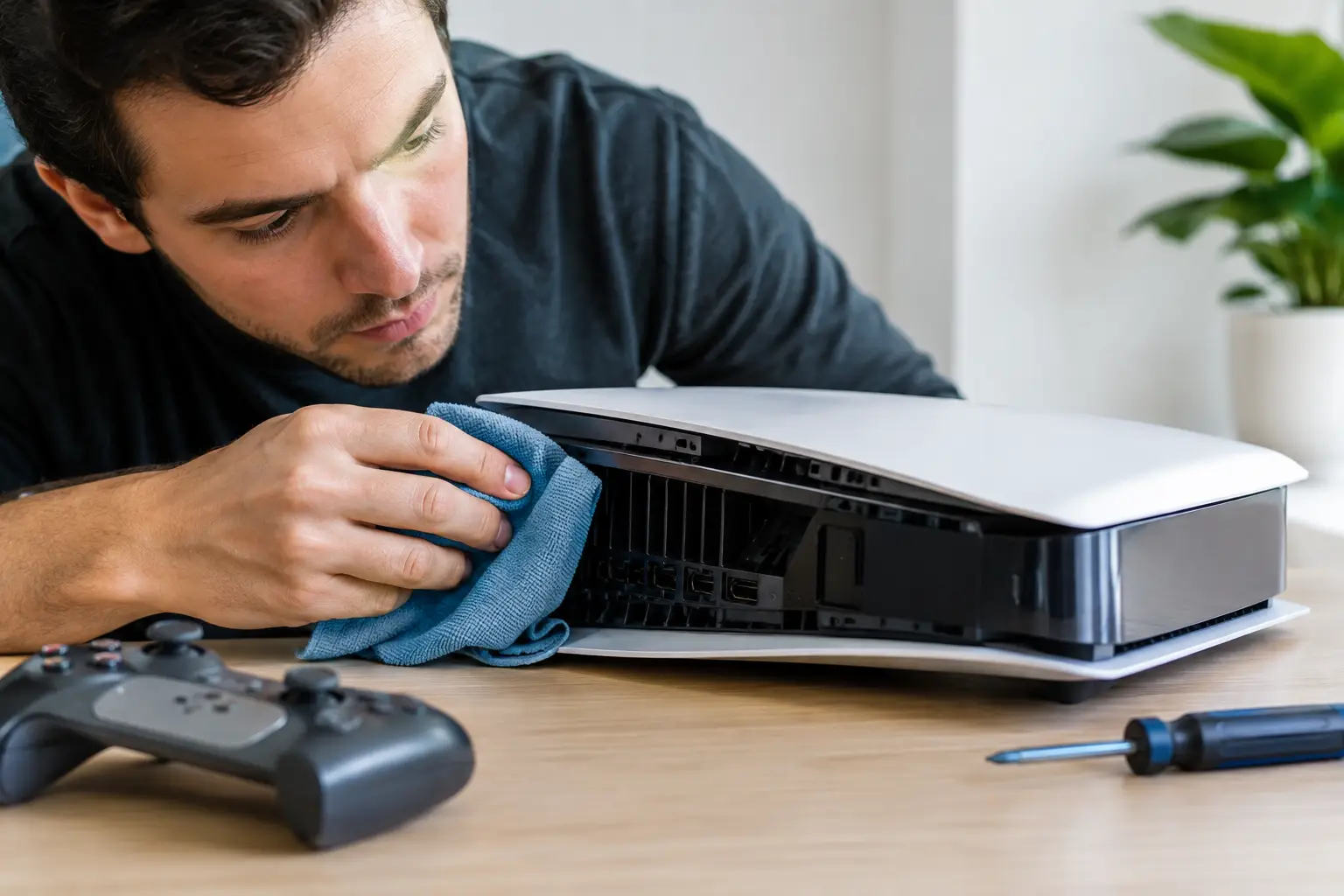
After the console has cooled and been unplugged, use a soft brush or vacuum with a brush attachment around the external vents. Keep the nozzle close enough to collect dust, but do not push it into the vent openings or scrape the casing. A microfibre cloth is useful for clearing the surrounding shelf and reducing the dust that will be drawn back in.
Compressed air can help with light external dust, but use it carefully. Short bursts from a sensible distance are better than holding the trigger down. Do not spray liquid cleaners into vents, and do not use a household hairdryer. Heat and moisture are the opposite of what the console needs.
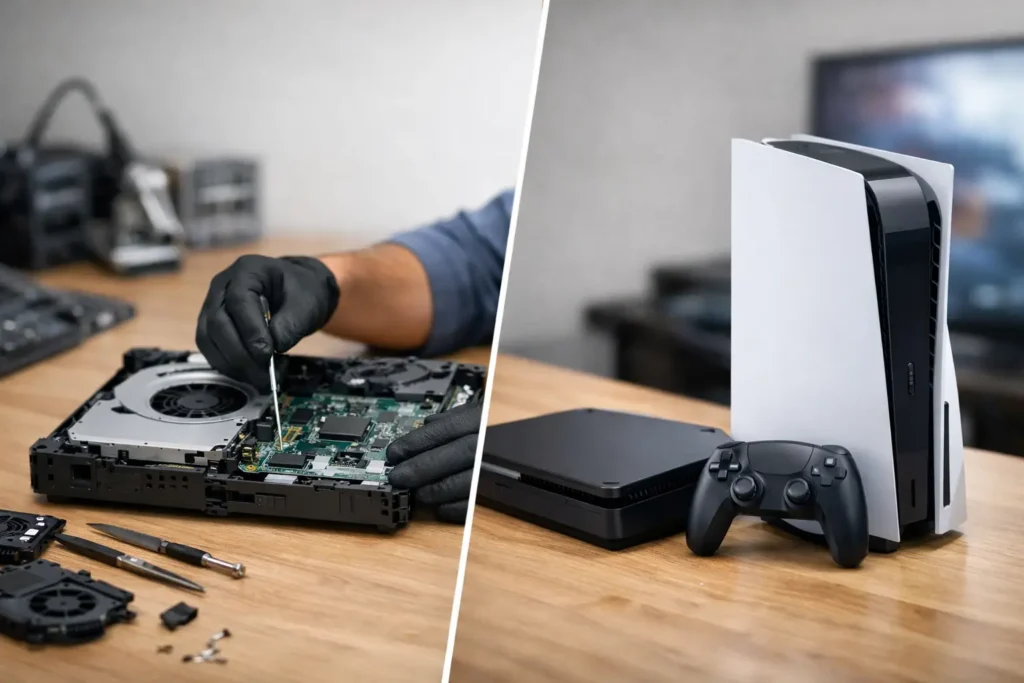
It is tempting to remove the outer casing and clean every component yourself. That can be reasonable for experienced owners following the correct model-specific procedure, but it carries risks. Clips, cables and screws are easy to damage, and an internal clean will not fix a failing fan or degraded thermal material. If your console is under warranty, opening it may also affect your cover. When in doubt, professional cleaning and diagnosis is the safer option.
How to recover from console overheating without causing damage
A proper recovery is more than waiting for the warning message to disappear. Give the console time to return to room temperature, improve its airflow, and then test whether the issue has actually been resolved.
Start with a short game or app rather than a long online session. If your console runs quietly and remains stable, gradually return to normal use. Check that software and system updates are completed too. Updates do not usually cure a heat fault, but interrupted updates, corrupted data or background tasks can occasionally make a system work harder than expected.
Avoid covering the console, stacking items on top of it or placing an external hard drive where it blocks a vent. Keep power leads tidy, but do not bundle them tightly against hot exhaust areas. For consoles used by children or in shared rooms, make sure everyone knows that a loud fan or heat warning is not something to ignore.
A cooling stand can improve convenience and may offer extra charging space, but it is not a cure for blocked vents or an internal cooling failure. Some add-on fans provide little benefit and can even interfere with the console’s intended airflow. Good placement and a clean cooling path matter more.
Signs that the problem needs a repair
One isolated shutdown after hours of gaming in a hot cupboard may be resolved by cooling and moving the console. Repeated symptoms need a closer look. Book a diagnosis if the console shuts down within minutes, shows overheating warnings in a cool and open room, or the fan makes grinding, clicking or rattling noises.
You should also stop using the console if you notice a burning smell, melted plastic, visible liquid, a swollen casing, distorted graphics, random restarts or a failure to power back on. These can point to more than ordinary heat build-up. Continuing to play could damage the motherboard, storage or power components.
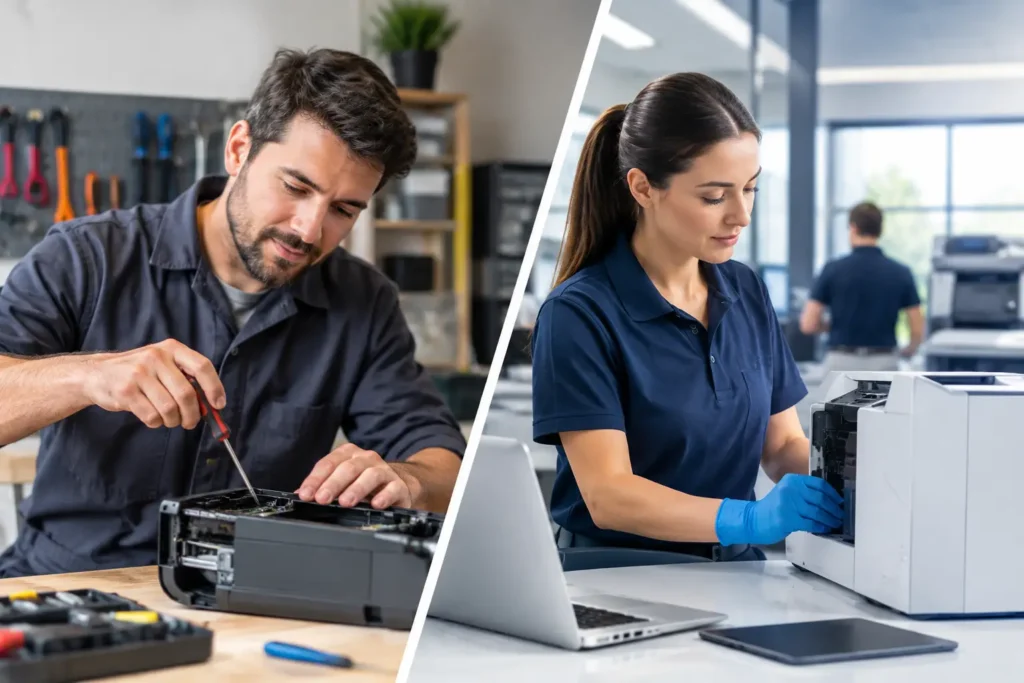
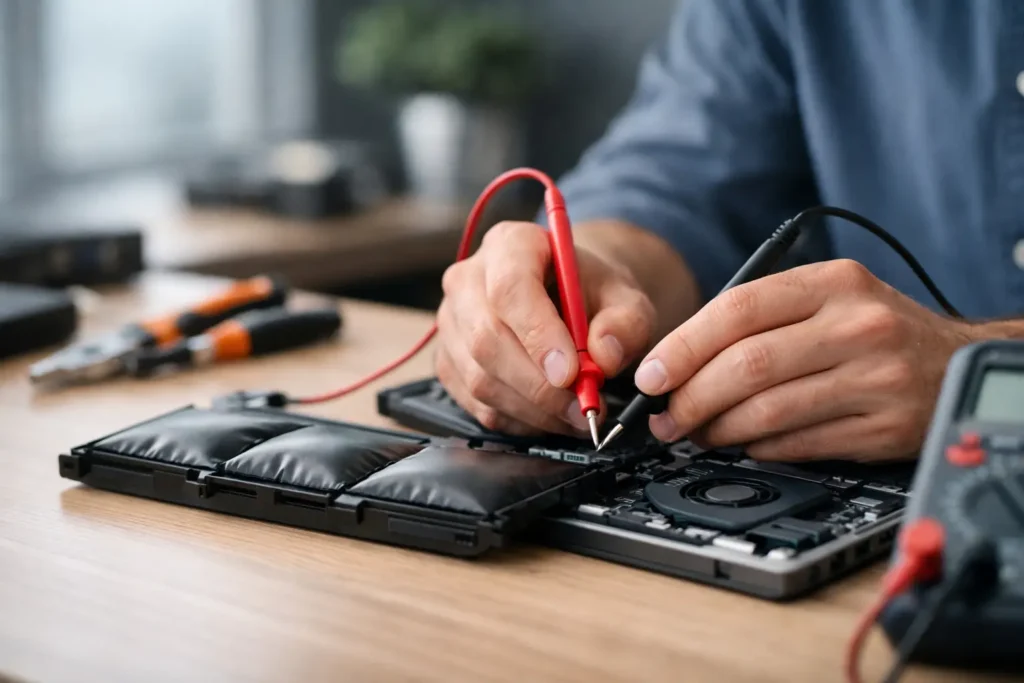
An experienced repair technician can inspect the fan, heatsink, thermal paste, power system and internal dust build-up, then explain what has failed before any work goes ahead. At TechLab Repairs, console faults can be assessed with the same straightforward approach as a damaged HDMI port or power problem: identify the cause, recommend the sensible repair and get you back to gaming without unnecessary replacement costs.
Prevent overheating from returning
Make console care part of your usual setup rather than a response to a warning. Keep the area around the TV unit clean, give the console breathing room and check external vents every few months. If you have pets or the console lives near carpet, inspect it more often.
Long gaming sessions are normal, but a brief break helps in very warm weather or poorly ventilated rooms. This is particularly relevant during summer in a south-facing room, when even a healthy console has less cool air available. Turn the system off properly when you are finished rather than leaving it running in a cramped cabinet for hours.
Your console is designed to protect itself by reducing performance or shutting down when temperatures become unsafe. Treat that protection as an early warning, not an inconvenience. A little time spent improving airflow now can save you from a failed fan, damaged internal components and an interrupted game later.