One dropped handset, one failed update, or one charging fault is all it takes to turn years of photos, contacts and messages into a recovery job. That is why a proper guide to secure phone data backup matters – not just when your phone is already playing up, but before anything goes wrong.
Most people back up too late, or they assume their phone is already doing it. Sometimes it is, partly. Sometimes your photos are syncing but your messages are not. Sometimes your contacts are safe but your app data is missing. If you rely on your phone for work, family life, banking, study or school communication, guessing is not a strategy.
Why secure phone data backup matters more than people think
A backup is not only about theft or accidental damage. We see data loss happen after software crashes, failed updates, forgotten passwords, battery failures and liquid damage. Even when a device can be repaired, a backup gives you breathing room. You are not panicking about whether your holiday photos, WhatsApp chats or business notes will survive.
Security matters just as much as convenience. A backup that is easy to access for you should still be difficult for anyone else to get into. That means thinking beyond simple storage and considering account security, encryption and where your data actually lives.
For families, this usually means photos, videos, contacts and shared calendars. For students and professionals, it often includes notes, email access, documents, two-factor authentication apps and work chat history. For businesses and schools, one missing phone can quickly become an operational problem if staff data has not been backed up properly.
Start with one question – what data would hurt most to lose?
The best guide to secure phone data backup starts with priorities. Not all data is equal. If your phone disappeared this afternoon, what would you need back first?
For most people, the essentials are contacts, photos, videos, messages and app logins. After that come notes, recordings, files and app-specific data such as chat histories or saved documents. If you use your phone for work, add customer contacts, email settings, cloud storage access and authentication apps to the list.
This matters because not every backup method covers everything. A cloud photo library might save your pictures but not your text messages. A full device backup may include more, but only if you have enough storage and the right settings turned on.
Cloud backup is usually the best first layer
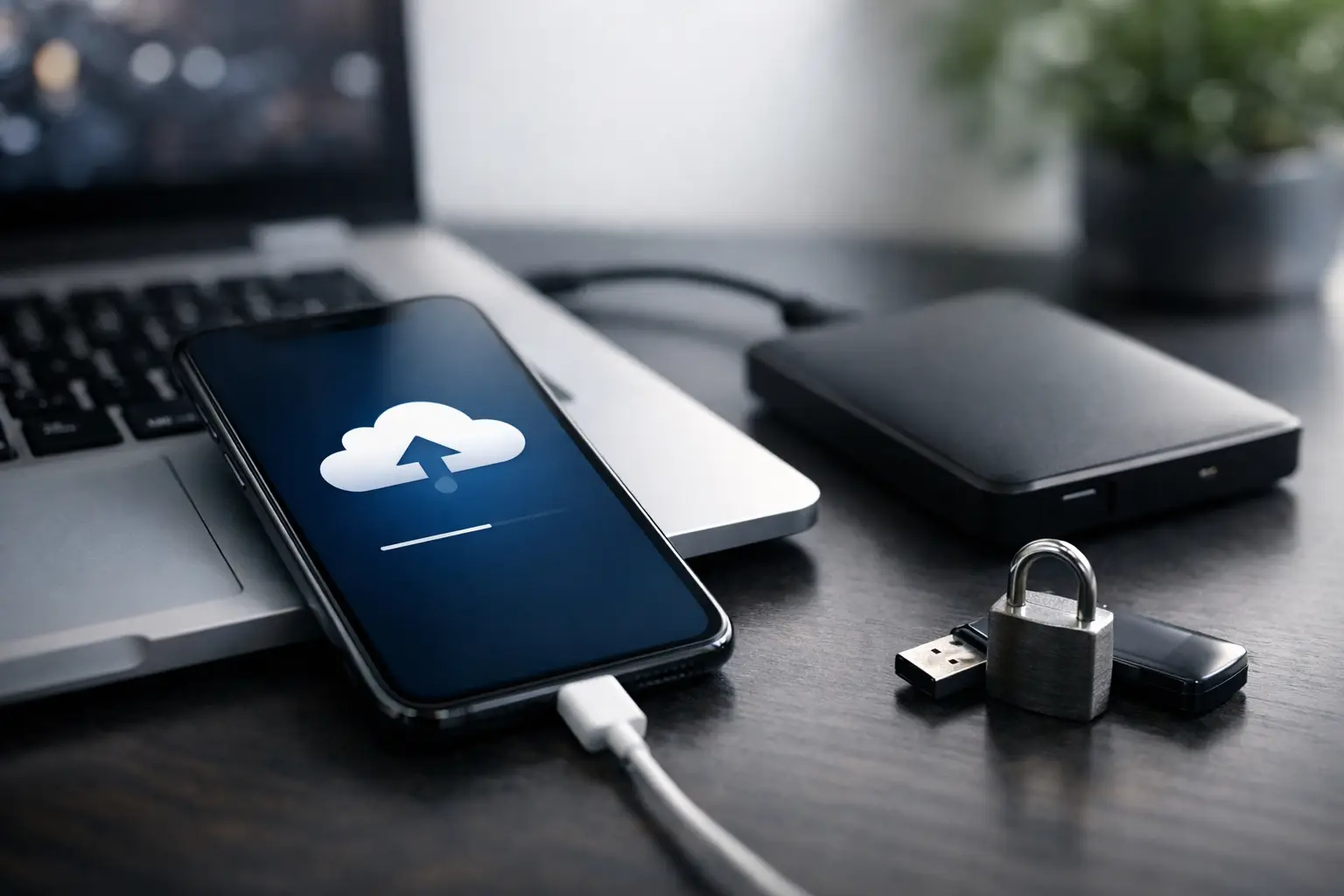
For most iPhone and Android users, cloud backup is the simplest starting point. It runs in the background, updates regularly and helps if the phone is lost or stolen altogether.
On iPhone, iCloud Backup can cover device settings, app data, messages, photos if enabled separately, and more. On Android, the exact options vary by brand, but Google account backup usually covers contacts, app data, call history, device settings and certain messages. Samsung users may also have additional backup options through their Samsung account.
The benefit is obvious – your data is off the device and available when you set up a replacement or repaired handset. The trade-off is storage space, and sometimes cost. Free cloud storage fills up quickly if you take lots of photos or videos. If the backup stops because storage is full, many people do not notice until they need it.
Check three things regularly: that backup is switched on, that it completed recently, and that there is enough available storage. If you only do one thing after reading this, do that.
Local backups still have a place
Cloud backup is convenient, but it should not always be your only layer. A local backup to a computer or secure external drive gives you more control and can be useful if internet access is poor, cloud storage is full, or you want an extra copy away from your main account.
For iPhone users, backing up to a Mac or Windows computer can create a fuller snapshot of the device. If you encrypt that backup, it can also include saved passwords and certain health data. For Android, local backup options vary more, but photos, files and some device content can still be copied to a computer manually or through manufacturer software.
The downside is that local backups rely on you remembering to do them. They are also only as secure as the computer or drive holding them. If that machine is shared, unprotected or never updated, the backup itself becomes a risk.
How to make your backup secure, not just available
Availability is only half the job. A secure backup protects your privacy as well.
Start with your account password. If your Apple, Google or Samsung account uses a weak or reused password, your backup is more exposed than it should be. Use a strong, unique password and turn on two-factor authentication. That step alone blocks a huge number of account takeover attempts.
Next, look at the device you use to access your backups. If your laptop has no login password, or your tablet is left unlocked around the house, your data is easier to reach than you think. Backups are only as safe as the accounts and hardware around them.
Encryption is worth enabling wherever possible. Cloud platforms usually encrypt data in transit and at rest, but local backups may need manual settings. If you back up to a computer, choose encrypted backup options where available. If you store files on an external drive, consider using encrypted storage rather than leaving everything readable if the drive is lost.
It is also worth reviewing what apps have access to your cloud storage or photo library. Over time, permissions pile up. A quick clean-up reduces unnecessary exposure.
The data people forget to back up
Photos and contacts get most of the attention, but there are other areas that often catch people out.
Messages are a common one. Depending on your phone and app, text messages and chat history may not be included in the same way as photos. WhatsApp, for example, has its own backup settings, and they need checking separately. The same goes for some note-taking apps, voice recording apps and document scanners.
Authentication apps are another weak spot. If you use your phone for login codes, replacing the device can be awkward unless those accounts are transferred correctly in advance. Password managers, banking apps and secure work apps may also need separate setup on a new handset.
Then there are files sitting quietly in the downloads folder – PDFs, tickets, forms, coursework, invoices. These are easy to overlook because they are not always visible in your main gallery or cloud photo app.
Before a repair, check your backup properly
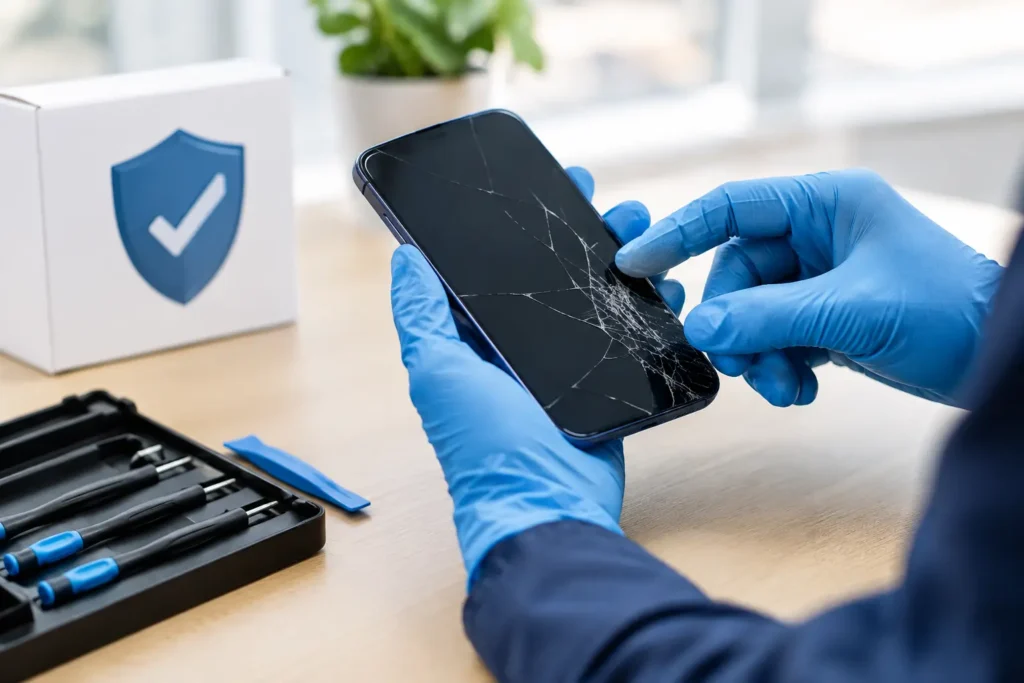
If your screen is cracked, your battery is failing, or your phone has had liquid damage, backing up before repair is always the safest move where the device still powers on and responds. Good repair shops handle devices carefully, but some faults can worsen without warning, especially with water damage or failing storage chips.
Before handing over the phone, make sure the latest backup has completed. Open the relevant backup settings and check the time and date of the last successful run. Do not assume it happened because the switch is turned on.
If the phone is unstable, focus on the most valuable data first. Photos, contacts and key documents are the priority. A partial backup is better than none. If the phone no longer responds properly, stop charging or restarting it repeatedly and get advice quickly, as that can sometimes make recovery harder.
At TechLab Repairs, secure handling matters because customers are not just handing over a device – they are handing over access to daily life, work and family memories.
A simple backup routine that works
The best routine is the one you will actually keep. For most people, that means using cloud backup continuously and adding a local backup once a month or before any repair, upgrade or trip.
If you run a business or manage devices for a school, the routine should be tighter. Staff phones should have enforced backup settings, account recovery details documented, and clear rules for what work data can be stored locally. The more devices involved, the more useful a repeatable process becomes.
It also helps to test a backup now and then. Not every backup is usable just because it exists. If you have an old spare device, or when replacing a phone, confirm that contacts, photos and key apps restore as expected. That small check can save a lot of stress later.
When cloud-only is enough, and when it is not
For a casual user with a modern phone, good account security and enough cloud storage, cloud-only backup may be perfectly fine. It is easy, low effort and usually reliable.
If your phone holds business records, school information, irreplaceable family media or large amounts of app-specific data, one backup method is often too thin. In those cases, a second layer makes sense. It gives you more recovery options and reduces your reliance on one account, one provider or one set of settings.
There is no single perfect setup for everyone. The right answer depends on how much data you have, how sensitive it is, how often it changes and how quickly you would need it back.
A secure phone backup should feel boring. Quiet, automatic, and ready when needed. That is the goal. Sort it before the next cracked screen, charging fault or software issue, and future you will be very glad you did.