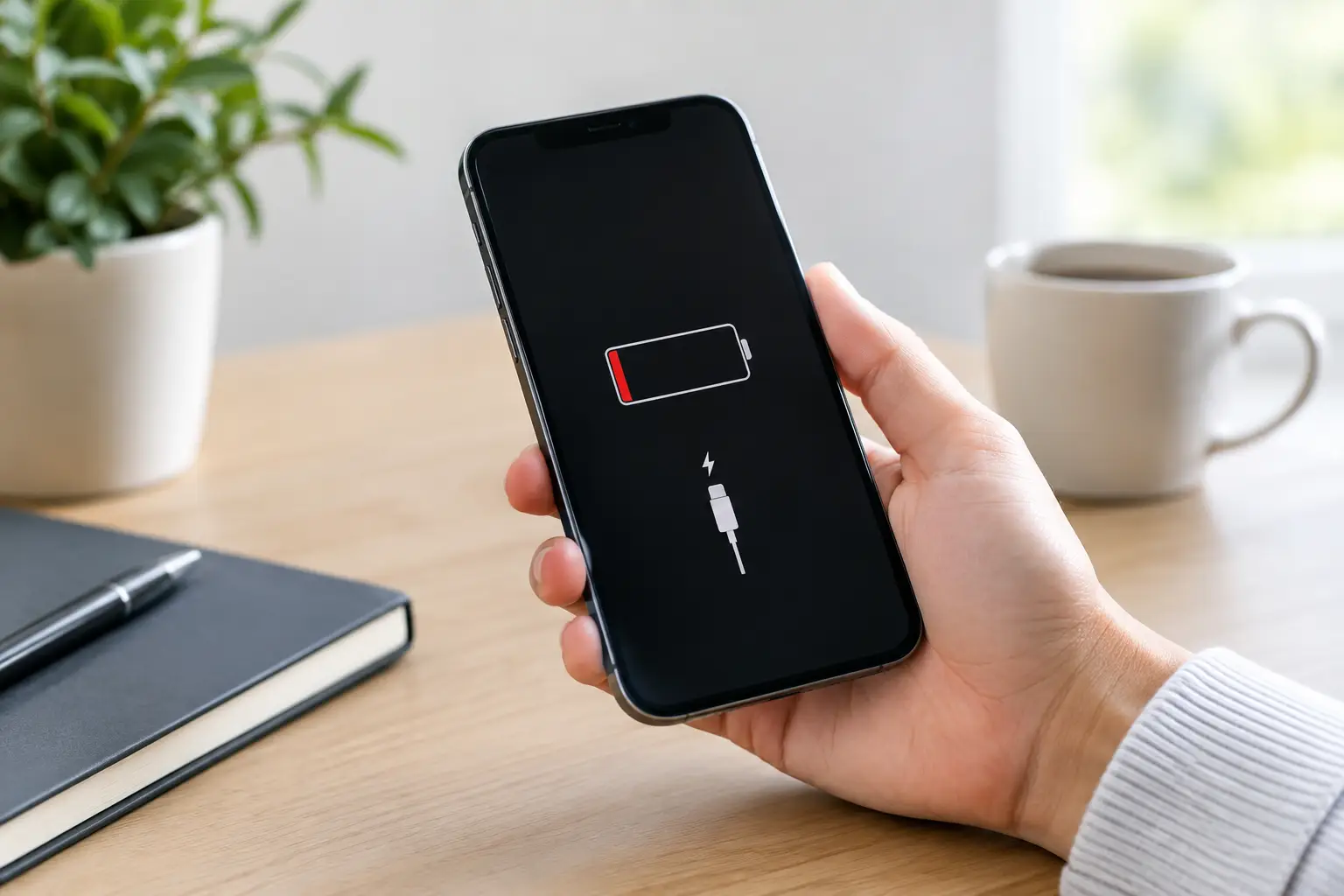
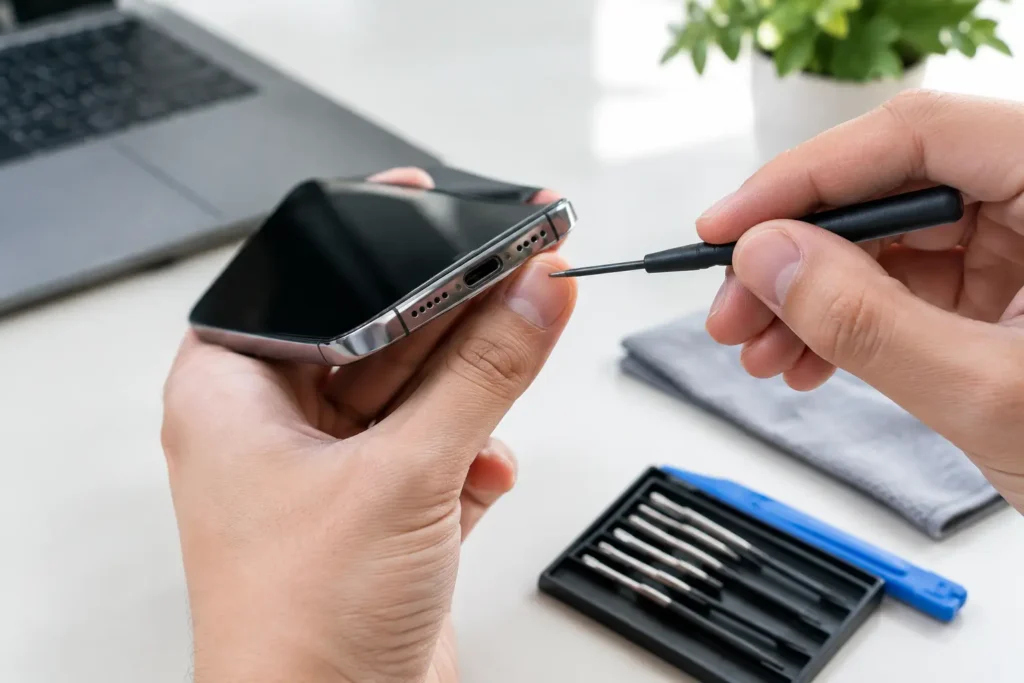
Your iPhone is at 80% when you leave the house, then it is flashing red before lunch. That is more than frustrating when you rely on it for calls, maps, work messages, school runs and photos. So, what causes iPhone battery drain? Sometimes it is a setting or an app working too hard in the background. Other times, the battery itself has reached the point where it cannot hold enough charge.
The useful part is working out which one you are dealing with. A few checks can improve battery life straight away. If they do not, a professional battery replacement can be a far better value option than replacing an otherwise reliable phone.
What causes iPhone battery drain day to day?
Battery use is not always a fault. Video calls, gaming, sat-nav, mobile hotspot use and streaming place a heavy demand on the processor, display and network connection at the same time. A long journey through rural Cumbria, for example, can use more power than normal because the phone repeatedly searches for a stronger signal.
The key question is whether the drain matches how you use the phone. If your battery drops quickly only after an evening of gaming or several hours of navigation, that is expected. If it loses a large percentage while sitting unused on the bedside table, it needs closer attention.
A weak mobile signal makes your iPhone work harder
Poor reception is one of the most overlooked causes of rapid battery loss. Your iPhone uses extra power while trying to connect to a mast or maintain a usable data connection. This can be especially noticeable in areas with patchy indoor coverage, on remote roads, or in buildings with thick walls.
If your signal is consistently weak, Wi-Fi calling at home or work may reduce the strain. When you do not need to be connected, switching on Airplane Mode can also stop the phone hunting for a signal. It is a trade-off, of course: you will not receive calls or messages until you reconnect.
Bright screens and always-on features add up
The screen is often the biggest everyday power user. High brightness is helpful outside, but leaving it high indoors wastes charge. Auto-Brightness is usually the sensible option, while a slightly shorter Auto-Lock setting stops the display staying awake in your pocket or on a desk.
On supported models, the Always-On Display also uses some power. The impact is normally modest, but it can matter when battery health is already reduced. Turning it off is worth testing for a few days if you are trying to stretch a full charge.
Location Services, Bluetooth accessories, widgets and frequent notifications all make small demands. None is automatically a problem. The issue is having lots of small demands running all day, particularly on an older battery.
Background app activity can drain power without you noticing
Some apps refresh content, track location, upload photos or send alerts even when you are not actively using them. Social media, navigation, fitness and shopping apps are common culprits, although a poorly behaved app after an update can affect any iPhone.
Check Settings, then Battery, to see which apps have used the most power over the last 24 hours and 10 days. Look for an app with unexpectedly high use, especially if it shows substantial Background Activity. You can limit Background App Refresh for selected apps, change location access to “While Using”, or remove an app that is no longer useful.
Do not close every app from the app switcher as a daily routine. iOS is designed to manage suspended apps efficiently, and repeatedly force-closing them can make the phone use more power when it has to reload them. Force-close an app only if it is frozen, overheating the phone or clearly misbehaving.
Software updates, bugs and battery drain
It is common for an iPhone to use more battery immediately after a major iOS update. The phone may be indexing files, analysing photos and completing background housekeeping. Give it a day or two, keep it on Wi-Fi and charge it normally before assuming there is a serious problem.
If the drain continues, install the latest available iOS update, as Apple often fixes bugs affecting power use. Updating individual apps can help too. Restarting the phone is a simple but worthwhile step when unusual drain begins suddenly.
Be cautious with advice telling you to reset every setting straight away. A reset can be useful after sensible checks have failed, but it also means setting up preferences again. Start with the Battery screen and the apps or features showing genuine high use, rather than changing everything at once.
Battery health: when the real issue is age
Lithium-ion batteries wear down with charging cycles, time and heat. As they age, they hold less energy and may struggle to deliver power during demanding tasks. That is why an older iPhone can fall from 30% to 10% surprisingly quickly, shut down in cold weather, or feel sluggish when the camera, games or navigation are in use.
Go to Settings, then Battery, then Battery Health & Charging. The Maximum Capacity figure compares your battery’s current capacity with when it was new. There is no single percentage at which every iPhone needs a replacement, because usage varies. However, a noticeably reduced capacity, a service message, sudden shutdowns or a phone that no longer lasts through a normal day are strong signs that the battery is worn.
Battery health is not only about the percentage shown on screen. A phone with 84% capacity may still suit someone who sends messages and browses at home near a charger. For a delivery driver, student, parent or business owner relying on a phone from morning to evening, that same capacity may be disruptive. The right decision depends on your routine.
Heat, charging habits and physical faults
Heat is tough on batteries. Leaving an iPhone on a sunny dashboard, gaming while charging, or repeatedly using it when it feels very hot can speed up wear. Remove a thick case during charging if the handset gets warm, use a good-quality compatible charging cable and plug, and avoid covering the phone on a sofa or bed.
You do not need to drain the battery to zero before charging it. In fact, regular deep discharges are not necessary for modern iPhones. Small top-ups are fine. The more practical goal is avoiding excessive heat and using reliable charging equipment.
A damaged charging port, liquid exposure, a failing component or a swollen battery can also create battery and charging problems. Warning signs include the phone becoming unusually hot, the screen lifting away from the frame, random restarts, a burning smell, or a battery percentage that jumps up and down. Stop using or charging the device if you suspect a swollen battery. This is a safety issue, not a setting to tweak.
Quick checks before booking a repair
Before assuming you need a new battery, charge the iPhone fully and use it normally for one day. Check the Battery screen for unusually demanding apps, reduce brightness, review location permissions and see whether weak signal is a regular factor. If the problem began directly after an update, allow time for background tasks to finish.
Also consider whether the charging issue is actually the cable, plug or socket. A worn cable may charge slowly or disconnect intermittently, leaving you with less charge than you think. Try a known-good cable and power adaptor before diagnosing the phone itself.
If the battery still drains far faster than it should, a proper diagnosis is the sensible next step. TechLab Repairs can assess whether the issue is normal battery wear, a charging fault or something more complex, so you are not paying for the wrong fix. Your data matters, too, so back up the iPhone whenever possible before any repair work.
A phone that needs charging twice a day does not have to slow you down. With a few targeted setting changes or a reliable battery replacement, most iPhones can get back to lasting through the moments you actually need them.