That spinning beach ball always seems to appear when you are already late, halfway through coursework, or trying to send one last email before heading home. If you are searching for a slow MacBook fix, the good news is that not every sluggish Mac points to a major fault. The bad news is that the cause is not always obvious, and the wrong quick fix can waste time or even put your data at risk.
A slow MacBook can be caused by simple software clutter, ageing hardware, thermal issues, battery problems, storage pressure, or a fault developing on the logic board. The trick is working out whether you are dealing with a tidy-up job or something that needs proper repair. That matters if you rely on your MacBook for work, study or keeping the household running.
Slow MacBook fix – start with what has changed
Before changing settings at random, think about what happened before the slowdown started. Did performance dip after a macOS update? Have you nearly filled the drive with photos, downloads or design files? Is the fan running hard even when only a browser is open? Has the MacBook been dropped, exposed to liquid or started losing battery charge unusually fast?
These clues matter. A MacBook that has gradually become slow over a year often points to storage pressure, background apps or a tired battery. A MacBook that suddenly becomes painfully slow after an accident, overheating issue or charging problem may have a deeper hardware fault. If it only slows down during video calls, editing or gaming, that suggests load and cooling are part of the issue.
The most common reasons a MacBook slows down
Storage is one of the biggest culprits. When your MacBook drive is nearly full, macOS has less room to manage temporary files and background tasks. The result can feel disproportionate – apps take longer to open, files lag, and basic tasks suddenly drag.
Too many startup and background apps are another common cause. Cloud sync tools, chat apps, security software and creative tools can all load quietly in the background and chip away at memory and processing power. One or two will not usually hurt, but a pile of them can make an older MacBook feel exhausted.
Heat also plays a major role. If dust builds up internally or the cooling system is not working as it should, the processor can throttle performance to protect itself. That means your MacBook may technically still work, but much more slowly than it should.
Battery condition is often overlooked. On some MacBooks, a failing battery can affect overall performance, especially if power delivery becomes unstable. If the machine is slow, runs hot and the battery drains quickly, those issues may be connected rather than separate annoyances.
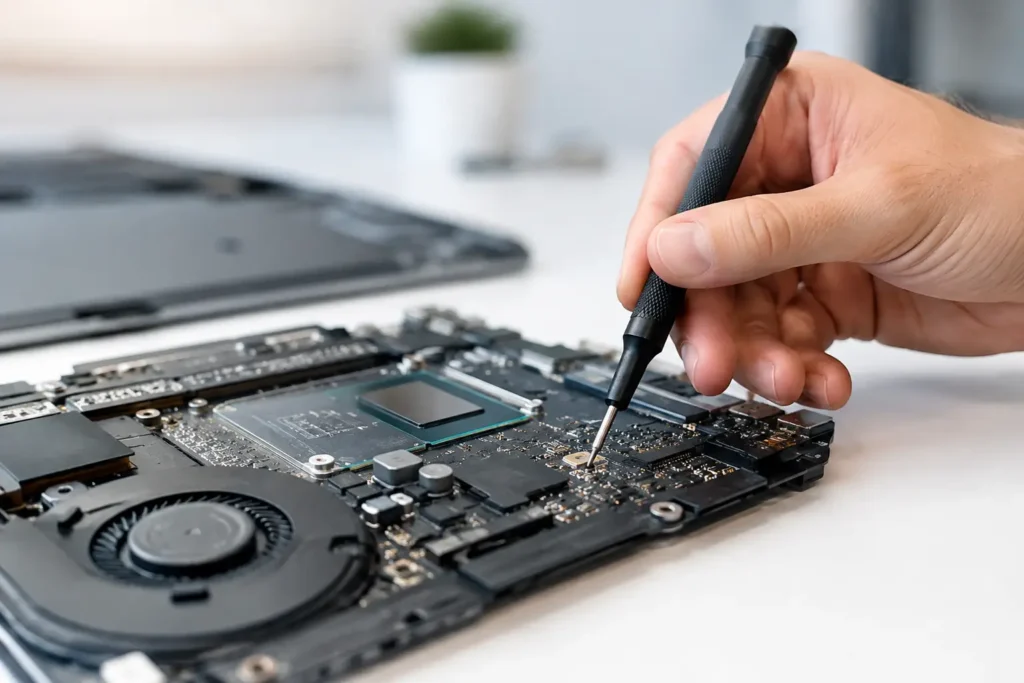
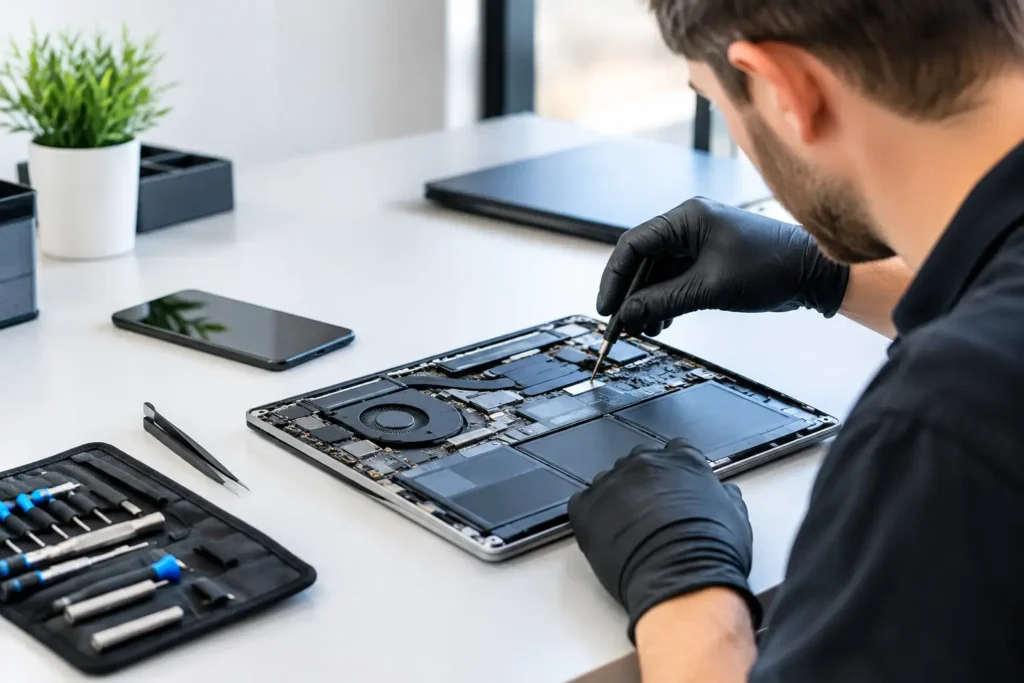
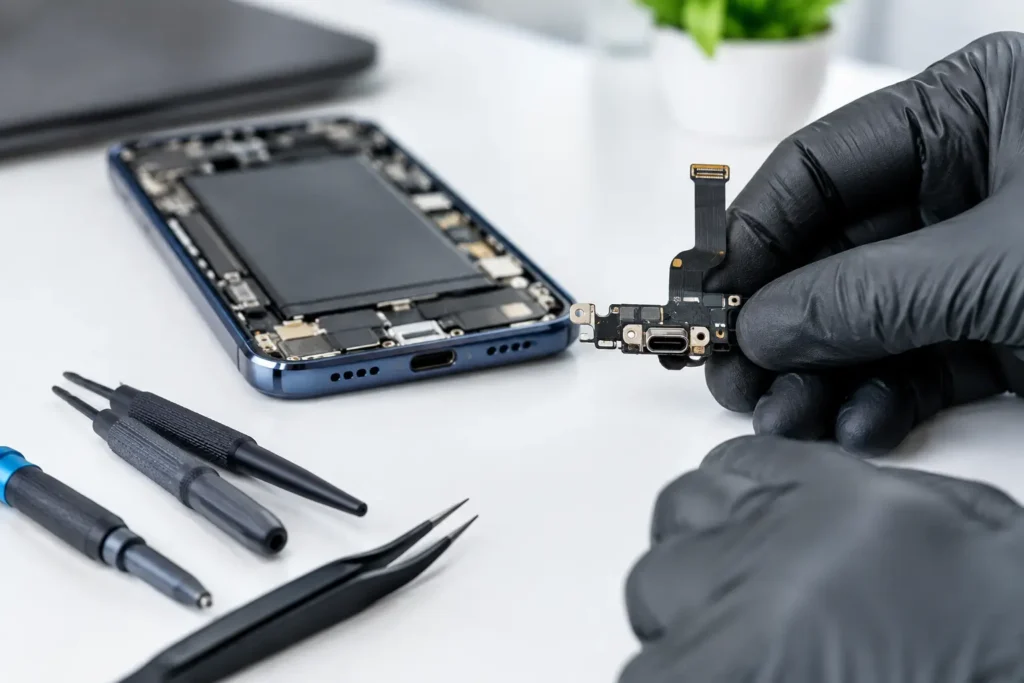
Then there are hardware faults. A failing SSD, liquid damage, damaged charging circuitry or logic board problems can all create lag, freezing, failed boots or random slowdowns. These are the cases where DIY software tweaks will only get you so far.
What you can try safely at home
If your MacBook still starts up normally and you can use it without crashes, begin with the basics. Check your available storage and clear out anything obvious that you no longer need. Large downloads, duplicate photos, old backups and unused apps are usually the quickest wins. Aim to leave a sensible amount of free space rather than trimming things down to the last few gigabytes.
Next, restart the MacBook if you have not done so in a while. It sounds too simple, but long uptimes can leave memory tied up by apps and background services. A clean restart can make an immediate difference, especially on older systems.
Then look at login items and background processes. If your MacBook launches half a dozen apps every time it starts, you are asking it to work hard before you even open your first document. Turning off non-essential startup items can noticeably improve responsiveness.
Updating macOS and key apps can help too, but this is where it depends. If your MacBook is already struggling badly, or if you suspect storage or hardware issues, a major update is not always the first move. Updates can fix bugs and improve compatibility, but they also demand free space and system resources. If the machine is hanging by a thread, it makes sense to stabilise it first.
Browser overload is another easy one to miss. Too many tabs, extensions or poorly behaving websites can make a MacBook seem slow when the real issue is the browser chewing through memory. Testing with fewer tabs and disabling unnecessary extensions is worth doing.
When a slow MacBook fix is not really a software job
There is a point where cleanup stops being the answer. If your MacBook is overheating, shutting down, showing graphical glitches, refusing to charge properly, or slowing to a crawl even after a fresh restart, there may be a hardware problem behind it.
A swollen or worn battery is a good example. People often describe the MacBook as slow, but what they are really noticing is poor power performance, fan noise, heat and unstable behaviour. Replacing the battery may restore normal use far more effectively than deleting files ever could.
The same goes for dust-clogged cooling systems. If the fans are blocked or thermal paste is no longer doing its job, the processor may spend much of its time throttled. The machine feels underpowered, but the issue is heat management rather than lack of processing ability.
Older Intel MacBooks can also suffer from worn storage drives or board-level faults that look like generic slowness from the outside. You click, wait, click again, and assume the whole system is just old. In reality, one failing component may be dragging everything down.
Why MacBook age changes the answer
A newer MacBook slowing down after six months is a different conversation from a machine that has been in daily use for seven or eight years. With newer models, you are more likely dealing with software buildup, sync activity, battery health or accidental damage. With older models, the line between maintenance and repair gets thinner.
That does not mean an older MacBook is automatically beyond saving. Plenty of machines still have years left in them with the right repair or servicing. But expectations matter. If you use an older MacBook for email, browsing and documents, a practical repair may make perfect sense. If you expect it to handle heavy editing, modern design tools and dozens of Chrome tabs, even a healthy older machine may struggle.
This is where honest advice matters more than a blanket promise. The right fix is not always the cheapest one, but it is not always replacement either.
Protect your data before you chase speed
When a MacBook becomes unreliable as well as slow, back up your data sooner rather than later. That is especially true if you hear unusual noises, experience repeated freezing, see folder icons at startup, or notice files taking ages to open. Performance issues can be the early warning sign of something more serious.
People often keep using a struggling MacBook because it still turns on. That can be a costly gamble if the underlying fault worsens. Saving your files, photos and work should come before aggressive troubleshooting.
When it makes sense to get it checked professionally
If you have freed up space, reduced startup apps, restarted the system and the MacBook is still dragging, it is usually time for proper diagnosis. The same applies if the machine is getting hot, the fan is loud all the time, the battery is failing, or there are signs of liquid damage or charging trouble.
A proper assessment can tell you whether the issue is software, battery-related, thermal, storage-based or board-level. That saves guesswork and often saves money as well. Replacing the wrong part or forcing updates onto a struggling machine rarely ends well.
For local users, this is where having a nearby repair specialist helps. Instead of sending your MacBook away and waiting, you can get a clearer answer on what is worth fixing and what is not. At TechLab Repairs, the focus is on straightforward diagnosis, practical repair options and secure handling of your device and data.
A realistic way to think about MacBook performance
Not every slow MacBook needs a major repair, and not every cleanup will bring an ageing machine back to factory speed. The best results come from matching the fix to the fault. Sometimes that means clearing space and trimming background apps. Sometimes it means a new battery, internal cleaning or deeper hardware work.
If your MacBook has become frustrating to use, do not put up with it until it stops completely. A slower machine often gives you a warning before a bigger failure, and acting early usually gives you more repair options, not fewer.
The helpful next step is simple: treat slowness as a symptom, not a diagnosis, and you will have a far better chance of getting your MacBook running properly again.