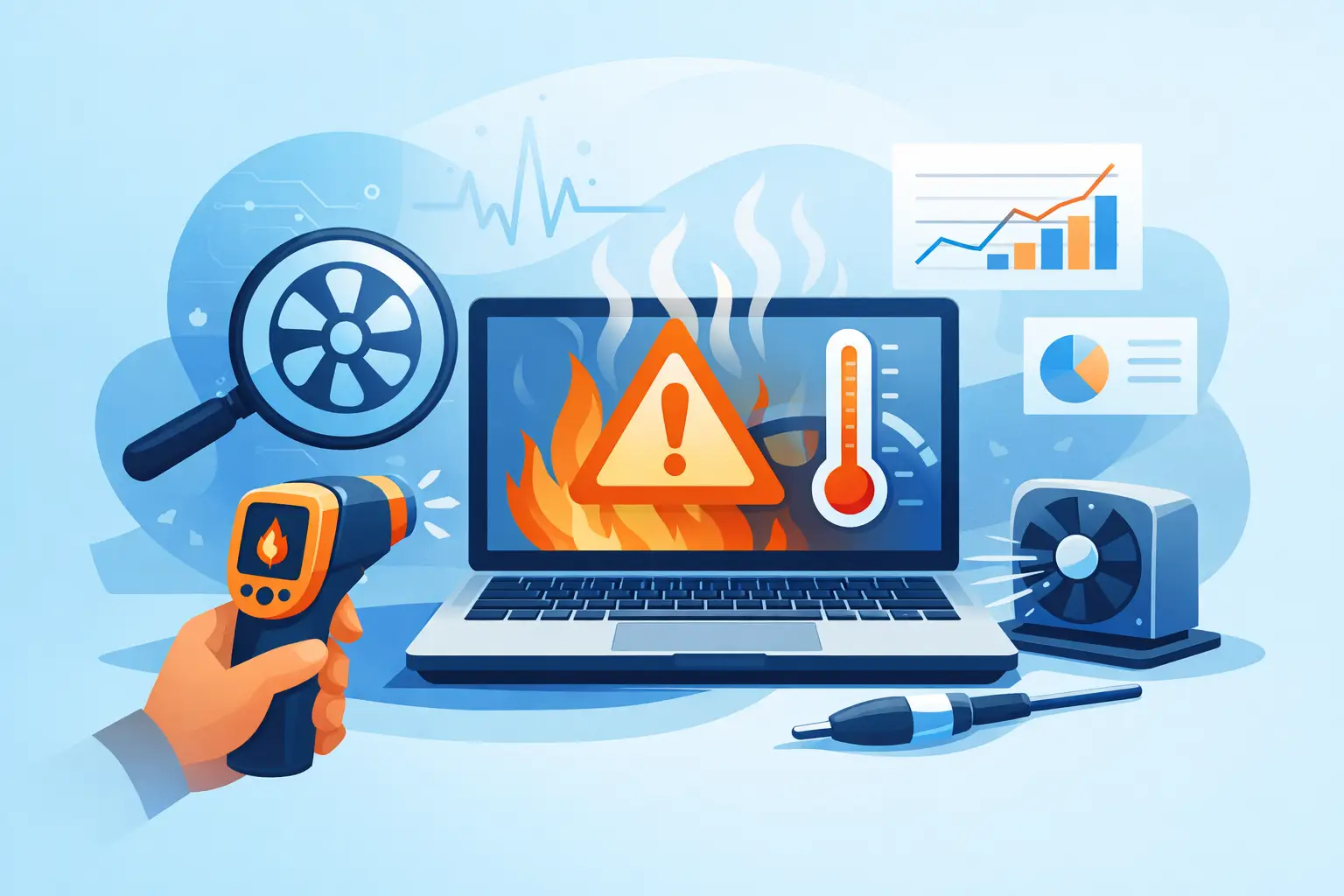
A laptop that sounds like it is about to take off, feels hot on your knees, or shuts down halfway through work is not just annoying – it is usually warning you that something is wrong. If you are wondering how to diagnose laptop overheating, the key is to look at the pattern, not just the temperature. Heat becomes a fault when it affects performance, stability, charging, or normal everyday use.
Some laptops naturally run warmer than others, especially slim models, gaming machines, and older devices with tired cooling systems. But there is a difference between warm and unhealthy. A machine that gets hot during a video export is one thing. A laptop that becomes too hot while checking emails, joining a Teams call, or sitting idle is telling you to pay attention.
How to diagnose laptop overheating by the symptoms
The first step is to separate normal heat from overheating. Most laptops generate noticeable warmth around the vents, keyboard deck, or underside when the processor is under load. That on its own is not a fault. Overheating usually brings extra symptoms with it.
A common sign is the fan running at full speed for long periods, even when you are doing very little. Another is thermal throttling, where the laptop slows itself down to reduce heat. You might notice lag, stuttering video, delayed typing, freezing, or apps taking far longer to open than usual. In more serious cases, the laptop may switch itself off without warning. That is a built-in protective response, not a random crash.
Battery behaviour can also give you clues. Excess heat can affect charging speed, battery health, and overall stability. If the chassis becomes hottest around the battery area, that needs more care, because not all heat issues start with the fan and heatsink.
Look at when the heat happens
Timing matters. If the laptop only overheats while gaming, editing video, or running design software, the cause may be heavy demand, dried thermal paste, dust build-up, or a cooling system that can no longer keep up. If it overheats during light use, you may be dealing with blocked vents, a failing fan, background software, malware, or a hardware fault on the board.
Also pay attention to whether it happens on a desk, on a sofa, or while charging. Soft surfaces can block airflow completely. Charging adds heat of its own. A laptop that is borderline stable may cope on battery but overheat once charging and workload are combined.
Start with the obvious physical checks
Before assuming the worst, inspect the laptop properly. Check the air vents for visible dust, fluff, or pet hair. On many machines, especially those used in homes, classrooms, or offices, blocked vents are the simplest and most common cause. If the fan cannot pull cool air in or push hot air out, internal temperatures rise quickly.
Listen to the fan. A healthy fan usually ramps up and down as needed. If it makes grinding noises, rattles, or stays silent even when the laptop is extremely hot, that points to a fan problem rather than just dust. Silence is not always a good sign here.
Then look at the body of the laptop. Has the base cover lifted slightly? Is there any swelling or distortion? If so, stop using it until it is checked. Heat combined with battery swelling is not something to ignore.
Check your environment too
A surprising number of overheating cases are made worse by where the laptop is used. Hot rooms, direct sunlight, blocked vents, and soft furnishings all trap heat. Even a powerful laptop can struggle if it spends most of its life on a duvet or settee arm.
If moving the laptop to a hard, flat surface improves things straight away, you have learned something useful. That does not always mean the issue is solved, but it tells you airflow is part of the problem.
Use system behaviour to narrow it down
You do not always need specialist tools to diagnose overheating. Built-in behaviour tells you a lot. Open Task Manager on Windows or Activity Monitor on a Mac and look for anything using unusually high CPU, GPU, or memory when the laptop should be idle. A browser tab, background update, sync process, or misbehaving app can keep the system under constant load and create persistent heat.
If usage is high all the time, close unnecessary apps and restart the machine. If the temperature and fan noise improve afterwards, software load may have been the main trigger. If it returns quickly after startup, look more closely at startup apps or scheduled tasks.
If the laptop is hot but usage appears low, that can point more towards a cooling issue. In simple terms, the system is not doing much, so it should not be struggling to stay cool.
Software tools can help, but context matters
Temperature monitoring software can be useful, especially on Windows laptops, but raw numbers need context. Different processors have different safe operating ranges, and brief spikes are not always a problem. What matters more is whether temperatures stay unusually high at idle, whether the fan is constantly maxed out, and whether the laptop throttles or shuts down.
For most users, chasing exact temperature figures is less helpful than watching the pattern. If idle temperatures are high, basic tasks trigger heavy fan noise, and performance drops under moderate use, you are very likely dealing with a real heat issue.
Common causes of laptop overheating
Dust is high on the list, especially in older laptops or machines used daily for work, study, or gaming. Over time, dust mats can form around the heatsink and stop heat leaving the system properly.
Thermal paste is another common culprit. This material helps transfer heat from the processor to the cooling assembly. As it ages, it can dry out and become less effective. That tends to show up in older laptops that were once quiet and stable but now run hot doing the same jobs.
Failing fans are also common. A weak fan may still spin, but not fast enough to move proper airflow. Then there is software load, which can be caused by heavy apps, driver problems, background tasks, or malware. Less commonly, overheating can be linked to charging faults, battery issues, or motherboard-level problems.
That is why diagnosis matters. The fix for dust is not the same as the fix for a failing fan, and neither is the same as a board fault.
What you can safely try yourself
If the laptop is still working normally apart from heat, start with the low-risk steps. Use it on a hard surface, clear the vents, close unnecessary programs, and install pending system updates. Restarting the machine can clear runaway processes. You can also reduce performance settings temporarily to see whether lower demand brings temperatures back under control.
External cleaning is fine, but internal cleaning is where people often make things worse. Opening a laptop without the right tools or experience can damage clips, cables, connectors, or the cooling assembly. Blasting compressed air blindly can also push dust deeper into the machine.
If the laptop is under warranty, opening it may affect your cover. If it is a business device or school device, there may also be support policies to consider before anyone starts dismantling it.
When overheating points to a repair issue
If the fan is noisy, the laptop is slowing down regularly, the chassis becomes uncomfortably hot during light tasks, or the machine shuts off unexpectedly, it is time to stop guessing. Those signs usually mean the issue is beyond a quick settings tweak.
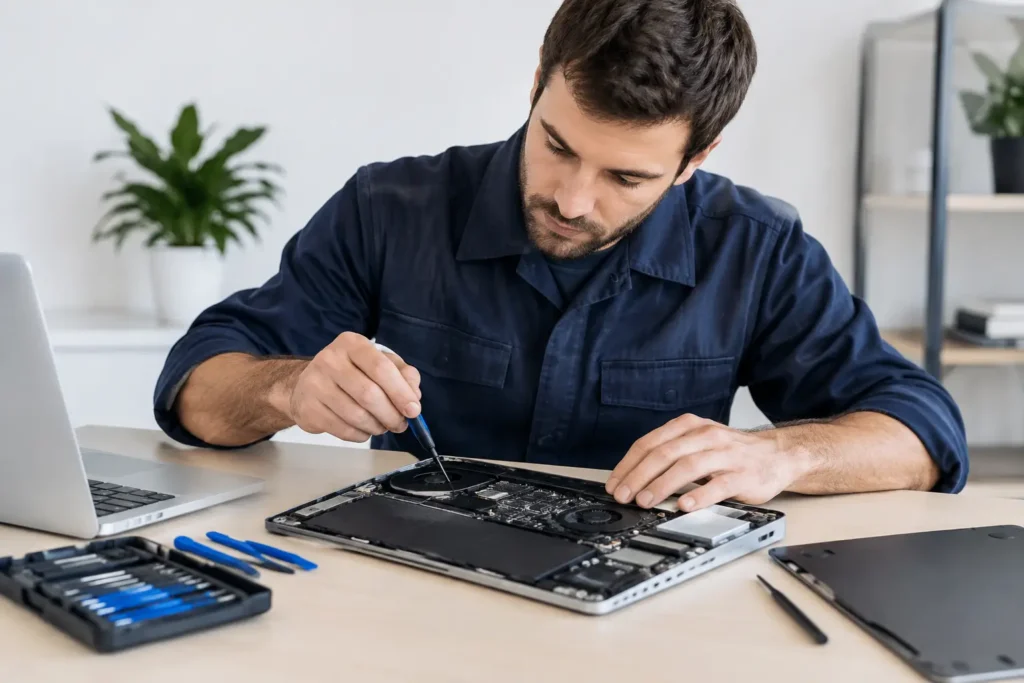
A proper diagnosis may involve checking fan operation, cleaning the cooling path internally, replacing thermal paste, testing the battery, assessing the charger, and ruling out board-level faults. On some models, especially thin laptops and performance machines, even reaching the cooling system is more involved than people expect.
For local users in Barrow-in-Furness and across Cumbria, this is the point where a repair shop can save you time, money, and a much bigger fault later. At TechLab Repairs, we often see laptops that started with “it just gets a bit warm” and ended up with repeated shutdowns, damaged batteries, or failed components because the warning signs were ignored.
How to diagnose laptop overheating without wasting time
If you want the shortest route to an answer, ask three questions. Does it overheat only under heavy load, or even during basic use? Is the fan behaving normally, loudly, or not at all? And has anything changed recently, such as performance, battery life, charging, or sudden shutdowns?
Those answers usually point you in the right direction. Heavy-load heat suggests cooling wear or high demand. Light-use heat suggests airflow, fan, software, or hardware trouble. Strange fan behaviour suggests a cooling fault. Heat near the battery area or changes in charging suggest you should be more cautious.
The sooner you check it, the more likely the repair stays simple. A hot laptop does not always need a major repair, but it nearly always needs attention. Catch it early, and you have a much better chance of getting back to normal use without the cost of replacing the whole machine.
If your laptop is running hotter than it should, do not wait for the next shutdown to make the decision for you.