You press the power button, expect the usual login screen, and get nothing useful back. Maybe the laptop stays black, maybe it flashes a logo and freezes, or maybe the fan spins up and then cuts out again. This guide to laptop startup problems is designed to help you work out what is actually going wrong before you waste time, money, or risk your data.
Startup faults can look similar on the surface, but they are not all caused by the same thing. A dead battery, a failed charging circuit, corrupt system files, a damaged SSD, liquid damage, or a faulty screen can all make a laptop appear not to start properly. The trick is to separate a power problem from a display problem, and a display problem from a boot problem.
Guide to laptop startup problems: start with what you can see
Before trying random fixes from forums, pay attention to the laptop’s exact behaviour. Does any light come on? Do you hear the fan? Is there a logo on screen? Does it show an error message? These details matter because they narrow the fault down quickly.
If there are no lights, no fan noise, and no sign of life at all, you are usually dealing with a power issue. If the keyboard lights up and the fan runs but the screen stays black, the machine may be starting but not displaying anything. If you see the manufacturer’s logo and then it freezes, restarts, or loads into automatic repair, that points more towards a software or storage fault.
A lot of people describe every startup issue as the laptop not turning on. In practice, there is a big difference between not powering on and not booting into Windows or macOS. Getting that distinction right is the first real step.
When the laptop has no power at all
If the laptop does absolutely nothing, begin with the charger. Check for obvious cable damage, bent connectors, scorch marks, or a loose charging pin. If the charging light does not come on when the charger is connected, that could mean a faulty charger, a worn charging port, a battery fault, or a deeper motherboard issue.
Try a different plug socket first. It sounds basic, but it rules out the easy stuff. If you have access to a compatible charger, testing with that can help too. What you should not do is force the charger into a damaged port or keep using a frayed lead, as that can make a small problem much worse.
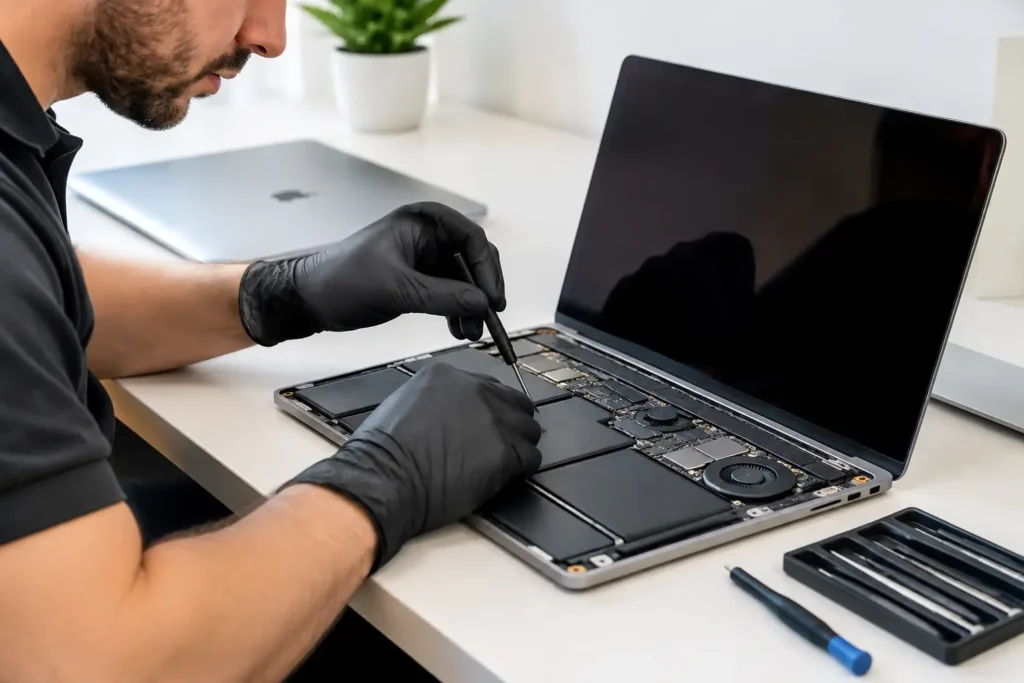
On some laptops, a failed battery can stop the machine from starting properly even when it is plugged in. On others, the laptop will run from mains power with no issue. It depends on the design. If the battery is removable, you can test startup with the battery out and the charger connected. If the battery is internal, leave deeper testing to a repair technician unless you are confident opening the machine safely.
A laptop that briefly lights up and immediately dies can also point to a short on the board, liquid damage, or a failing power circuit. Those faults usually need bench diagnosis rather than guesswork.
If it powers on but the screen stays black
This is one of the most common startup complaints. The laptop seems alive, but nothing useful appears on screen. In some cases the screen is the problem. In others, the laptop is not completing startup and only looks active.
First, increase the screen brightness and look closely for a faint image. A very dim picture can suggest a backlight or screen fault rather than a full startup failure. If you hear Windows sounds, login chimes, or notifications, that is another clue the machine may be running in the background.
If possible, connect the laptop to an external monitor or TV. If the external display works, the motherboard and storage may be fine and the issue is more likely with the laptop screen, display cable, or backlight. If there is still no image anywhere, the fault may be with graphics, memory, motherboard components, or the operating system.
Memory issues can also cause a black screen with power lights on. Some laptops will show a blinking light pattern or beep code when RAM has failed or come loose. Others will simply sit on a black screen. This is one of those areas where the symptoms overlap, so the exact model matters.
When the laptop gets stuck on the logo or keeps restarting
If the laptop shows the brand logo and goes no further, or repeatedly restarts, the machine is getting further through the process but failing before normal loading completes. That usually means software corruption, a failed update, file system damage, or a storage problem.
A boot loop after an update is fairly common. The operating system starts, hits an error, restarts, and repeats. Sometimes built-in repair tools can sort it. Sometimes they cannot. If the laptop offers startup repair options, safe mode, or recovery tools, use those carefully. If it contains important documents, coursework, or business files, avoid repeated reset attempts until you know your data is safe.
This is where people often make a bad situation worse. A factory reset might get the laptop running again, but it can also wipe important files if not handled correctly. If the device contains anything you cannot afford to lose, data should come before convenience.
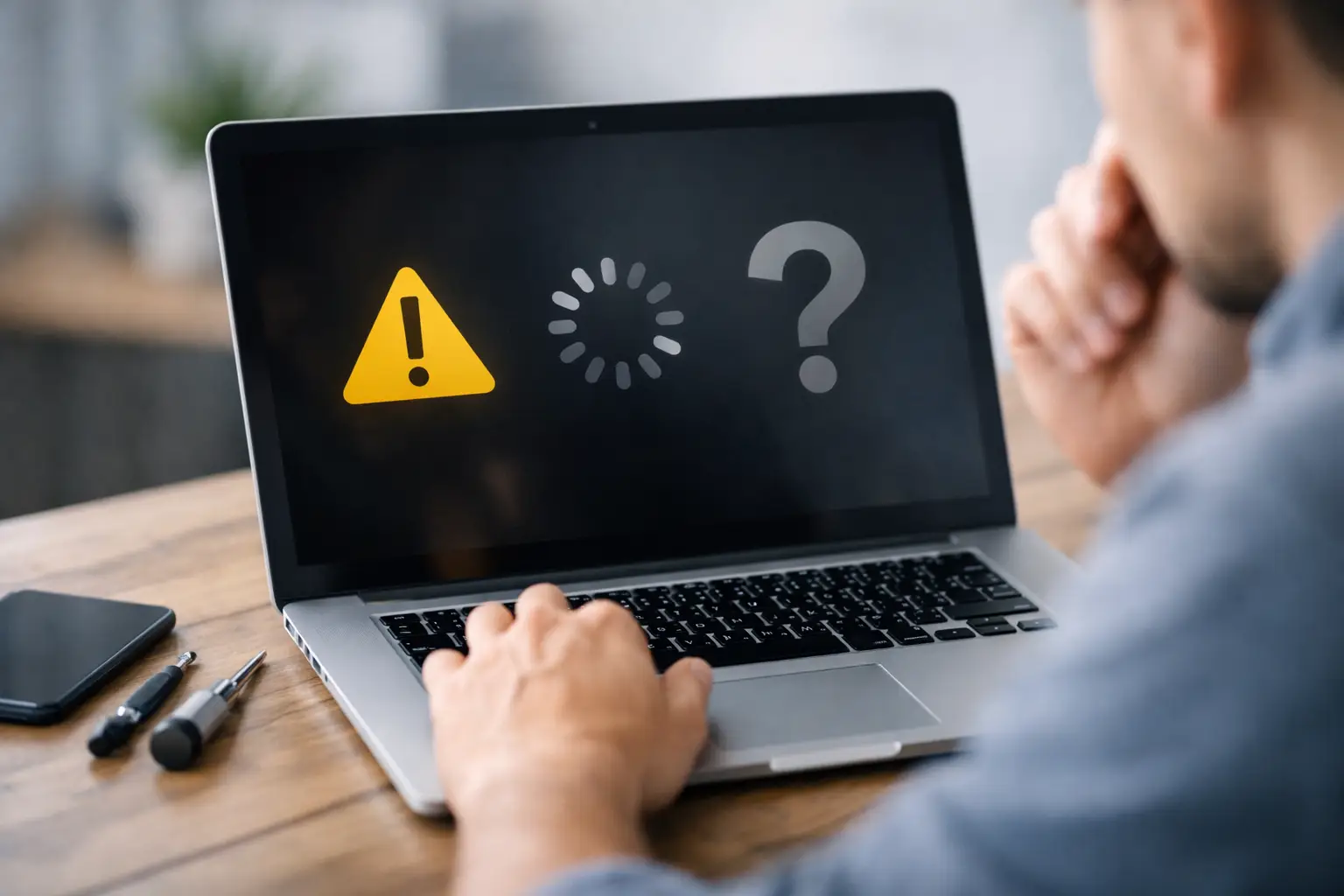
A failing SSD or hard drive can produce very similar symptoms. The laptop may freeze on the logo, show a spinning loading circle forever, or throw up errors about missing boot devices. Drives often deteriorate gradually, so startup trouble may be the first obvious warning sign.
Error messages that tell you more than you think
Some startup problems are vague. Others are surprisingly clear if you know how to read them. Messages such as “No bootable device”, “Preparing automatic repair”, “Operating system not found”, or a blue screen with stop codes all point in specific directions.
“No bootable device” often means the laptop cannot see the drive properly, the drive has failed, or the boot order has changed. “Automatic repair” that never finishes usually suggests operating system corruption or storage trouble. Blue screen errors can be caused by software, drivers, memory, or hardware faults.
Take a photo of any error message before the laptop restarts. That one detail can save time later, especially if the issue is intermittent.
What you can safely try at home
A practical guide to laptop startup problems should help you avoid both panic and unnecessary risk. There are a few sensible checks most people can do without making things worse.
Start by disconnecting accessories such as USB devices, memory cards, docking stations, and external monitors. Occasionally a faulty peripheral or boot setting can interfere with startup. Then perform a full shutdown and try again. On many laptops, holding the power button for around 10 to 15 seconds will force the machine off.
If the laptop responds, enter the recovery environment or startup settings and see whether safe mode is available. Safe mode can help confirm whether the issue is being caused by drivers or a recent update. If the machine starts there, you may be able to remove a bad update or back up files.
If your model supports hardware diagnostics from startup, run them. These tests are not perfect, but they can flag storage or memory faults. Be cautious with online advice telling you to update BIOS firmware during an unstable startup situation. That can be the right fix in some cases, but if power fails during the update, you can end up with a much bigger repair.
Signs the problem is hardware, not software
There is often a tipping point where home troubleshooting stops being worthwhile. If the charging port is loose, the laptop overheats instantly, there is visible liquid damage, burning smell, crackling, no image on any display, or the machine only starts when held at a certain angle, the issue is likely hardware.
Likewise, if startup problems come with clicking from the drive, sudden shutdowns, repeated freezing, or physical damage after a drop, software fixes are unlikely to solve the root cause. You may get temporary results, but not a reliable machine.
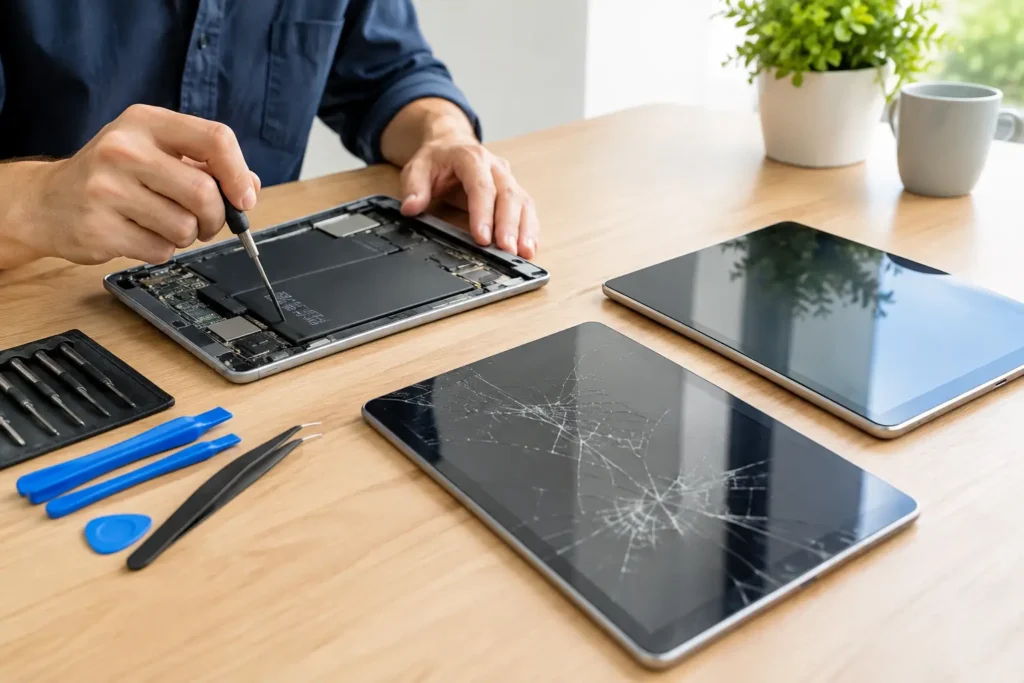
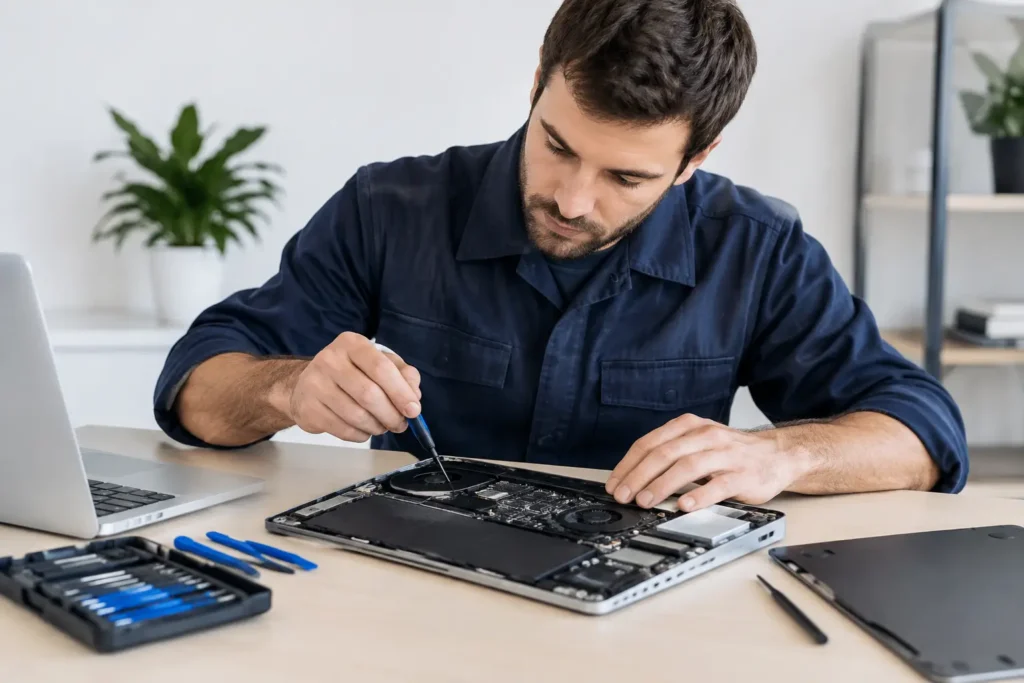
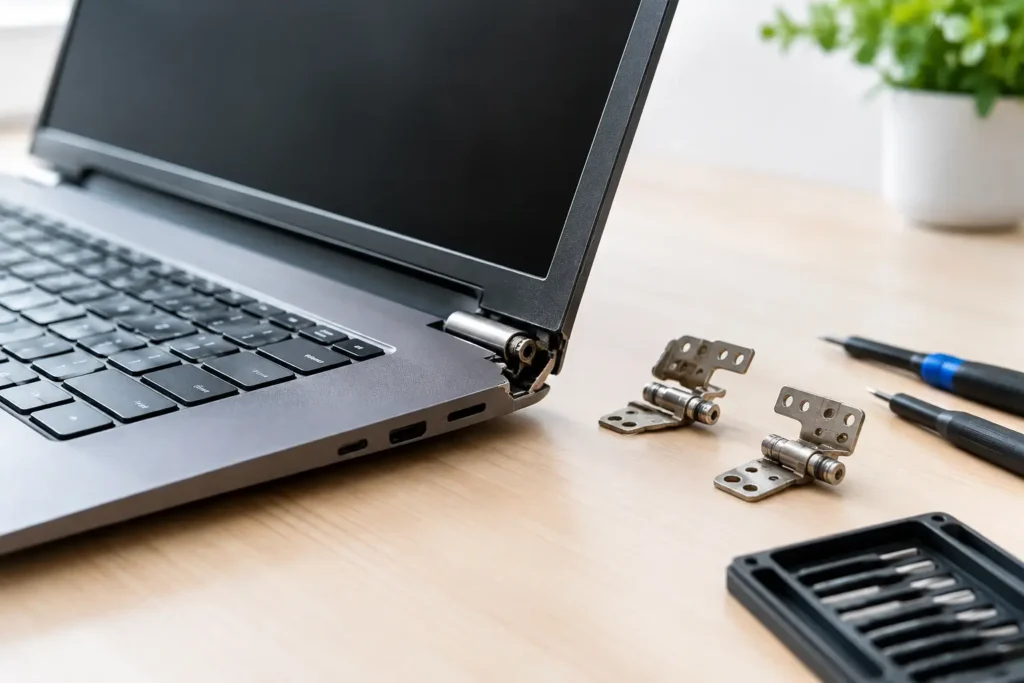
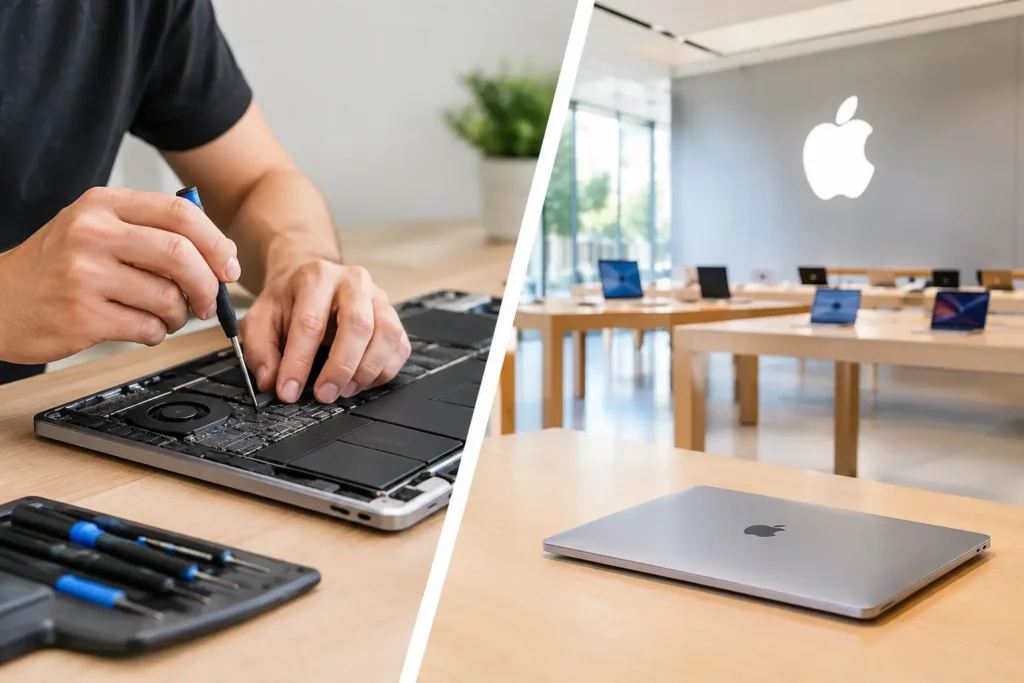
Local repair is often the better route here, especially if speed matters. Sending a laptop away for assessment can mean days without it, and that is not ideal for school, work, or running a business. A proper diagnosis can tell you whether the fault is in the charger, battery, DC jack, SSD, RAM, screen, or logic board, and whether the repair is cost-effective compared with replacement.
At TechLab Repairs, this is exactly the sort of issue we see every week – from simple battery failures to more complex board-level faults.
Protecting your data while dealing with startup issues
For many people, the real worry is not the laptop itself. It is the files on it. Family photos, coursework, accounts, project work, saved passwords, and business documents matter more than the hardware.
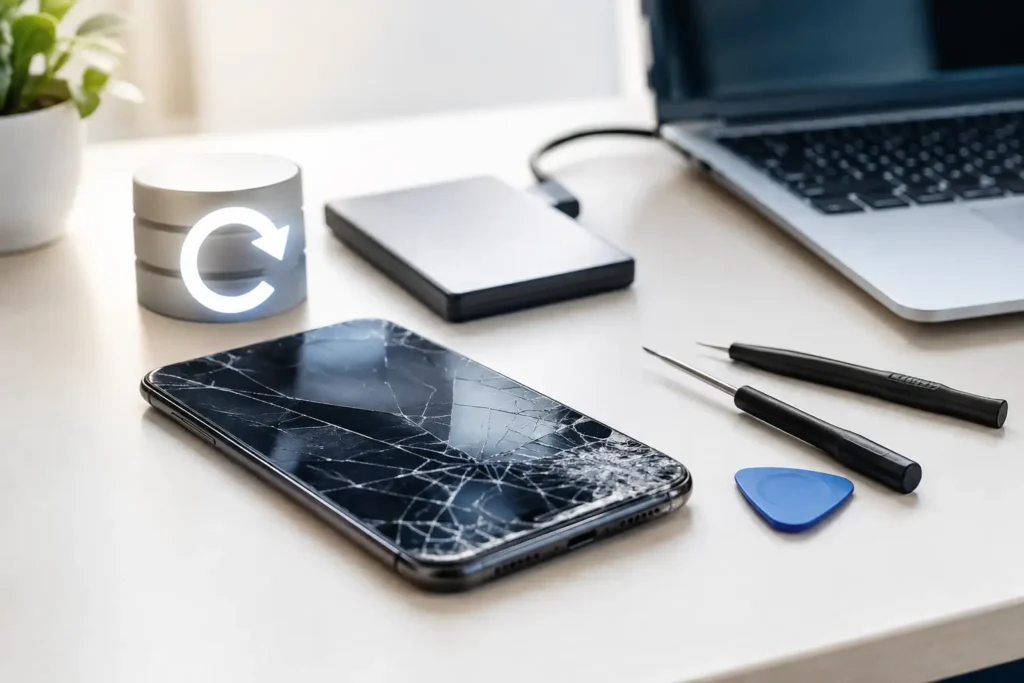
If the laptop still powers on intermittently, backing up data should be high on the list before major repair attempts. If it does not start at all, do not assume the data is gone. In many cases, files can still be recovered from the drive, unless it has suffered severe failure or encryption complications.
The safest approach depends on the fault. A laptop with a cracked screen may still have perfectly healthy data. A machine with liquid damage should be switched off and assessed quickly, because corrosion can spread over time. A laptop stuck in repair loops might still allow data access with the right tools, but repeated failed startup attempts can stress a dying drive.
Knowing when to repair and when to replace
Not every startup fault means the laptop is finished. A charger port, battery, SSD, RAM module, or screen repair can often give a machine years more use for far less than the cost of replacement. On the other hand, if an older laptop has multiple faults, a worn battery, poor performance, and major motherboard damage, replacement may be the more sensible spend.
That decision depends on age, model, usage, and cost of parts. A student laptop used for documents and browsing has different value from a business machine that stores critical files, or a higher-end device with plenty of life left in it.
If your laptop will not start properly, do not let the problem drag on while you keep trying the same power button over and over. The faster you identify whether it is power, display, boot, or storage related, the better your chance of a straightforward fix – and of keeping your data intact.