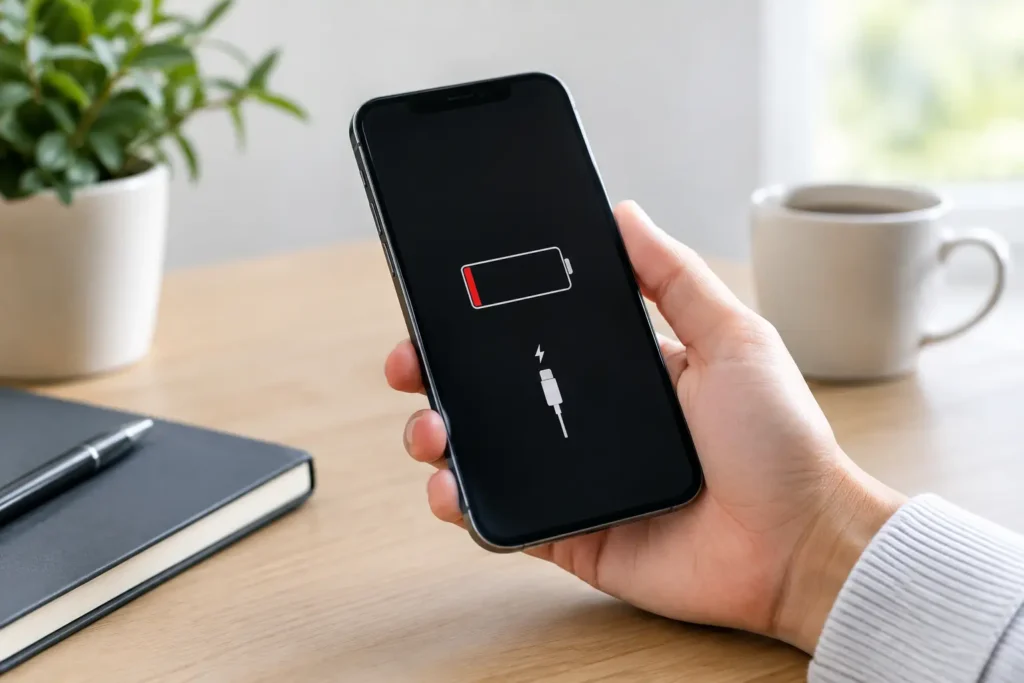
Your phone shows the charging symbol for a second, then stops. Your laptop cable only works at a certain angle. Or your tablet has become so unreliable that charging it overnight feels like a gamble. Before assuming the battery has failed, learn how to fix charging port issues by checking the simple causes first – and recognising when the port needs proper repair.
A charging fault is frustrating because several parts can create the same symptom. The cable, plug, adaptor, battery, software, charging port and internal charging circuit all work together. The good news is that a careful check can often narrow the problem down without putting your device, data or safety at risk.
Start by ruling out the charger
The fastest first test is to try a different cable and power adaptor that you know are working. Cables wear out, especially around the connector ends, and cheaper replacements can lose their ability to deliver stable power. A damaged lead may charge intermittently, charge very slowly or fail altogether.
Try a different wall socket too. If you are charging a laptop, use its correct wattage charger where possible. A lower-powered USB-C adaptor may keep a laptop running but not charge the battery properly, particularly while you are working, gaming or using demanding software.
Look closely at both ends of the cable. Bent pins, scorching, frayed insulation, looseness or a plug that gets unusually hot are all reasons to stop using it. Do not keep testing a visibly damaged cable in the hope it will manage one more charge. Replacing a lead is far cheaper than dealing with damage to the device itself.
If another cable and adaptor work normally, your charging port is probably not the issue. If every known-good charger produces the same result, move on to the port and device checks.
How to fix charging port issues caused by debris
A surprising number of charging problems come down to pocket lint. USB-C, Lightning and Micro-USB ports are narrow, and compressed fabric fibres can build up at the back of the connector. The plug may look as though it is fully inserted while actually sitting just short of the contacts.
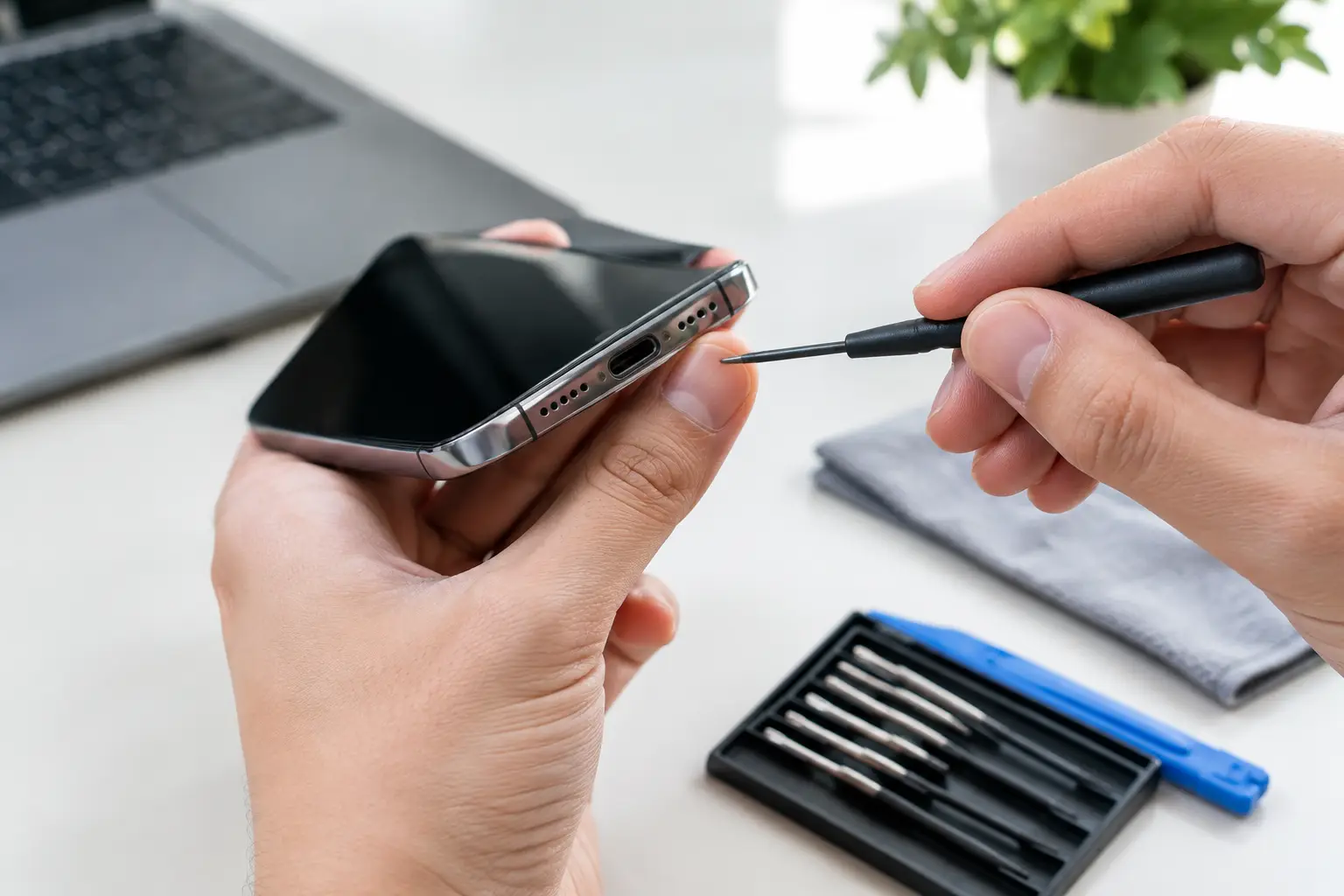
Switch the device off before inspecting the port. Use a bright torch and look inside without forcing anything into it. A compacted layer of lint often appears as a grey, brown or dark mass at the bottom of the port. It can prevent the cable from clicking firmly into place and cause that familiar loose connection.
If you can clearly see dry debris, use a soft, non-metallic tool with a light touch. A dry wooden toothpick or a plastic pick can be suitable, provided it is not sharp, damp or brittle. Work around the edges gently and avoid scraping the central pins or applying pressure to the base of the port. A soft anti-static brush can also help lift loose dust.
Do not use paper clips, needles, tweezers, knives or any other metal object. They can bend contacts, bridge connections and turn a simple clean into a port replacement. Avoid pouring cleaning fluid into the port as well. Even isopropyl alcohol, often recommended online, needs careful application and sufficient drying time. It is not the right starting point for most home repairs.
Compressed air is another mixed bag. Used too closely, it can push debris further in or introduce moisture from the can. If the lint is tightly packed, the pins look bent, or you are not fully confident working around a delicate connector, stop there. A technician can clean and inspect the port safely.
Check what the connection feels and looks like
A healthy cable should insert smoothly and sit securely. It should not need to be held to one side, propped up with a book or wiggled to charge. If it only works at a particular angle, the problem may be remaining debris, worn contacts, a damaged cable plug or a loose charging port assembly.
Inspect the port for signs of physical damage. Bent or missing pins, green or white residue, black marks, rust-like staining and a port that has shifted inside the casing all point to more than a cleaning job. Corrosion is especially common after liquid exposure, including rain, condensation and a drink spilled weeks ago. The device may seem fine at first, then develop charging faults as corrosion spreads.
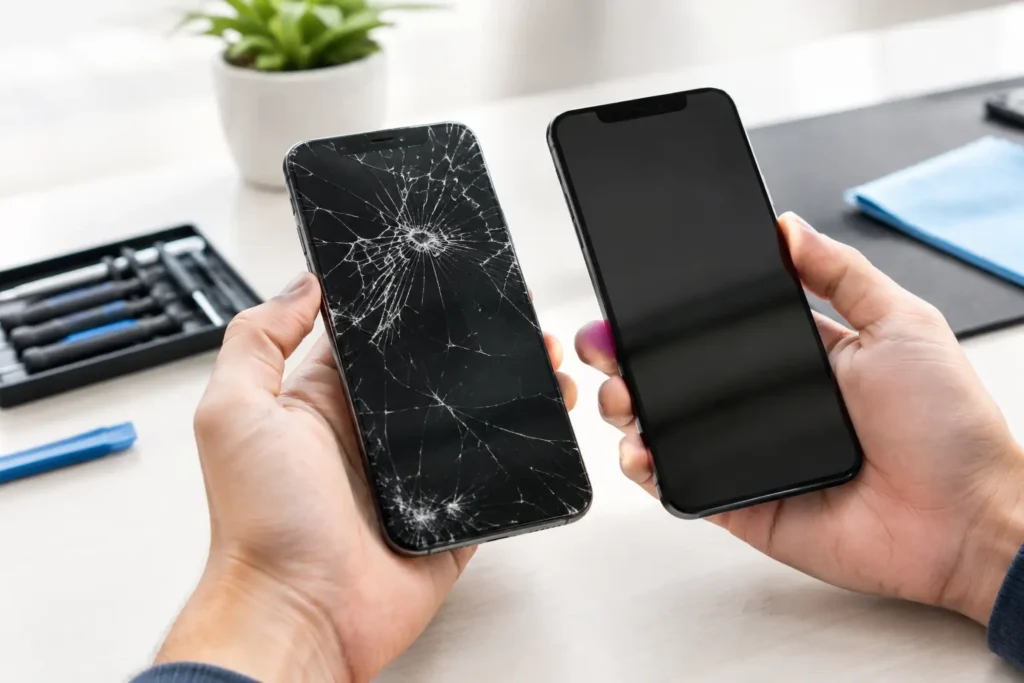
If the device has been dropped, the charging port can crack away from its mounting points or suffer damage on the logic board. That requires professional diagnosis. Repeatedly forcing the connector can make the damage worse and may affect data transfer as well as charging.
Do not overlook battery and software faults
A port can be clean and intact while the actual fault lies elsewhere. Batteries lose capacity over time, and older batteries may struggle to accept or hold a charge. A phone that charges to 100% but dies rapidly is usually a battery health issue, not a port problem. A device that stays on the same percentage for hours may be drawing more power than the charger supplies, or it may have a battery or charging circuit fault.
Restarting the device can clear a temporary software error. Check for system updates once it has enough power, and look at battery settings for warnings about battery health or unsupported accessories. Some phones reduce charging speed when they are too hot or too cold, so let the device return to room temperature before testing again.
Wireless charging can be useful as a diagnostic clue on compatible phones. If wireless charging works but a wired connection does not, the battery may be fine and the fault is more likely to be the cable, port or wired charging circuitry. It is not, however, a permanent answer if you need reliable fast charging or wired data transfer.
When to stop charging and get help
There are times when continuing to test chargers is not worth the risk. Stop using the device and arrange a professional assessment if it becomes hot around the port, gives off a burning smell, displays a liquid-detection warning that will not clear, or has a swollen battery. A bulging screen, lifted back cover or warped casing can indicate battery swelling. Do not press the casing back into place or leave the device charging unattended.
The same applies after significant water damage. Turning it on, plugging it in or using heat to dry it can cause further internal damage. Keep it switched off if possible and have it assessed promptly. Fast action gives the best chance of preventing corrosion from reaching other components.
For business laptops, school tablets and devices holding important photos or files, avoid repeated DIY attempts. A charging fault can sometimes affect USB data lines or the main board. Professional repair should include sensible handling of your device and its data, with clear advice before work begins.
What a professional charging port repair involves
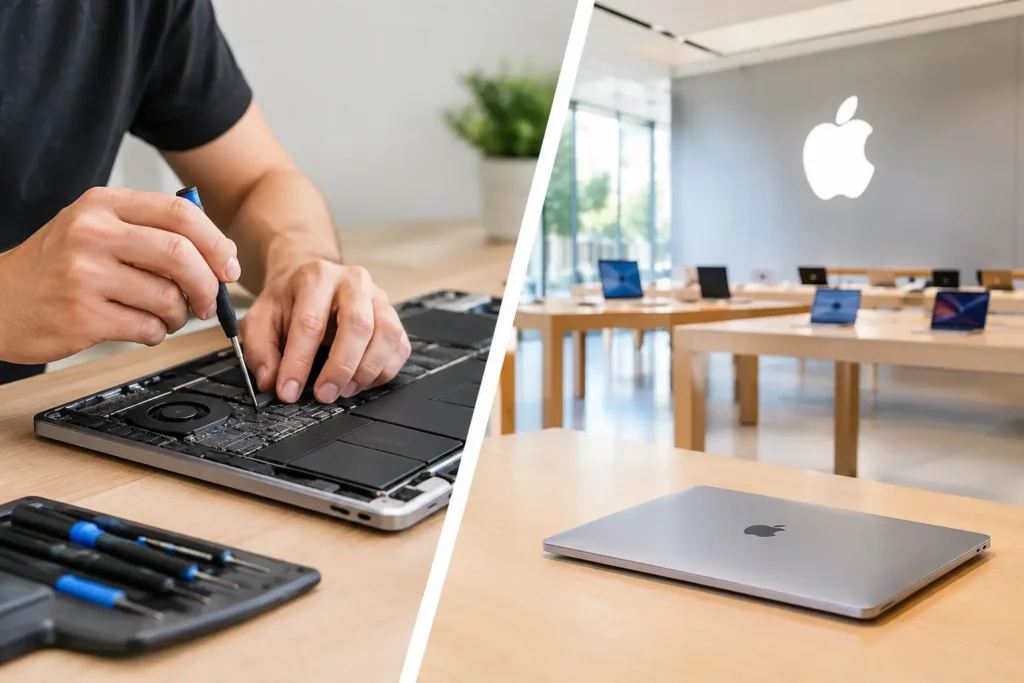
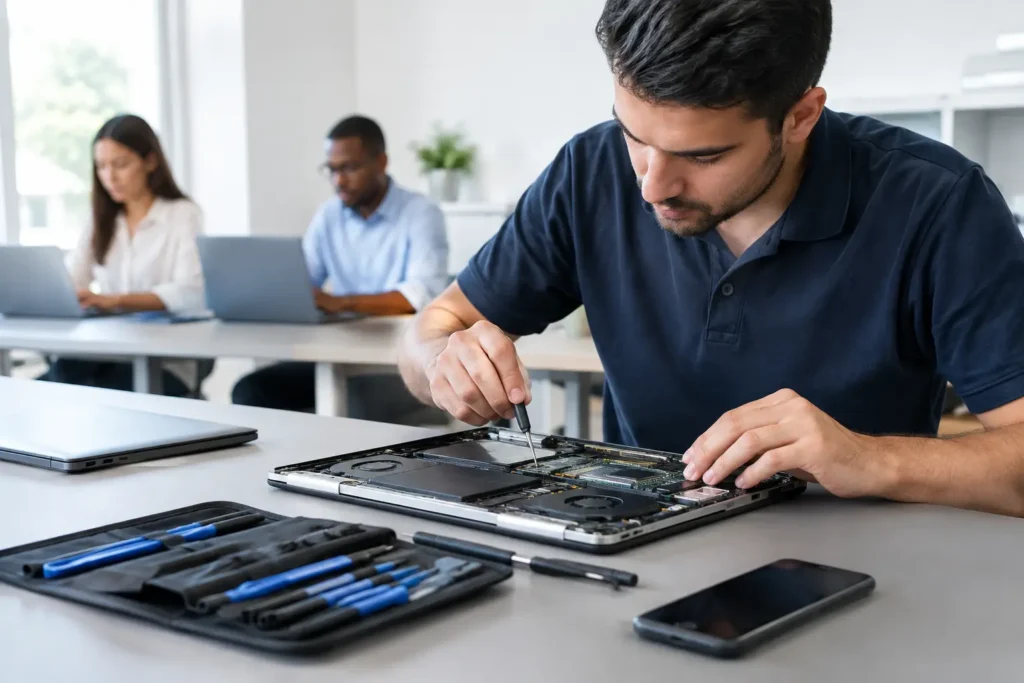
A proper diagnosis does more than replace a connector. A technician checks charging voltage, cable fit, battery condition, moisture indicators and the condition of the port under magnification. Depending on the device, the solution may be a careful port clean, replacement charging flex, USB-C or Lightning port replacement, battery replacement, or repair to the charging circuit on the logic board.
The repair route depends on the model and fault. On some phones and tablets, the port is part of a lower charging assembly and can be replaced efficiently. On others, particularly certain laptops and modern smartphones, the connector is soldered to the board and needs specialist microsoldering work. That is why a clear diagnosis matters before anyone quotes for a battery or port replacement.
At TechLab Repairs, we see charging faults across iPhones, Samsung handsets, tablets, laptops, games consoles and more. The aim is straightforward: identify the real cause, explain the options clearly and get your device back to reliable use without unnecessary replacement parts.
Prevent the same fault from returning
Keep charging leads where they are less likely to be bent at the connector, and avoid charging with a cable stretched across a walkway, sofa or bed. Disconnect by holding the plug rather than pulling the wire. If your phone lives in a pocket or bag, an occasional visual check of the port can catch lint before it becomes tightly compacted.
Use good-quality, compatible chargers and do not ignore a cable that has started to feel loose or run hot. A charging port is a small component that carries power and, often, valuable data. Treating the first signs of trouble early is usually the quickest, safest and most affordable way to keep your device working when you need it.