A laptop that only works when it is plugged in is not really a laptop any more. If you are searching for how to replace laptop battery, the first thing to know is that the job can be straightforward on some models and a real nuisance on others. The right approach depends on whether your battery is removable, screwed inside the case, or glued into place.
For plenty of people, the bigger question is not can you replace it, but should you. A battery swap sounds simple until you are dealing with stripped screws, a swollen pack, or a machine that stores the battery under the keyboard. That is why it helps to know what you are looking at before you start.
How to tell if your laptop battery needs replacing
Batteries wear down slowly, so the signs often creep up on you. You may notice your charge dropping much faster than it used to, the laptop shutting down at 20 or 30 per cent, or the charger needing to stay connected all day just to get through normal use.
Heat can be another clue. An ageing battery may run hotter during charging, and in some cases the base of the laptop can start to bulge. If the trackpad or keyboard feels raised, stop using the device straight away. A swollen lithium-ion battery is not something to ignore or poke at.
There are software clues as well. Many laptops show battery health information in system settings or manufacturer diagnostics. If the battery is marked as needing service, or cycle wear is very high, replacement is usually the sensible next step.
Before you replace anything, check your laptop type
There are two broad kinds of laptop battery replacement. The first is the older, easier type where a battery clips out from the underside. The second is the internal battery, which sits inside the chassis and usually requires the lower cover to be removed.
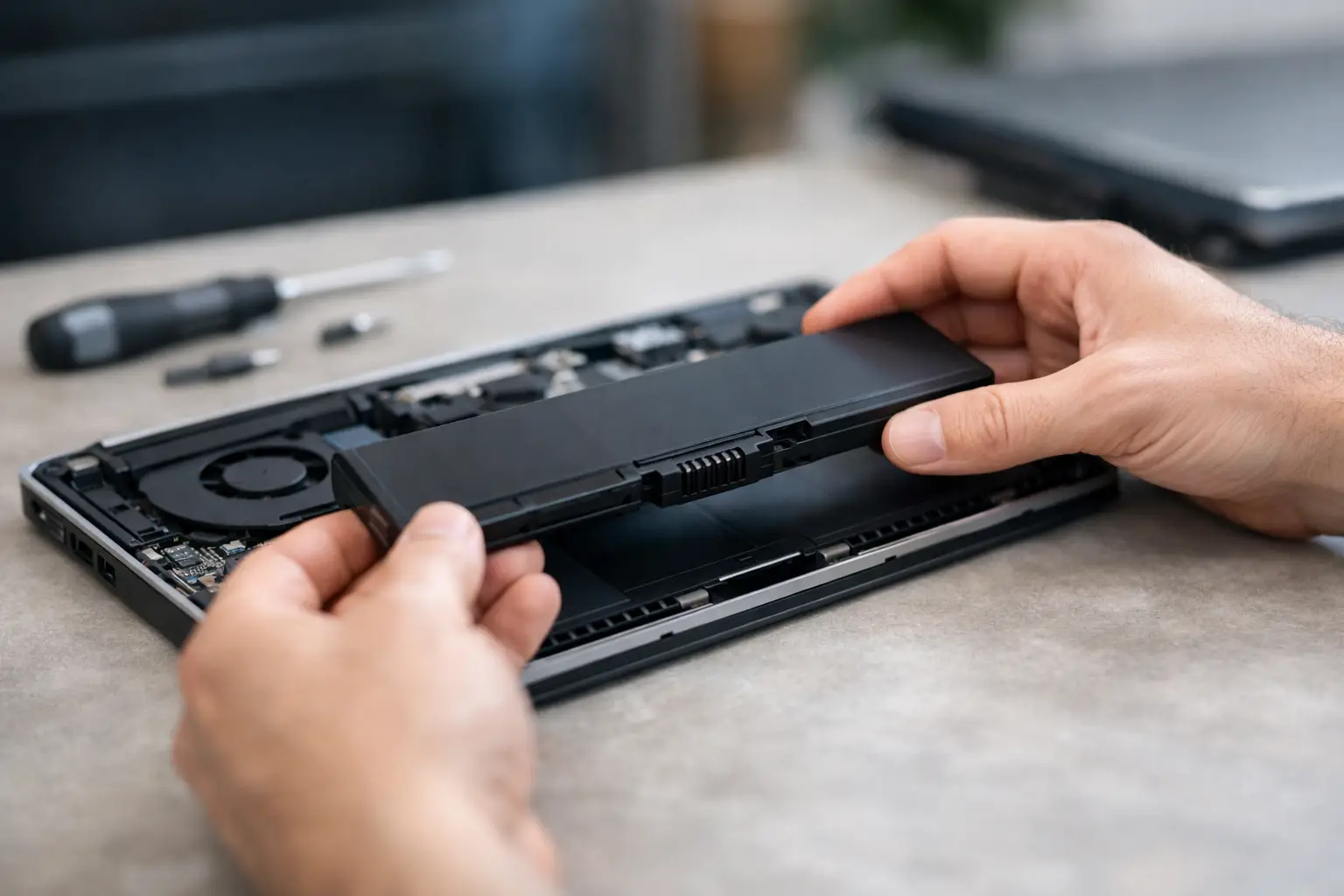
If your laptop has an external battery, the process is often quick. Slide the latches, remove the old battery, fit the new one, then charge and test it. That is the best-case scenario.
If the battery is internal, things get more technical. You may need specialist screwdrivers, plastic opening tools and a steady hand. Some models are well designed for repair. Others are awkward, fragile and not worth forcing if you are not confident.
How to replace laptop battery step by step
Start by shutting the laptop down fully. Unplug the charger and any accessories. If possible, let the battery level drop below 25 per cent before opening the machine. A lower charge reduces risk if the battery is accidentally damaged.
Turn the laptop over on a clean, well-lit surface. A soft cloth or repair mat helps prevent scratches. If the battery is removable from the outside, release the locking tabs and slide the old battery out. Check the contacts for dust, fit the replacement, and lock it in place.
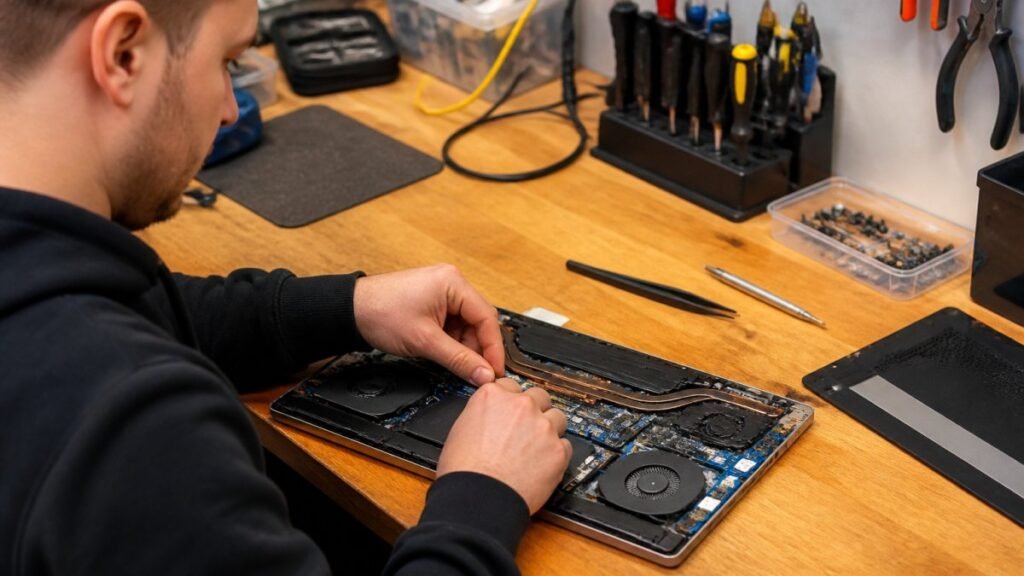
For internal batteries, remove the base screws carefully and keep them organised. Laptop screws are often different lengths, and mixing them up can damage the casing during reassembly. Lift the lower cover gently with a plastic tool rather than a metal blade, which can mark the housing or slip into delicate components.
Once inside, locate the battery pack. It is usually a flat black or silver unit fixed with screws and connected to the mainboard with a cable. Disconnect the battery connector first, ideally by pulling on the connector itself rather than the wires. Then remove any retaining screws and lift the battery out.
Fit the new battery in the same position, secure it, and reconnect the cable firmly. Before replacing the lower cover, look for anything trapped or misaligned. Then reassemble the laptop, reconnect the charger and power it on.
At this point, check that the system detects the battery and that charging starts normally. Some laptops benefit from a full charge, then a controlled discharge and recharge so the battery readings settle properly.
Choosing the right replacement battery
This is where a lot of DIY jobs go wrong. Laptop batteries can look almost identical while having different voltages, connector layouts or mounting points. Buying on appearance alone is risky.
The safest route is to match the exact part number from the original battery and confirm compatibility with your laptop model. Pay attention to voltage in particular. Capacity can vary a bit depending on the replacement option, but voltage should match the original specification.
Quality matters too. Very cheap batteries can be tempting, especially for older laptops, but they may offer poor runtime, unreliable charging or a shorter lifespan. In worse cases, they can create safety issues. A battery is not the component to buy blind from the lowest bidder.
If your laptop is a business model or premium ultrabook, it is often worth spending a little more on a well-sourced part. You are not just paying for charge life. You are paying for stable performance and fewer headaches a month later.
When DIY replacement makes sense
If your laptop has a removable battery or an internal battery that is easy to access, replacing it yourself can save time and money. This is especially true for older machines where the battery is designed as a user-serviceable part.
DIY can also make sense if you are already comfortable opening electronics, have the proper tools and are using a verified replacement battery. For students, home users and small businesses with older fleets, that can be a practical option.
But there is a difference between possible and worthwhile. If the device is still valuable, used for work every day or stores important data, a failed DIY attempt can cost more than the original repair would have done.
When to leave it to a repair specialist
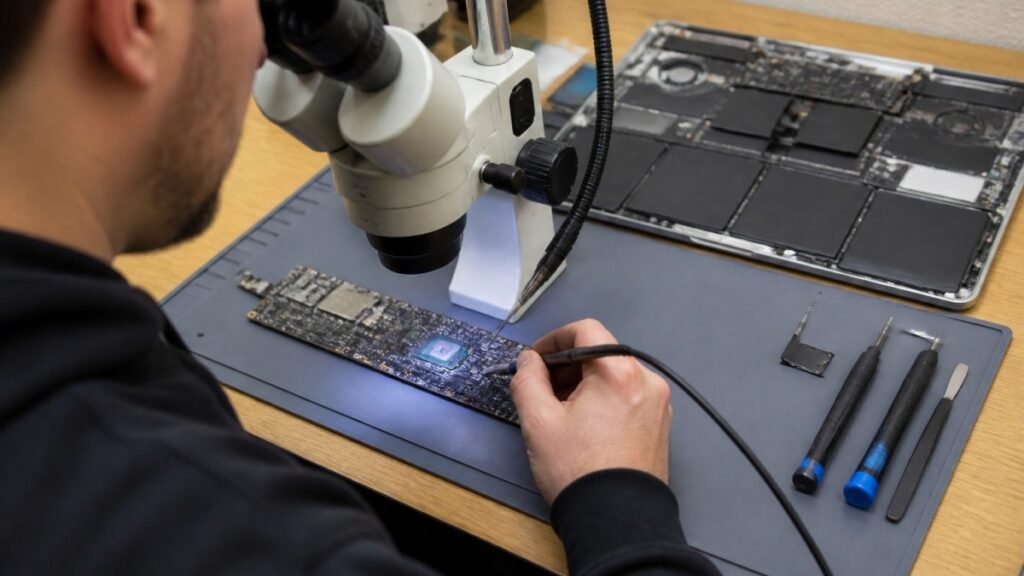
A professional repair is usually the better choice if the battery is swollen, glued down, difficult to reach or installed in a model known for fiddly internals. The same applies if the screws are already damaged, the casing has been bent, or the laptop has other faults such as charging issues or liquid exposure.
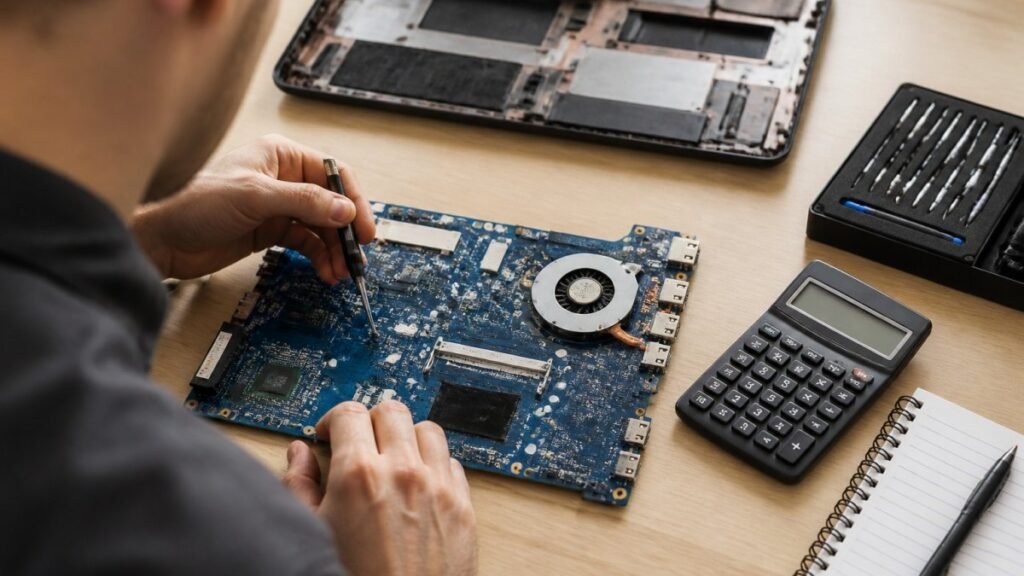
This matters because a battery is not always the only problem. Sometimes the real fault is the charging port, power circuit or motherboard. Replacing the battery in that situation will not fix the issue, and it can leave you paying twice.
For local customers around Barrow-in-Furness and the wider Cumbria area, this is where a trusted repair shop can save a lot of guesswork. A proper diagnosis gives you a clearer answer on cost, turnaround and whether the laptop is worth repairing at all.
Common mistakes to avoid
One of the biggest mistakes is trying to remove a swollen battery by force. If the pack is puffed up, do not press it, bend it or pierce it. That is a safety risk and should be handled properly.
Another common problem is damaging the battery connector. These connectors can be tight, and pulling at the wires instead of the plug can tear the lead away from the battery or the board.
People also rush the screw stage. Using the wrong screwdriver can round off small heads quickly, turning a simple replacement into a much longer job. And not every battery problem is a battery problem. If a new battery does not charge, calibration may help, but persistent issues often point to a deeper hardware fault.
Is replacing the battery worth it?
Usually, yes – if the laptop still meets your needs. A battery replacement can breathe life back into a machine that is otherwise perfectly usable for work, study, browsing or streaming. It is far cheaper than buying a new laptop, and it reduces waste as well.
That said, it depends on the age and condition of the device. If the laptop is already painfully slow, has a cracked screen, failing keyboard and poor battery life, replacing just the battery may not be the best spend. In those cases, a repair shop can help you weigh up the options honestly.
A good battery should give you freedom again – the ability to work from the sofa, study on campus or take the laptop on the train without hunting for a plug socket. If your current one cannot manage that any more, replacing it is often one of the most sensible repairs you can make.
If you are unsure, do not guess. A careful check now can stop a minor battery issue turning into a damaged laptop later, and that is always the better outcome.