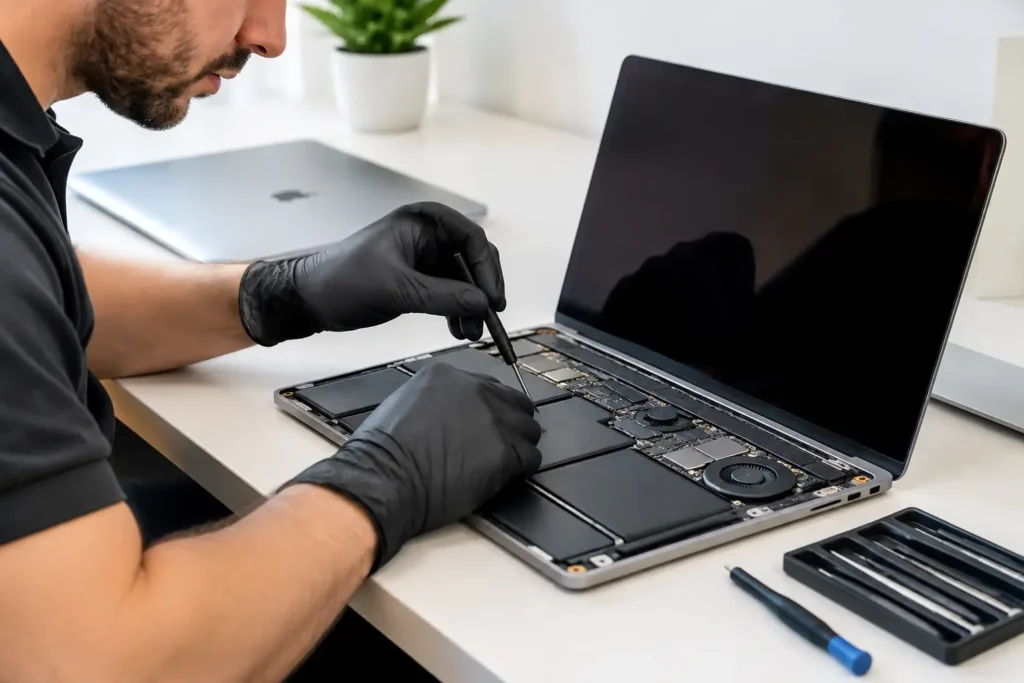
A MacBook that will not charge before a working day, has taken a spill after a Lake District walk, or has developed a flickering screen can quickly become more than an inconvenience. If you are searching for MacBook repair Ulverston / Windermere, the priority is usually simple: find out what is wrong, what it will cost to fix, and whether your files are safe.
A proper repair should give you straight answers before work begins. Not every fault needs an expensive replacement, but not every damaged MacBook is worth repairing either. The right decision depends on the model, its age, the fault itself and how you use it.
MacBook repair for Ulverston and Windermere owners
MacBooks are built to last, but their slim design means that everyday faults can be more involved than they first appear. A cracked display may affect the camera or backlight. A battery that seems worn out may actually be affected by a charging fault. A MacBook that appears completely dead could have a problem with the USB-C port, battery, keyboard power circuit or logic board.
That is why diagnosis comes first. Guesswork can lead to unnecessary parts and higher costs, particularly on newer MacBook Air and MacBook Pro models where many components are closely integrated.
For customers in Ulverston, Windermere and across the wider Lake District, using a local specialist avoids the uncertainty of posting a valuable laptop away and waiting weeks for an update. TechLab Repairs provides practical fault assessment and repair support from Barrow-in-Furness, with careful handling for personal, work and education devices.
Common MacBook faults and what they can mean
Screen damage, lines and black displays
A MacBook screen does not need to be visibly smashed to be damaged. Fine cracks around the bezel, pressure marks, coloured lines, a dim display or a screen that stays black while the machine still powers on can all point to display damage.
The exact repair route depends on the MacBook generation. In many cases, replacing the complete display assembly is the sensible and reliable option. On older models, the fault may instead be linked to a display cable, backlight circuit or graphics-related issue. A technician should test the MacBook with an external display where appropriate before recommending a repair.
Do not keep closing a screen that has cracked near the hinge. Pressure can worsen the damage and potentially affect other components.
Battery and charging problems
Slow charging, sudden shutdowns, a “Service Recommended” battery warning and a MacBook that only works with the charger connected are familiar signs of battery wear. Batteries are consumable parts, so a replacement can make good sense when the rest of the laptop is in strong condition.
However, charging faults are not always caused by the battery. USB-C MacBooks can suffer damaged ports, cable-related issues, contaminated connectors or charging circuit faults. MagSafe models can have problems with the charger, DC-in board or battery connection. Checking the full charging path helps prevent paying for a battery replacement that does not solve the issue.
If the battery is swollen, stop using the MacBook and avoid pressing on the trackpad or case. A swollen battery needs prompt professional attention.
Liquid damage
Tea, coffee, rain and condensation can all cause trouble, even when a MacBook seems fine straight after the incident. Moisture can corrode components gradually, turning a minor spill into intermittent keyboard faults, charging issues or a no-power condition days later.
Switch the MacBook off, disconnect the charger and do not attempt to charge it again. Do not use a hairdryer, put it in rice or repeatedly try to turn it on. These actions can spread contamination, introduce more heat or worsen electrical damage. The best chance of a successful liquid-damage repair comes from quick assessment, cleaning and component-level diagnosis where needed.
Keyboard, trackpad and webcam faults
Keys that repeat, stop responding or feel different after a spill may need more than surface cleaning. On some models, keyboard replacement involves substantial disassembly, so the repair should be assessed alongside the battery condition and overall value of the MacBook.
Trackpad faults can be caused by liquid damage, a failing cable, software settings or battery swelling underneath the trackpad. A webcam that is not detected may have a display assembly fault, cable issue or a macOS-related cause. Testing matters because the visible symptom is not always where the real fault lies.
No power, overheating and logic board faults
A MacBook that will not turn on is not automatically beyond repair. The cause could be as straightforward as a failed battery, charging port or power button circuit. It could also be a logic board issue caused by liquid damage, a shorted component or a failed power rail.
Logic board repair is more specialised work, and it is not always the best choice for an older device. But if the MacBook contains essential files or is otherwise a higher-value model, board-level diagnosis can be a worthwhile alternative to replacing the entire machine.
Protecting your files before a repair
Your data is often more valuable than the laptop itself. Before handing over a MacBook, back it up if it will still start. Time Machine is useful for a full backup, while important work documents and photos should also be copied to a secure location where possible.
If the MacBook will not boot, tell the repair technician that data preservation is a priority. Some repairs can be performed without touching the storage, but certain faults, especially severe liquid damage or storage-related issues, carry a risk. Clear communication helps the technician choose the least invasive route first.
You should also have your Mac login password available if testing is needed. Do not share unnecessary account passwords. Find My Mac and Activation Lock can affect diagnostic work or operating system testing, so ask what needs to be disabled and why before authorising any repair.
For business customers, this is especially important. A company MacBook may contain client information, financial records or school data. Secure device handling and a defined repair process are not optional extras – they are part of a professional service.
Repair or replace: making the sensible call
The cheapest quote is not always the best value, and the most expensive repair is not always a poor choice. Start with the MacBook’s age, specification and current performance. A recent Apple silicon MacBook with screen damage may be well worth repairing. An older Intel model with a major logic board fault, worn battery and limited storage may be better replaced.
Consider how the MacBook performs when it is working. If it handles your software, has enough storage and meets your day-to-day needs, a repair may give it several more useful years. Replacing a battery or screen is often more economical, and less wasteful, than buying another laptop.
On the other hand, it may be time to move on if repair costs approach the price of a suitable replacement, the machine no longer supports the software you need, or multiple major faults are present. A good repair shop should explain that honestly rather than pushing a repair that does not make financial sense.
What to ask before booking a MacBook repair
A clear repair conversation should cover the fault symptoms, likely causes, estimated turnaround and the type of replacement part proposed. Ask whether the MacBook will be tested before and after repair, whether your data could be affected, and what guarantee applies to the work.
It also helps to provide the full model number from the underside of the MacBook or from macOS if it starts. “MacBook Air” alone covers many different designs, parts and repair methods. The year and screen size can change the quote significantly.
Be precise about what happened. Mention drops, spills, charging behaviour, error messages and whether the device has been repaired before. Those details can speed up diagnosis and prevent a small clue being overlooked.
A practical next step
Do not let a failing MacBook sit unused until an urgent deadline forces the decision. Back up what you can, stop using it if there is liquid damage or battery swelling, and get a proper diagnosis while the fault is still manageable. A clear assessment gives you the information to choose confidently – whether that means a straightforward repair, data-focused work or an honest recommendation to replace the device.