One minute your iPad is working normally, the next it is ignoring taps, opening apps on its own, or lagging behind every swipe. If you are wondering what causes iPad touch screen issues, the answer is not always as simple as a cracked screen. Touch faults can come from software glitches, charging problems, internal damage, worn components, or even something as basic as a dirty display.
For most people, the real frustration is not just the fault itself. It is not knowing whether the problem is minor, whether your data is at risk, or whether the device is about to stop responding altogether. That is why it helps to understand what is happening before you decide whether to restart it, update it, or book a repair.
What causes iPad touch screen issues most often?
In day-to-day repair work, touch problems usually fall into two broad categories – software-related faults and hardware-related faults. Software faults can make the screen feel unresponsive even when the display and touch layer are physically fine. Hardware faults happen when the parts responsible for touch input have been damaged, worn out, or disrupted.
The tricky part is that both types can look very similar. An iPad that freezes after an update can behave a lot like one with impact damage. A charging issue can also interfere with touch response, which catches plenty of people out because the screen itself appears intact.
Software problems that affect touch response
Sometimes the screen is not broken at all. The iPad may be struggling because the operating system has frozen, an app has crashed, or the device is overloaded in the background. If touch stops working in one app but works elsewhere, that points more towards software than hardware.
A recent update can also play a part. Most updates improve stability, but now and then an installation does not go cleanly, or a bug causes temporary responsiveness issues. That can show up as delayed taps, gestures not registering properly, or sections of the screen feeling inconsistent.
Storage pressure can make matters worse. When an iPad is very full, performance often drops across the whole device. People tend to describe this as the screen being slow, but the underlying issue is the system struggling to keep up rather than the touch layer failing.
If the device has been running for a long time without a restart, you may simply be dealing with a temporary glitch. It sounds basic, but a forced restart can clear the sort of short-term software fault that mimics a much bigger problem.
Signs it may be a software issue
If the screen works normally after a restart, the fault comes and goes, or the problem started straight after an update or app install, software is a strong possibility. That does not rule out hardware completely, but it does make it more sensible to try a few safe checks before assuming the screen needs replacing.
Physical damage is still one of the biggest causes
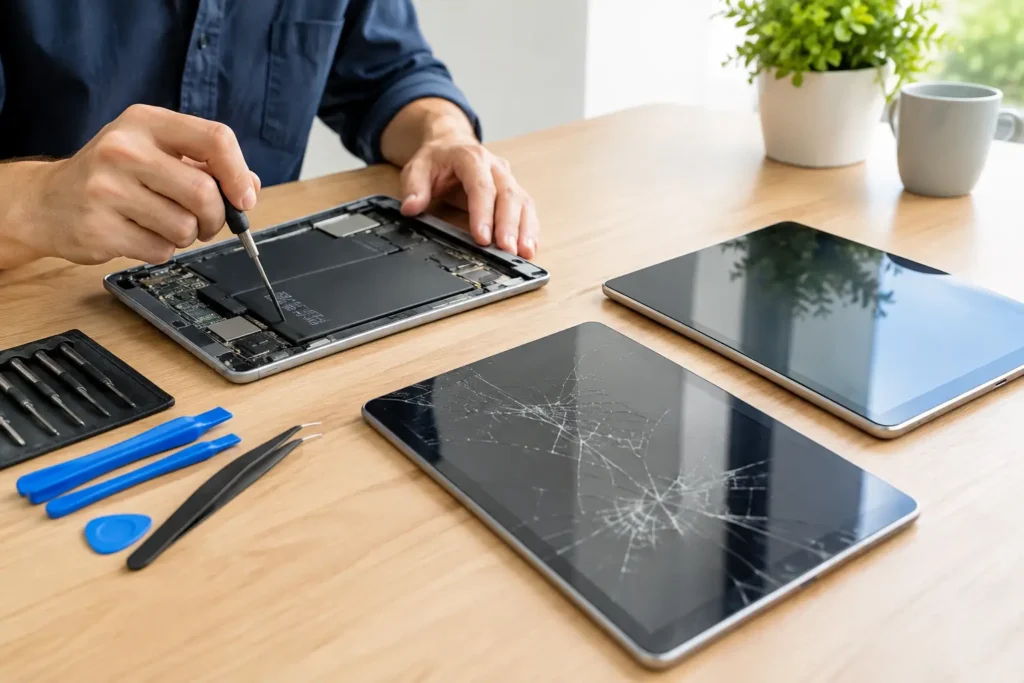
When people ask what causes iPad touch screen issues, physical damage is still high on the list. A drop does not always leave dramatic visible damage. Yes, a shattered front glass is an obvious clue, but some impact faults are more subtle. The screen may look mostly fine while the touch layer underneath has been compromised.
On some models, the touch digitiser is a separate part. On others, it is more closely integrated with the display assembly. Either way, impact can cause dead zones, ghost touching, random tapping, or complete loss of response.
Pressure damage is another common issue. Sitting on an iPad, packing it tightly in a bag, or placing heavy items on top can stress the screen and internal connectors. This kind of fault may not show up immediately. A customer might say the iPad was fine yesterday, then suddenly part of the screen stopped responding today.
Charging accessories can interfere with touch
This one surprises a lot of users. Low-quality charging cables, damaged plugs, or unstable power sources can cause erratic touch behaviour while the iPad is plugged in. If the screen starts acting strangely only during charging, the issue may not be the screen itself.
Electrical interference can lead to jumpy input, delayed response, or phantom touches. The easiest test is to unplug the charger and see if the behaviour stops. If it does, try a known good cable and power adapter.
That said, charging-related touch faults can sometimes point to a deeper problem with the charging port or power management on the board. So if changing the cable does nothing, it is worth having the device checked properly rather than guessing.
Liquid exposure can cause delayed touch faults
Not every liquid-damaged iPad dies on the spot. Sometimes it keeps working at first, then starts developing touch problems days later. Moisture can corrode connectors, interfere with signals, and damage components gradually.
Even a small spill matters if liquid gets past the edge of the screen or through openings. Steam, condensation, and damp environments can also contribute over time, especially if the device was already slightly compromised.
A common mistake is assuming everything is fine because the iPad still turns on. Powering on after liquid exposure can actually make the damage worse. If touch starts behaving oddly after any contact with liquid, it is best treated as a hardware issue until proven otherwise.
Dirt, protectors and accessories can play a part
Not every touch fault is serious. A dirty screen can interfere with gesture accuracy, especially if there is grease, moisture, or residue across the display. Screen protectors can also cause issues if they are poorly fitted, cracked, lifting at the edges, or simply low quality.
Cases sometimes create problems too. If the frame is warped or pressing against the edge of the screen, it can affect touch sensitivity. This is less common, but it does happen.
These are worth checking because they are easy to rule out. Clean the screen properly with a suitable cloth, remove the protector if it is damaged or badly applied, and test the iPad out of its case.
Internal connection faults and ageing components
An iPad does not need to be visibly smashed to have a genuine hardware fault. Inside the device, small connectors and fragile components handle the communication between the touch layer and the main board. If one of those connections becomes loose or damaged, touch can become partial, intermittent, or fail altogether.
Age can also be a factor. Over time, repeated stress, heat, previous repairs, battery swelling, or general wear can contribute to screen and touch issues. An ageing battery is especially worth mentioning because swelling can press against the display from behind, affecting screen performance and creating a safety concern at the same time.
This is one of those areas where DIY diagnosis gets risky. Opening an iPad without the right tools and experience can easily crack the screen fully or damage internal parts that were still salvageable.
How to tell whether the issue is getting worse
A touch issue that happens once may be a glitch. A touch issue that keeps spreading is a warning sign. If one corner stops responding and then another area follows, or if ghost touches become more frequent, the underlying fault is often progressing.
Likewise, if the iPad starts showing other symptoms – battery drain, overheating, charging problems, lines on the display, or random restarts – the touch problem may be part of a wider internal issue. That is usually the point where waiting tends to make repairs more difficult rather than less.
What you can safely try first
Before assuming the worst, restart the iPad and test touch response again. Check whether the issue happens in every app or only one. Remove any damaged screen protector, unplug third-party charging accessories, and make sure the screen is clean and dry.
You can also check whether the software is up to date, provided the iPad is still usable enough to do that safely. If the device responds normally after these steps, the problem may have been temporary. If not, and especially if there has been a drop or liquid exposure, a professional inspection is the safer next move.
When repair is the sensible option
If the screen is cracked, there are dead touch zones, taps are registering on their own, or the issue is linked to impact, liquid, swelling, or charging faults, home fixes are unlikely to solve it properly. At that stage, the goal is not just getting touch back. It is preventing further damage and protecting the data on the device.
A proper diagnosis matters because not every touch issue needs the same repair. Some iPads need a new screen or digitiser. Others need board-level work, connector repair, battery replacement, or power fault diagnosis. Getting the cause right first usually saves time and money.
At TechLab Repairs, this is exactly the sort of fault we see regularly. For customers across Barrow-in-Furness and the wider Cumbria area, having a local repair specialist means you do not have to guess whether your iPad is worth fixing or send it away for days just to get an answer.
If your iPad screen has started missing taps, freezing, or behaving unpredictably, do not wait for it to fail completely. A touch problem is often the first visible sign that something else needs attention, and catching it early can make all the difference.