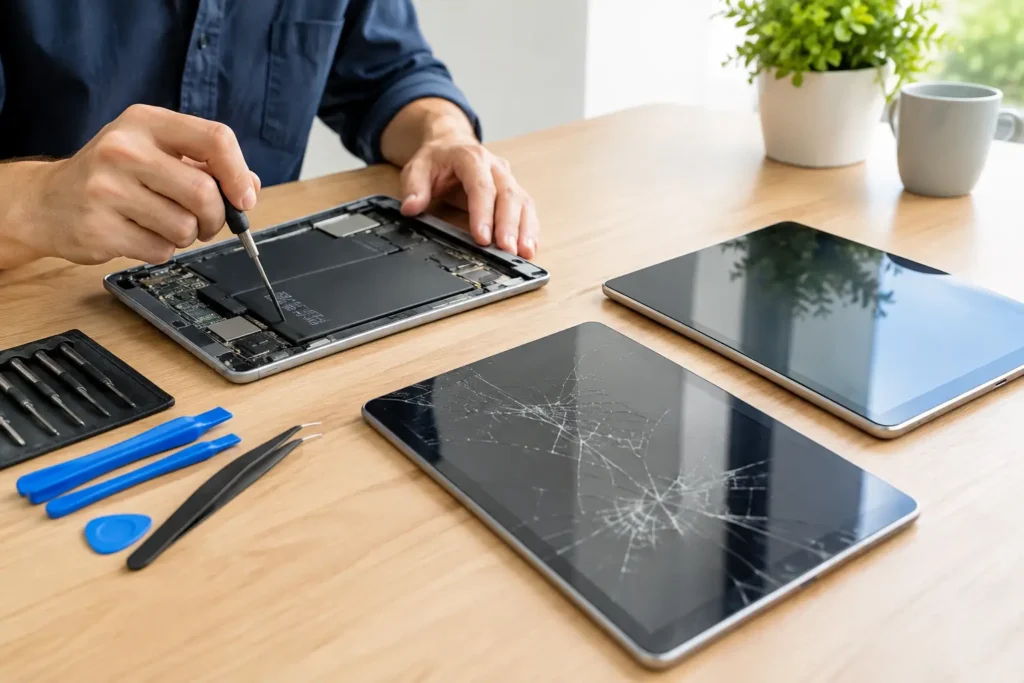
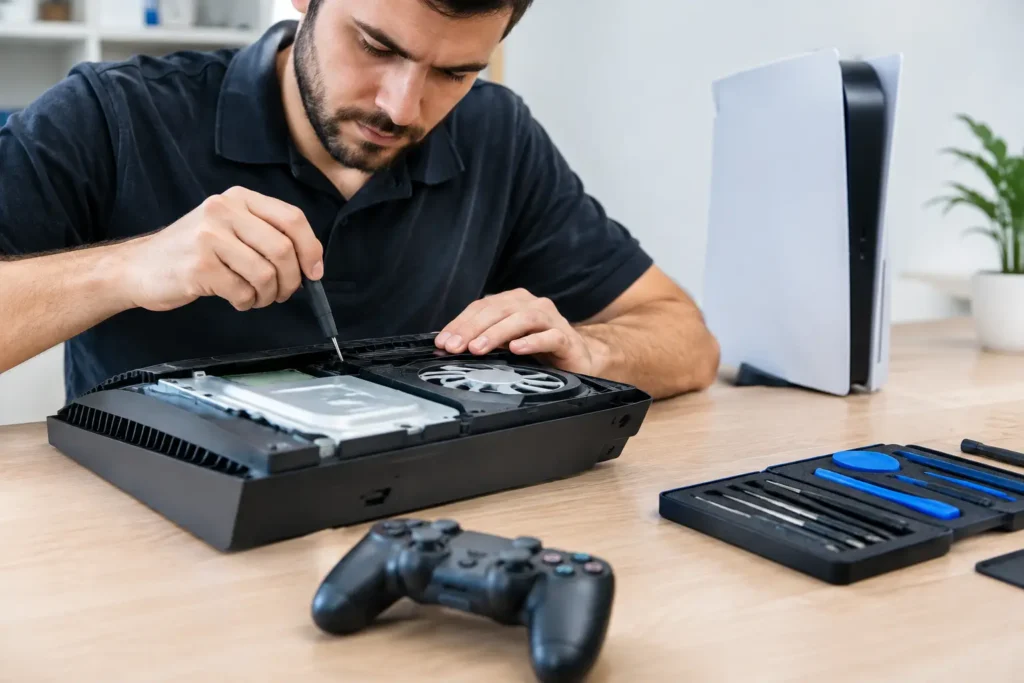
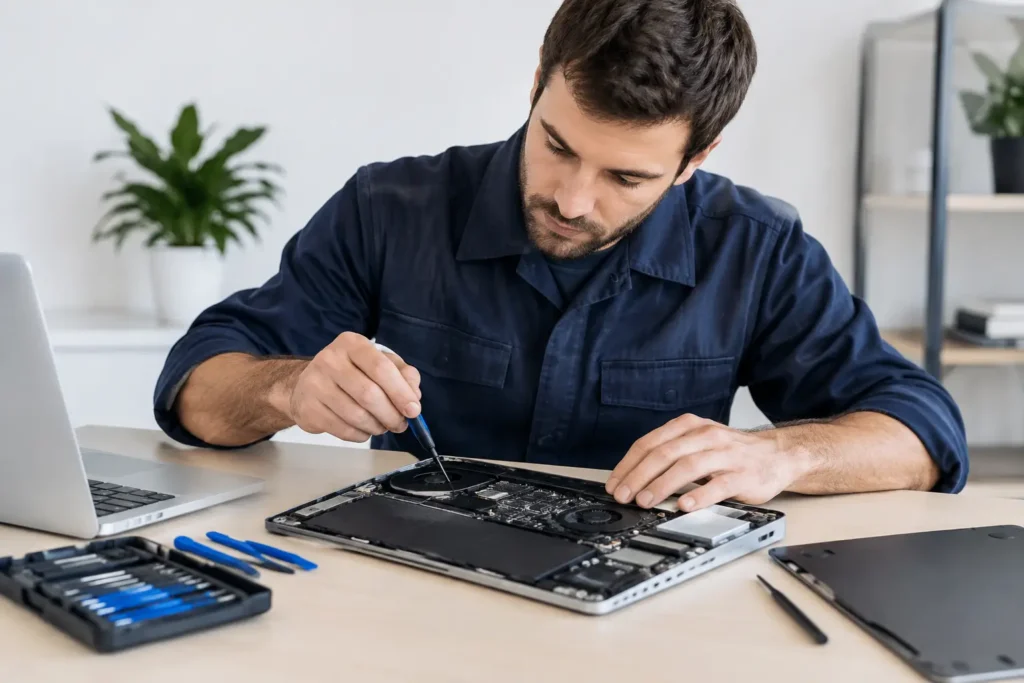
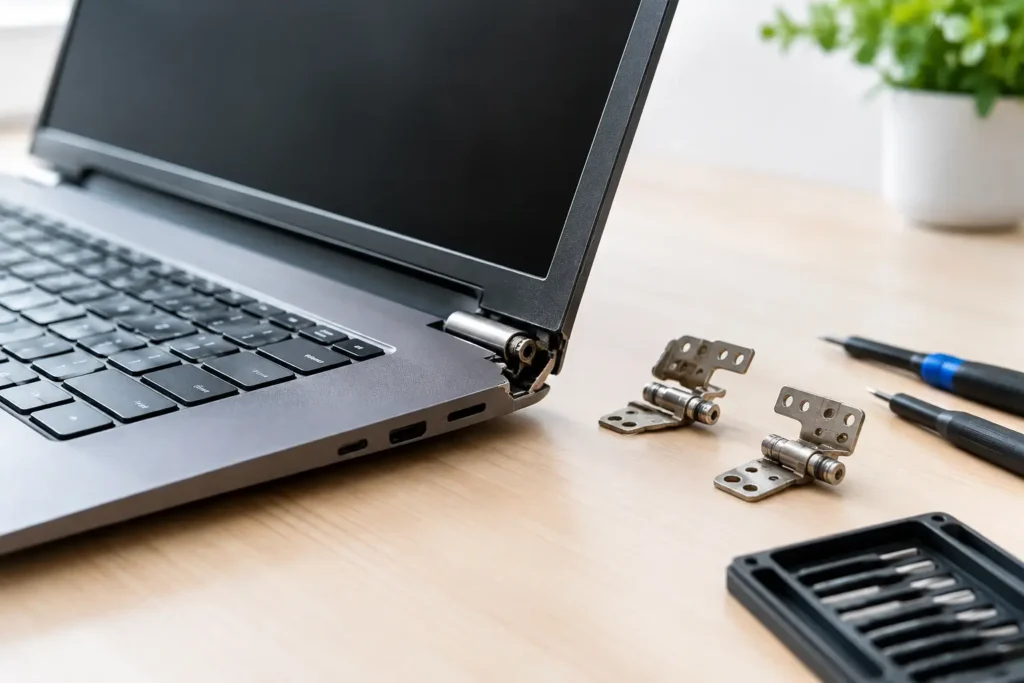
A cracked screen is annoying. A failed hard drive, dead charging port or liquid-damaged phone is stressful for a different reason – your photos, messages, work files and saved logins may all be sitting on that device. If you are wondering how to protect data before repair, the good news is that a few sensible steps can reduce the risk without making the repair harder.
The right approach depends on what has actually gone wrong. If your device still powers on, you have far more options. If it is completely dead, your priority shifts from tidying things up to making sure the repair is handled by a trusted specialist who understands the value of the data on board. Either way, preparation matters.
How to protect data before repair without making things worse
The biggest mistake people make is rushing. They book a repair, hand the device over, and only later remember that banking apps are logged in, family photos are stored locally, and their work email opens without a password. None of that means a repair shop is going through your private information, but it does mean you have missed your chance to put sensible protections in place.
Start with a backup if the device is still usable. For most people, that means backing up photos, contacts, notes, documents and app data to a cloud account or an external drive. On a laptop or desktop, a full system backup is often the safest route because it preserves not just files but settings and installed software. On a phone or tablet, even a basic backup is better than none, especially if the repair involves a battery issue, motherboard fault or liquid damage where the device could become less stable over time.
If backing up is not possible because the device is too damaged, do not keep repeatedly trying to power it on. That can make some faults worse, particularly after liquid exposure or with failing storage. At that point, protecting data becomes about careful handling and getting the device assessed quickly.
Back up what matters first
If time is tight, do not get stuck trying to create the perfect backup. Focus first on anything you cannot easily replace – photos, videos, work files, school documents, contacts, two-factor authentication access and notes. After that, move on to app data, saved messages and less urgent files.
For business users and schools, this matters even more. A damaged staff laptop or pupil iPad may contain documents, internal access credentials or records that should never be left unaccounted for. In those cases, treat the repair like any other data-handling event. Make sure the device is inventoried, backed up where possible, and assigned to the right person before it leaves your site.
Remove what does not need to be there
You do not need to wipe a device before every repair. In fact, that can be unhelpful if the technician needs to test the issue properly afterwards. But you should think about whether sensitive files need to remain on the device at all.
If you have confidential PDFs sitting on the desktop, private client files in a downloads folder, or personal photos in easy-to-open albums, move them off the device if you can. The aim is not to strip the machine bare. It is to reduce exposure to anything particularly sensitive.
Lock down access before handing it over
A repair technician may need to unlock your device to test a screen, camera, speaker, charging function, keyboard or software behaviour. That is normal. What matters is giving the minimum access needed, not unlimited access to your digital life.
On phones and tablets, check what can be accessed from the lock screen. Message previews, wallet access, smart home controls and notification content can often be hidden. That way, even if the phone needs to stay powered on for diagnostics, private information is not constantly flashing up.
On laptops and desktops, consider creating a temporary guest account if the repair requires login access. This is one of the most practical answers to how to protect data before repair, because it separates testing access from your everyday user profile. A guest account lets the technician confirm the machine is working while keeping your main files, browser history and saved passwords out of sight.
If a temporary account is not possible, log out of browsers, email apps, messaging platforms and anything financial. Saved sessions are convenient until somebody else needs to test the hardware.
Disable face and fingerprint unlock if needed
Biometric unlock is useful for daily life, but during repair it can be awkward. If a phone or laptop needs repeated restarts or parts testing, face and fingerprint access may not be the best way to manage handover. A simple passcode may be more practical for the duration of the repair.
That does not mean making the device easy to open. It means deciding what level of access is genuinely required and avoiding confusion during testing. If your chosen repairer does not need the code because they can complete the job without unlocking the device, even better.
Think about accounts, not just files
When people talk about data, they usually mean photos and documents. In reality, account access is often the bigger risk. A device may hold your email, cloud storage, social media, payment apps, password manager and authentication tools. That is a lot of trust sitting in one place.
Before repair, review which key accounts are signed in. You do not need to manually sign out of everything, but it is wise to log out of banking apps, shopping accounts with saved cards, and business systems containing customer or company information. If your email account is the recovery route for everything else, treat that as especially sensitive.
For Apple and Android devices, there is a balance to strike. Some repairs are easier if security features like Find My or device activation locks are managed correctly in advance. But do not remove account protections casually without understanding why. Those tools exist to stop theft and unauthorised use. If a repair requires a setting to be changed, make sure you know exactly which one and whether it should be restored afterwards.
If the device is badly damaged, priorities change
Sometimes the device will not turn on, the display is unreadable, or liquid damage means every minute counts. In those cases, your main job is not digital housekeeping. It is preventing further damage and choosing a repair service that handles devices securely.
Do not attempt random fixes from internet forums if your data matters. Opening a phone with the wrong tools, charging a wet device, or forcing a restart on failing storage can turn a repairable problem into a data loss situation. A dead device does not always mean lost data, but poor handling can get you there quickly.
This is where a local, experienced repair specialist earns their value. Fast assessment matters because some faults get worse with delay, and clear communication matters because you need to know whether the job is straightforward hardware repair, more advanced board-level work, or a data recovery situation.
Ask the right questions before you book
If data protection is a concern, ask how the device will be stored, whether login access is actually needed, and what testing will be carried out after repair. For business devices, also ask how customer or organisational data is handled during intake and collection.
A good repair service should be comfortable answering those questions plainly. You are not being awkward. You are being sensible.
How to protect data before repair for phones, laptops and tablets
Different devices call for slightly different checks. Phones usually hold the widest mix of personal information, from photos to banking apps and private messages. Tablets often sit somewhere in the middle, especially for families where several people may use the same device. Laptops and desktops tend to hold deeper file access, saved browser sessions and long-term work archives.
On a phone, prioritise backups, hidden lock-screen notifications, app logouts and account review. On a laptop, focus on a full backup, guest access, browser sign-outs and moving highly sensitive files off the machine. On a tablet, think about both – especially if it is used for school, entertainment and email all in one place.
For shared household devices, remember that your data may not be the only data on there. Children’s schoolwork, family photos, and saved streaming or shopping accounts can all be tied to the same login.
Do not forget the simple physical checks
Data protection is not only about software. Remove SIM cards and any microSD cards if they are not required for the repair. Those often contain contacts, photos or extra storage, and there is usually no reason to leave them in unless they are relevant to the fault.
Also note down any important details before handover – the fault itself, the device condition, and whether it powers on. For businesses, this should be standard practice. For personal customers, it is just a helpful habit that avoids confusion later.
At TechLab Repairs, customers often want speed and peace of mind at the same time. That is fair. A broken device is disruptive enough without worrying about what happens to your data while it is being fixed.
If you can back up, do it. If you can limit access, do it. If the device is too far gone for either, stop experimenting and get it looked at properly. The best protection is usually a calm, practical response before a small problem turns into a much bigger one.