A phone that refuses to charge is rarely a small inconvenience. It can mean missed calls, lost access to banking apps, a disrupted school day or no battery left for the journey home. This guide to Samsung charging problems starts with the checks that solve many faults safely, then explains when the issue is likely to need professional attention.
Start with the simple charging checks
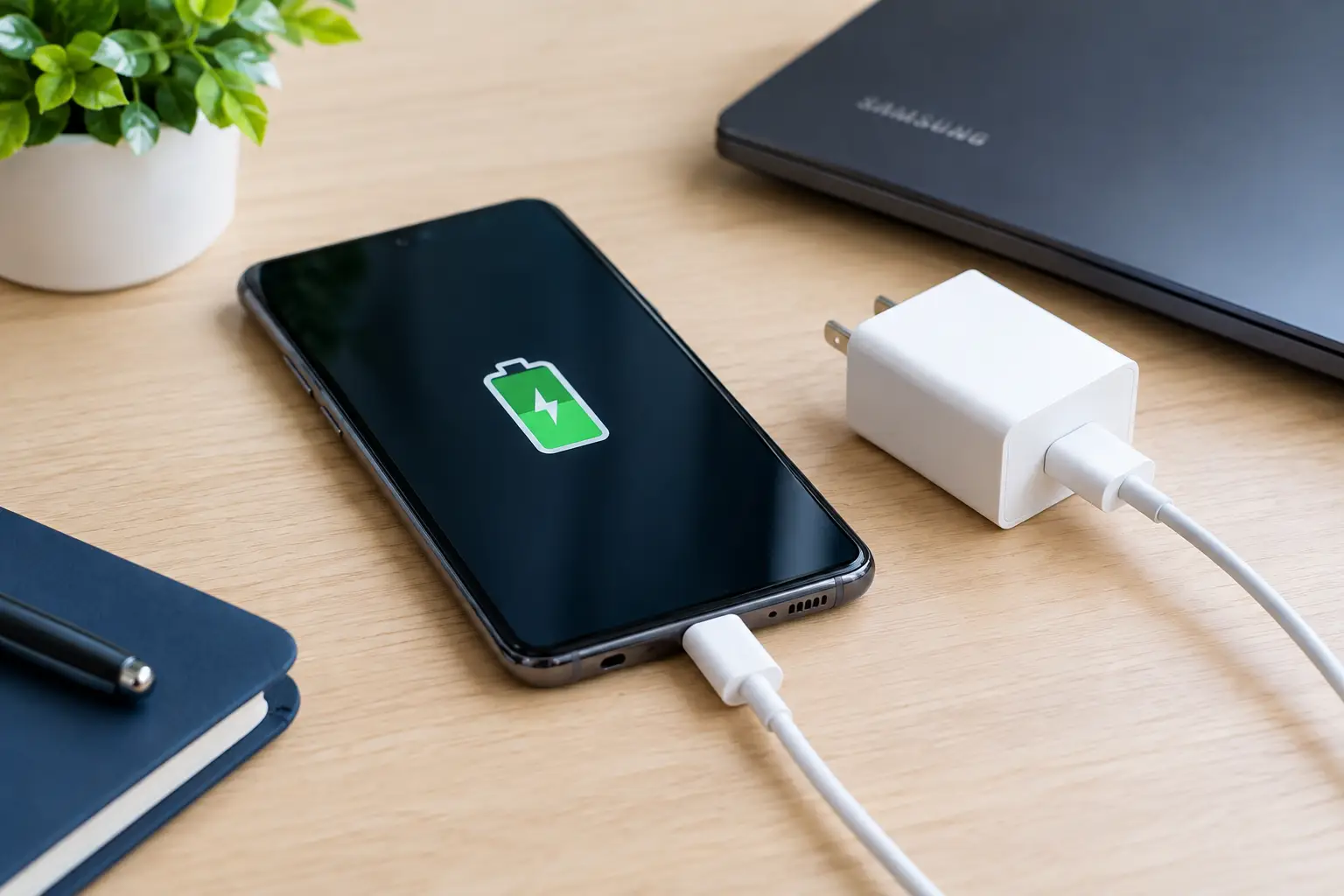
Before assuming the handset has a serious fault, test the full charging setup. A cable can look perfectly fine while its internal wires have failed, and a worn plug adaptor may provide enough power to show a charging symbol but not enough to increase the battery percentage.
Try a different, known-working USB cable and mains adaptor first. Plug it directly into a wall socket rather than a multiway extension, power bank or laptop USB port. If possible, use a quality Samsung-compatible charger with the correct power rating for your model. Cheap, damaged or unbranded accessories can charge very slowly, disconnect repeatedly or create excess heat.
Leave the phone connected for 20 to 30 minutes if the battery has been completely drained. A deeply discharged battery may not switch on immediately. If it still shows no sign of life, try a forced restart by holding the side key and volume down button together for around 10 to 15 seconds. The exact response can vary between Galaxy models, but this can clear a temporary software freeze.
Check the charging port carefully
Samsung USB-C ports collect dust, pocket fluff and fine grit surprisingly quickly. Even a small compacted layer at the bottom of the port can stop the cable from seating correctly. The connector may feel loose, only charge at a certain angle, or fall out with very little movement.
Turn the phone off and inspect the port under good light. Do not push metal pins, needles, paper clips or anything sharp into it. These can bend the delicate internal contacts and turn a straightforward clean into a port replacement. A dry, soft brush or a careful burst of air may remove loose debris, but packed-in material is best dealt with by a repair technician.
If a cable only works when held in a particular position, avoid forcing it. Continued use can damage both the cable and the port, particularly if the phone is used while charging on a bed, sofa or in a car.
What a loose or damaged port can look like
A faulty charge port does not always mean the phone will not charge at all. Common signs include slow charging with several known-good chargers, frequent connection and disconnection, no fast-charging message, visible corrosion, or a cable that will not sit securely. On some models, the port assembly can be replaced without replacing the entire phone. The right repair depends on the handset and whether the fault is confined to the port or has reached the charging circuit on the main board.
Deal with moisture warnings the safe way
Many Samsung phones have water resistance, but that is not the same as being waterproof forever. If you see a moisture or debris warning, the phone is protecting itself by preventing wired charging. Do not keep reconnecting the cable in the hope that the message disappears, and do not use a hairdryer, radiator or microwave to dry the device. High heat can harm the battery, screen adhesive and internal components.
Disconnect the charger, gently wipe the outside of the port, and leave the handset in a dry, ventilated room with the port facing down. Give it time. If the phone supports wireless charging, that can be a temporary option once the exterior is dry, but only if the device is not hot and there is no sign of severe liquid damage.
A warning that remains for more than a day, appears when the phone has not been near water, or follows a spill may point to contamination or corrosion inside the port. Liquid damage can progress after the initial incident, so prompt assessment gives the device a better chance of recovery.
Why Samsung fast charging may stop working
A phone can charge normally yet lose its fast-charging capability. First, check that the cable and adaptor support the required standard. A low-power adaptor, tired cable or computer USB port will often charge the phone slowly by design.
On many Galaxy devices, fast charging can also be enabled or disabled in battery settings. Look in the battery or charging settings for fast charging, super fast charging or fast wireless charging options. Menu names differ by Android version and handset model, so do not worry if yours is worded slightly differently.
Heat is another common reason for slower charging. Samsung phones manage battery temperature to protect the cell, particularly after gaming, using navigation, streaming video or leaving the handset in direct sunlight. Remove a thick case, stop demanding apps and let the device cool down before charging. If the phone becomes unusually hot while idle or during ordinary charging, stop using that charger and have the handset checked.
Test wireless charging separately
Wireless charging is useful for narrowing down the fault. If a Galaxy phone charges wirelessly but not through USB-C, the battery is usually receiving power correctly and attention should turn to the cable, port or wired charging circuit.
Remove any case with metal components, card holders or excessive thickness, then centre the phone on a compatible charging pad. A misaligned handset can show intermittent charging or get warmer than expected. Test with another pad if available. Conversely, if wired charging works but wireless charging does not, the issue may be with the pad, the case, the charging coil or an internal connection.
Wireless charging is generally slower and warmer than a suitable wired charger. That is normal. Repeated interruptions, no charging indication or excessive heat are not.
Consider battery health and software faults
Older Samsung handsets can develop battery wear that looks like a charging problem. The percentage may climb slowly, drop quickly after unplugging, switch off at 20 or 30 per cent, or remain stuck at one figure for a long time. A worn battery cannot always accept or hold power reliably, even when the port and charger are working.
Check for Android and Samsung software updates, then restart the device. A recent update or app conflict can occasionally affect power management. You can also use Samsung Members diagnostics, where available, to run a battery or cable charging check. Diagnostics are helpful clues, not a final diagnosis: they cannot always identify a damaged port, corroded connector or board-level charging fault.
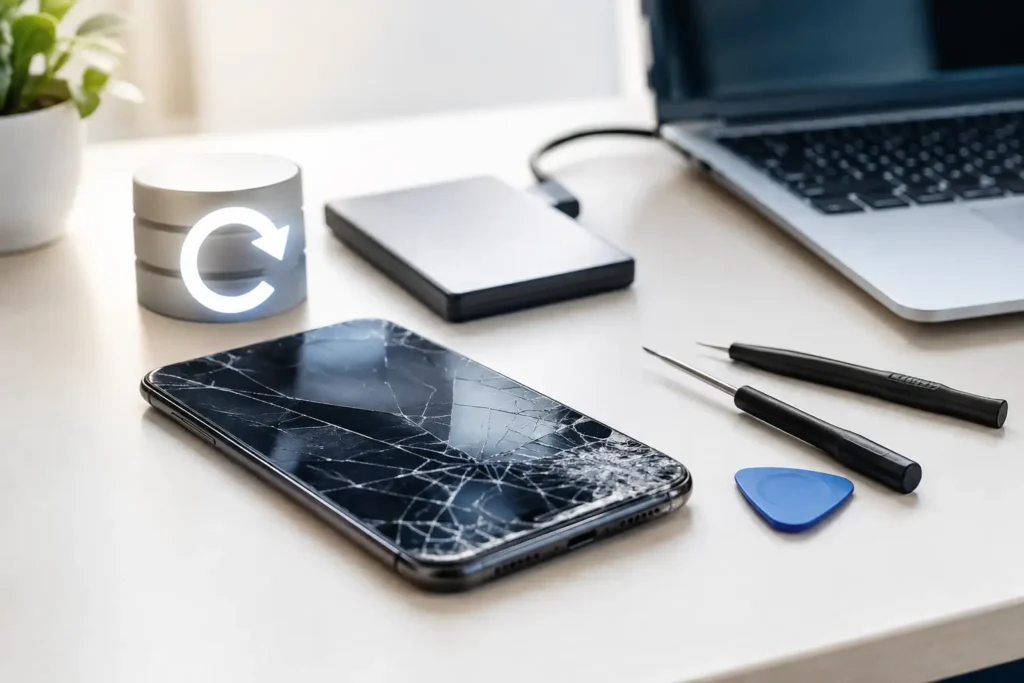
Back up important photos, contacts and files as soon as the phone will stay powered on. This matters particularly if charging is erratic, the battery is swelling, or the device has suffered a drop or liquid exposure.
Stop charging and seek help if you notice these signs
Some charging faults should not be tested repeatedly. Disconnect the phone and charger if you notice a burning smell, crackling, smoke, a badly swollen back cover, extreme heat, or a charger that sparks at the socket. Do not press down a lifted screen or back panel caused by battery swelling. The battery needs safe handling and replacement.
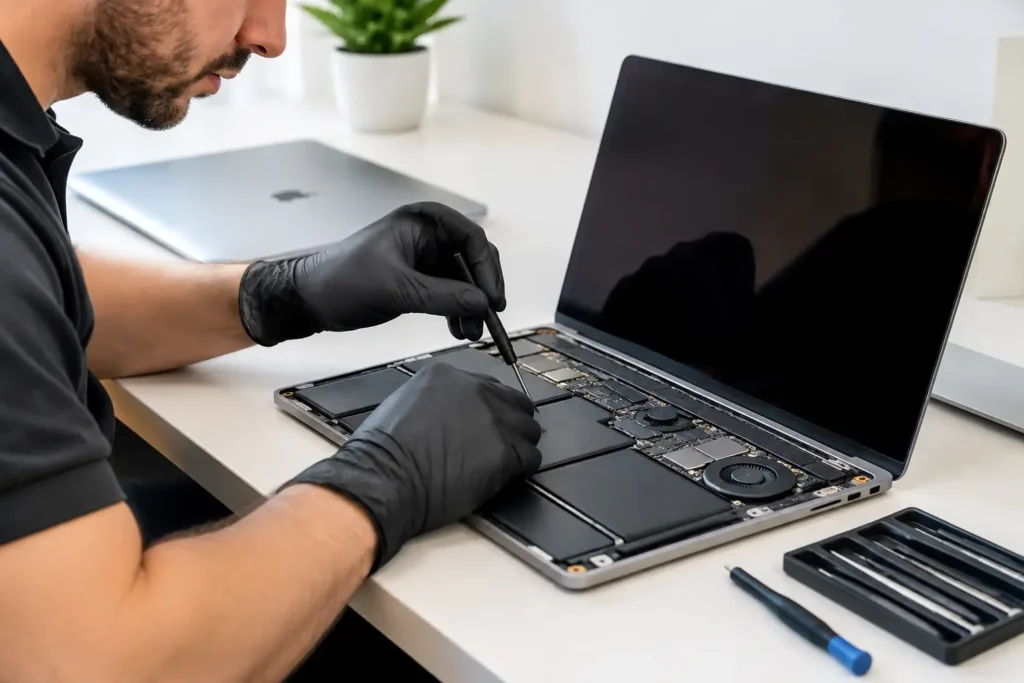
A phone that has been dropped may have a damaged port, displaced battery connector or internal board fault. After liquid exposure, corrosion can affect components well away from the charging port. These repairs require proper inspection rather than a replacement cable and guesswork.
For customers in Barrow-in-Furness, Furness and the wider Cumbria area, TechLab Repairs can assess Samsung charging faults from blocked ports and battery issues to more involved power and board-level problems. A clear diagnosis helps avoid paying for parts that will not fix the underlying fault, while keeping your data handled with care.
A practical next step for a phone that will not charge
Use a known-good cable, adaptor and wall socket, inspect the port without poking inside it, and give a fully flat or moisture-affected handset time before trying again. If charging remains intermittent, slow or completely absent after those checks, stop forcing the connection. A prompt professional assessment is often cheaper than allowing a damaged port, failing battery or liquid fault to become a bigger repair – and it gets a device you depend on back where it belongs: in your hands, working properly.