5 Steps to Arrange a Phone Screen Repair Without the Stress
Need a phone screen repair? Follow our 5-step checklist covering data back up, turnaround times and complaints, then book a call with TechLab Repairs.

Last Updated: November 17, 2026
Quick Summary
Common reasons for macbook screen flicker fall into two groups: software faults, such as a recent macOS update, a conflicting app or heavy background processes, and hardware faults, such as a damaged display cable running through the hinge. Matching the flicker pattern to its cause is the quickest way to decide between a software fix and a repair visit.
Flicker on a MacBook screen is one of the most frustrating faults to deal with, because it can come from a software setting, a bad update or a failing display connection.
Most flicker falls into one of two groups: software problems you can often fix yourself, and hardware faults that need a workshop. The steps below start with the cheap checks and move towards the more serious ones.
A MacBook screen flickers when the image it shows is interrupted or refreshed unevenly. The cause is usually either the software telling the screen what to do, or the hardware carrying that signal to the display. Flicker is rarely random, and the pattern it follows is the fastest way to narrow down the cause before you change any settings or book a repair.
Flicker often falls into recognisable patterns. Match what you are seeing to the clues below, then work through the relevant checks in the rest of this guide.
Software is the most common source of flicker, and it is the first thing to check. The main culprits are:
Background processes are easy to overlook. A single app that keeps spiking the processor can cause the display to stutter, so check which programs are using the most resources before you assume the screen is at fault. Open Activity Monitor, sort by CPU, and watch for a process that stays near the top while the flicker is happening.
MacBooks with two graphics processors can switch between them automatically to save battery. Each switch can cause a brief flicker, especially when the screen changes the way it is driven. Some settings make this worse:
If the flicker only happens on battery or during graphics-heavy work, these settings are the likely cause. On Intel Macs with dual graphics, the switch between integrated and discrete graphics is a well-known source of brief flashes.
Hardware flicker has a different signature. It tends to follow movement, heat or impact rather than settings. The display cable that runs through the hinge is a common failure point on older Intel models, and a panel that has been knocked or exposed to liquid can flicker intermittently before failing outright.
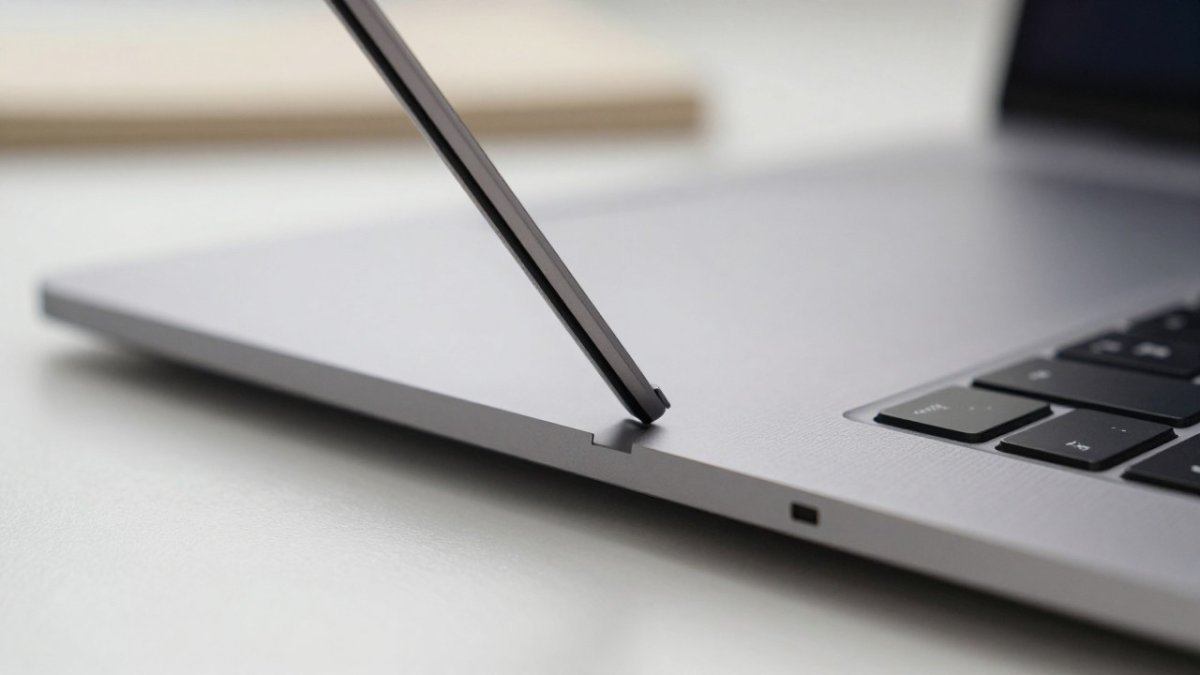
The table below sets out the flicker patterns covered in this section and what each one usually points to.
| Flicker pattern | Likely cause | Where to look |
|---|---|---|
| Started after a macOS update | Software, driver conflict | Update checks |
| Changes when lid is tilted or opened | Display cable through hinge | Hardware checks |
| Only on battery or graphics-heavy work | Graphics switching, Energy Saver | Settings review |
| Present at startup, before macOS loads | Hardware signal | Hardware checks |
| Stops after changing a display setting | Software or configuration | Settings review |
| Only with an external monitor connected | Cable, adapter or external display | External monitor test |
If the flicker started straight after a macOS update, begin here. Many update-related problems clear up once the system has finished settling.
Watch out: do not install beta or unofficial system software to chase a fix. It can make the problem worse and is hard to undo cleanly.
If the flicker continues after these steps, move on to testing the Mac in a clean state. If it still persists after cable checks, you can also read whether a logic board fault can be repaired locally in Cumbria.
Two simple tests help separate software from hardware. Safe Mode loads only essential software, so a flicker that disappears there points towards an app, login item or setting. Connecting an external monitor shows whether the internal display is the problem at all.
To start Safe Mode on an Apple silicon Mac, shut it down fully, press and hold the power button until the startup options appear, select your startup disk, then hold Shift and choose Continue in Safe Mode.
If the screen is steady in Safe Mode, a third-party app or login item is probably responsible. Restart normally and reopen apps one at a time until the flicker returns.
An external monitor is one of the most useful checks. Connect a known-good display using a cable you trust, then close the lid or use the external screen alone.
Use a different cable where you can, because a faulty cable can cause flicker on either screen.
Some flicker appears only when the lid is moved, at certain angles, or after a knock. That pattern usually points to the display cable running through the hinge. Over time the cable can fray or lose contact, which interrupts the signal. On models where the cable is bonded to the panel, a damaged cable often means replacing the whole display assembly rather than the cable alone.
Signs that suggest a hardware fault include:
Open and close the lid slowly while watching the screen, pausing at a few angles. If the image reacts to hinge movement, stop testing and do not keep forcing the lid, because a damaged cable can fail completely. Do not press on the panel or flex the screen to provoke the fault; that can turn an intermittent cable fault into a dead display.
Check the model identifier in System Information under Hardware before you arrange any repair, so you know exactly which machine you have.
Before any hardware troubleshooting, back up your data. A display fault can worsen quickly, and a flickering screen makes it harder to confirm that a backup completed.
Stop troubleshooting and seek qualified repair if any of the following apply:
Do not open the MacBook yourself to reseat a display cable unless you have the correct tools and experience. The battery and display connectors are delicate, and an accidental short can cause permanent damage.
If you have worked through the steps above and the flicker remains, a professional diagnostic is the sensible next step.
Our diagnostic checks use advanced tools and equipment. If your MacBook needs a screen replacement, we can tell you whether it is the right fix for your model.
When you are ready, you can book a MacBook screen replacement for a MacBook Pro 15″ 2018, or book a MacBook screen replacement for a MacBook Pro 15″ 2019. If you are not sure which model you have, see our MacBook repairs to find out what we cover.
Pricing depends on the model and the fault, so please visit the TechLab Repairs website for current prices or a quote.
The most common causes are software issues such as a recent macOS update or a background process misbehaving, graphics settings like automatic graphics switching, and in some cases a fault in the display cable or the screen itself. Start by restarting, checking for pending updates and testing the Mac in Safe Mode. If the flicker continues in Safe Mode and with an external monitor, a hardware cause becomes more likely and a diagnostic check is worth arranging with TechLab Repairs.
Yes. A macOS update can introduce a bug or conflict with existing graphics drivers, particularly on older models. Flicker that starts straight after an update is a useful clue. Check for a later point release, restart the Mac, and review display settings such as resolution and refresh rate. If the problem persists, the update itself may need to be reviewed rather than assumed to be the only cause.
Flicker that continues in Safe Mode, appears on an external monitor as well as the built-in display, or changes when the lid is moved or angled is more suggestive of a hardware fault. Visible lines, dark patches or flicker that worsens over time also point to hardware. Because these symptoms overlap with software issues, an in-person diagnosis is the most reliable way to confirm the cause.
Yes. The display cable runs through the hinge and can become worn or loose, which often produces flicker that changes with the angle of the lid. Testing with an external monitor helps here: if the external screen is stable while the built-in display flickers, the internal connection or the display panel is the more likely source. A technician can check and replace the cable where needed.
Need a phone screen repair? Follow our 5-step checklist covering data back up, turnaround times and complaints, then book a call with TechLab Repairs.
A phone repair warranty should protect the work done, not create confusion. Learn what to check before booking a repair in Cumbria with confidence now.
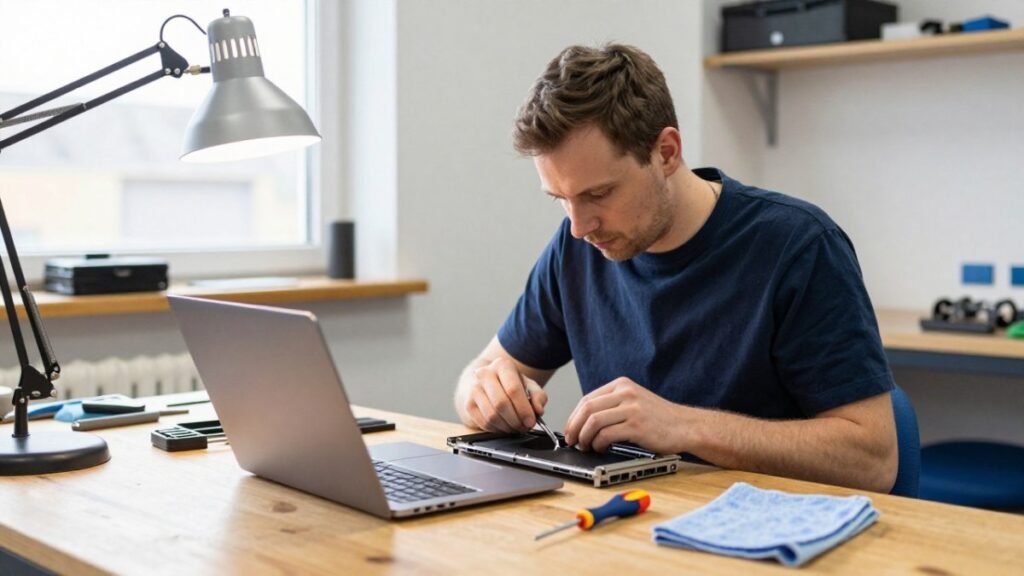
A laptop repair turnaround can range from a same-day fix to a week or more. Learn what causes delays and how to check your repair status.
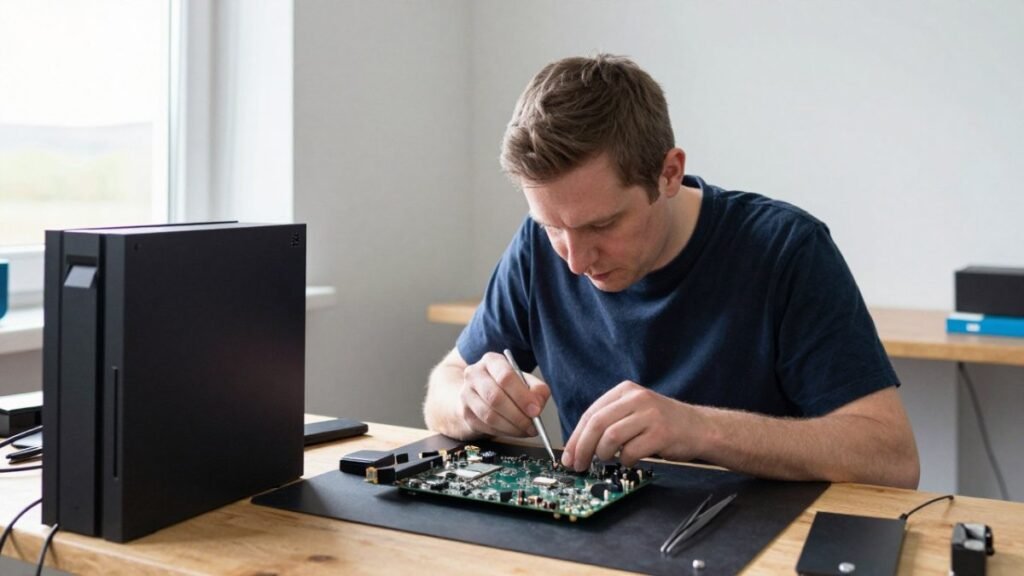
Start with gaming console hardware basics: diagnose overheating, safely open the case and spot faults you can fix at home.
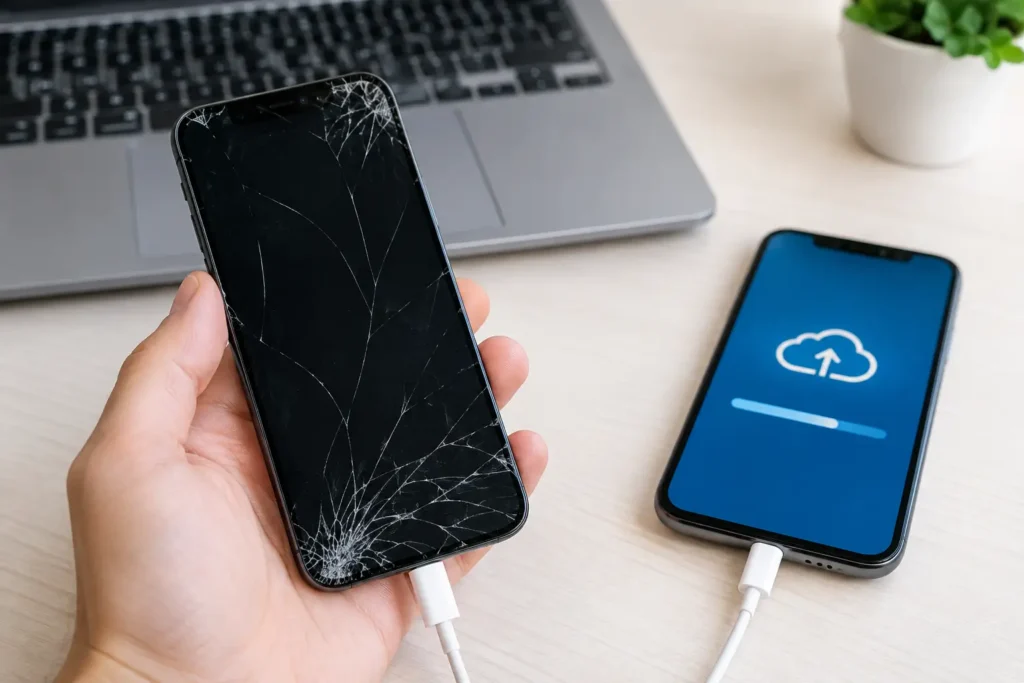
Learn how to backup cracked phone data when the screen will not respond. Safe steps for Android and iPhone before a repair, reset or replacement safely.
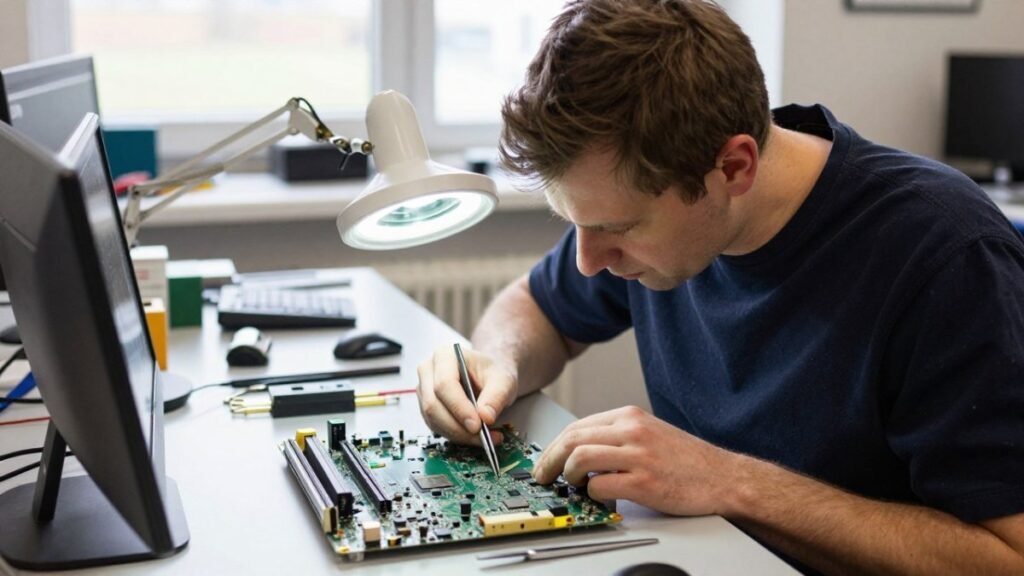
Before you pay for data recovery, find out what it will likely cost, what your files are worth to you, and whether a DIY attempt could make things worse.
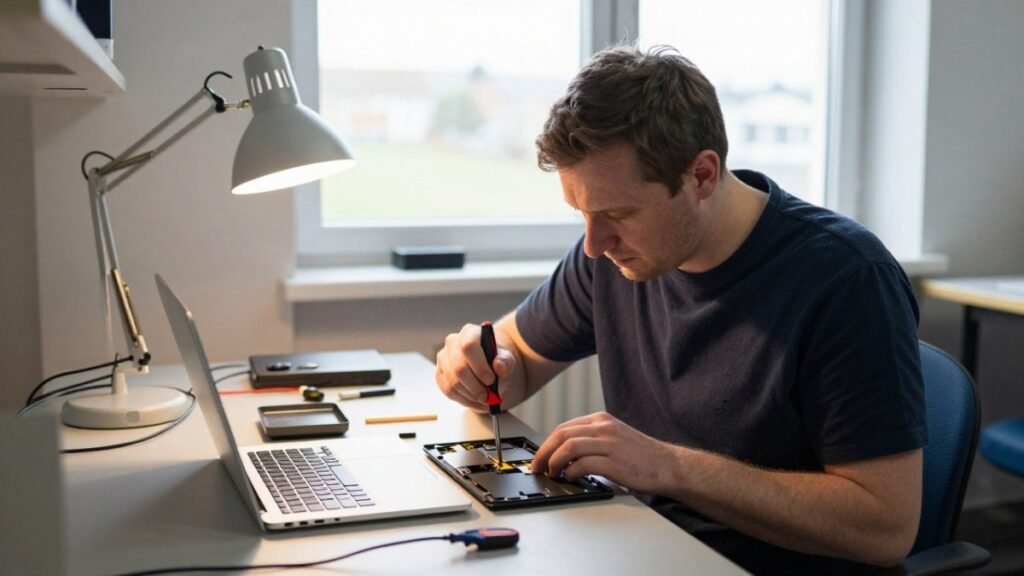
Learn the signs of a failing laptop hard drive, from clicking noises to missing files, and the steps to check drive health and protect your data.
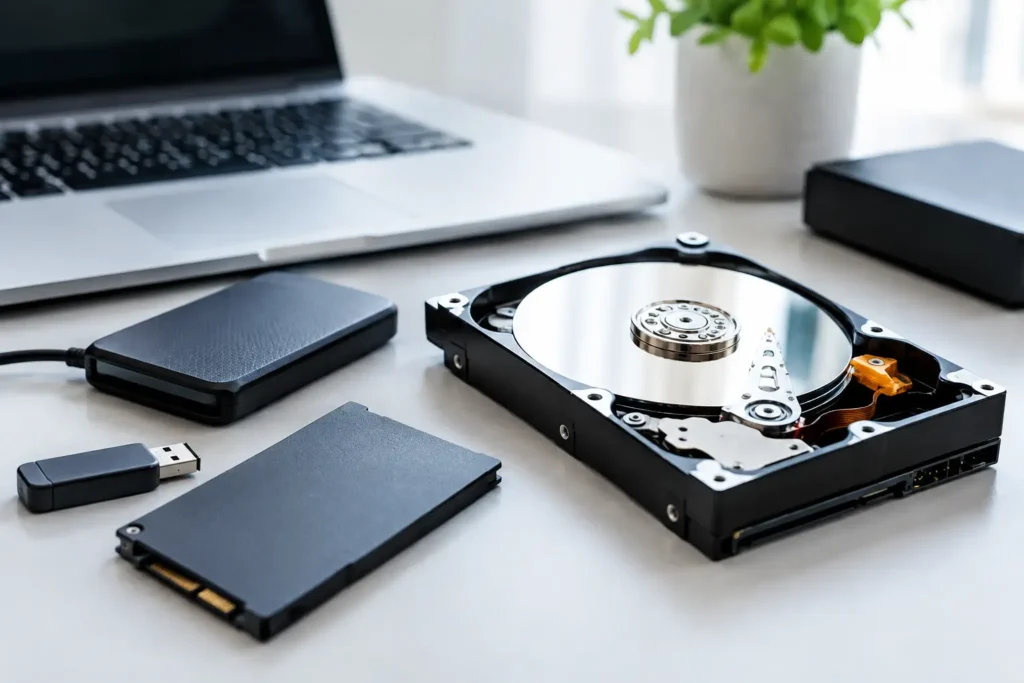
Compare safe data recovery options for phones, laptops and drives. Know what to do first, when to stop and how professional recovery protects files well.
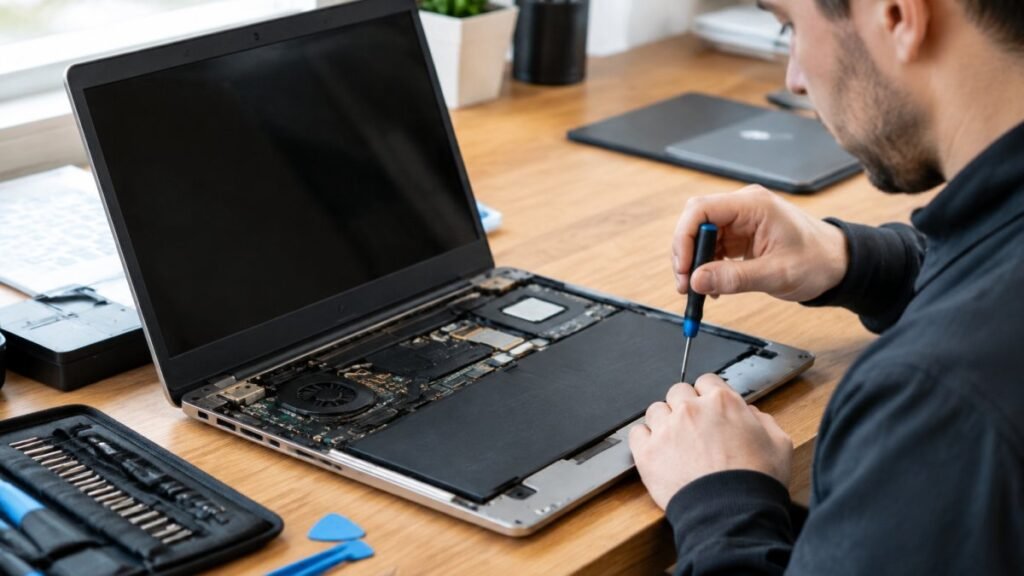
Before you hand over your laptop, learn how to vet a laptop repair shop, from diagnosis-first quotes to warranties that cover labour.